
🔧 Creating a Repository From Scratch (Part A)
🏗️ Build a Git Repo Without git init!
Using only echo, mkdir, and low-level Git commands
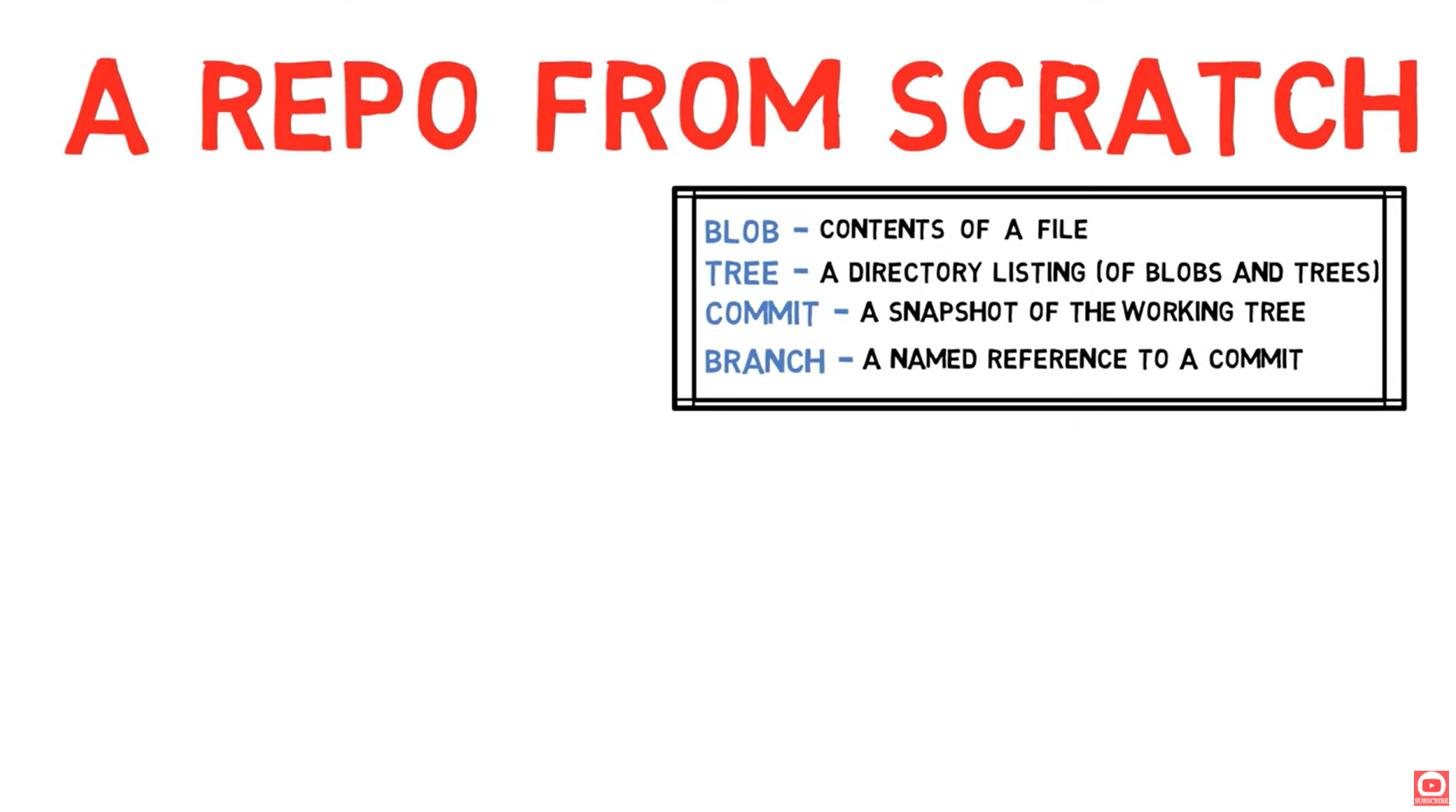
📺 Video Reference
| Resource | Link |
|---|---|
| 🎬 Video | Creating Repo From Scratch |
| 📄 Transcript | 04-creating-a-repo-from-scratch.txt |
🎯 What We'll Build
We're going to create a complete Git repository without using:
- ❌
git init - ❌
git add - ❌
git commit
Instead, we'll use:
- ✅
echoandmkdir - ✅ Plumbing commands (
git hash-object,git update-index, etc.)
🔧 Porcelain vs Plumbing Commands
The Toilet Analogy 🚽
Git commands are divided into two types, named after toilet parts (seriously!):
| Type | Description | Examples |
|---|---|---|
| Porcelain | User-friendly, high-level | git add, git commit, git checkout |
| Plumbing | Low-level, internal | git hash-object, git update-index, git write-tree |
Most users only interact with the porcelain (the nice, visible part). But underneath, the plumbing does the real work!
📋 Plumbing Commands Reference
| Command | Purpose | Input | Output |
|---|---|---|---|
git hash-object | Create blob from content | File or stdin | SHA-1 hash |
git cat-file | Read object content | SHA-1 hash | Content/type/size |
git update-index | Add entry to staging area | Blob SHA + filename | Updates index |
git write-tree | Create tree from index | Index | Tree SHA |
git commit-tree | Create commit from tree | Tree SHA + message | Commit SHA |
git update-ref | Update branch reference | Branch + SHA | Updates ref file |
🚀 Part 1: The Normal Way (for comparison)
First, let's see what git init creates:
# Create a normal repo
mkdir normal-repo && cd normal-repo
git init
Output:
Initialized empty Git repository in /workspace/normal-repo/.git/What git init Created
tree .git.git
├── HEAD ← Points to current branch
├── config ← Repository configuration
├── description ← GitWeb description (rarely used)
├── hooks/ ← Git hooks (scripts)
│ ├── pre-commit.sample
│ └── ... (more samples)
├── info/
│ └── exclude ← Local gitignore
├── objects/ ← Object database
│ ├── info/
│ └── pack/
└── refs/ ← References (branches, tags)
├── heads/ ← Local branches
└── tags/ ← TagsThe Normal Workflow
# Create a file
echo "hello" > f.txt

# Stage it
git add f.txt

# Commit it
git commit -m "added f.txt"
🔍 What Actually Happens When You Run git add?
🎯 Let's Break Down `git add` Step by Step!
Understanding this is KEY to understanding Git internals
Starting Point
Let's say you have a file:
echo "hello world" > myfile.txtAt this point:
- ✅ File exists in working directory
- ❌ Nothing in staging area (index)
- ❌ Nothing in object database
When You Run git add myfile.txt
Git does TWO things internally:
Step 1: Create a Blob Object
When you run git add, Git first creates a blob (Binary Large OBject):
┌─────────────────────────────────────────────────────────────────┐
│                    What Git Does Internally                      │
├─────────────────────────────────────────────────────────────────┤
│                                                                  │
│  1. Read file contents: "hello world"                           │
│                                                                  │
│  2. Prepend header: "blob 11\0" (type + size + null byte)       │
│     Result: "blob 11\0hello world"                              │
│                                                                  │
│  3. Calculate SHA-1 hash of that string:                        │
│     → 95d09f2b10159347eece71399a7e2e907ea3df4f                  │
│                                                                  │
│  4. Compress with zlib and store at:                            │
│     .git/objects/95/d09f2b10159347eece71399a7e2e907ea3df4f     │
│                                                                  │
└─────────────────────────────────────────────────────────────────┘
This is equivalent to running:
git hash-object -w myfile.txt
# Output: 95d09f2b10159347eece71399a7e2e907ea3df4f- ❌ The filename
- ❌ The file path
- ❌ File permissions
- ❌ When it was created
Step 2: Update the Index (Staging Area)
After creating the blob, Git updates the index file:
┌─────────────────────────────────────────────────────────────────┐
│                    .git/index gets updated                       │
├─────────────────────────────────────────────────────────────────┤
│                                                                  │
│  New entry added:                                                │
│  ┌─────────────────────────────────────────────────────────┐    │
│  │ mode: 100644 (regular file)                              │    │
│  │ SHA:  95d09f2b10159347eece71399a7e2e907ea3df4f          │    │
│  │ path: myfile.txt                                         │    │
│  └─────────────────────────────────────────────────────────┘    │
│                                                                  │
└─────────────────────────────────────────────────────────────────┘
This is equivalent to running:
git update-index --add --cacheinfo 100644 \
    95d09f2b10159347eece71399a7e2e907ea3df4f \
    myfile.txt
After git add - The Complete Picture
Now you have:
- ✅ File in working directory (
myfile.txt) - ✅ Blob in object database (
.git/objects/95/d09f2b...) - ✅ Entry in index linking filename to blob SHA
Visual Summary: git add = Two Operations
┌────────────────────────────────────────────────────────────────────┐
│                         git add myfile.txt                          │
├────────────────────────────────────────────────────────────────────┤
│                                                                     │
│   ┌─────────────────────┐         ┌─────────────────────┐          │
│   │   STEP 1: BLOB      │         │   STEP 2: INDEX     │          │
│   │   ═══════════════   │         │   ═══════════════   │          │
│   │                     │         │                     │          │
│   │   Read myfile.txt   │         │   Add entry:        │          │
│   │         ↓           │         │                     │          │
│   │   "hello world"     │         │   myfile.txt        │          │
│   │         ↓           │         │      ↓              │          │
│   │   SHA-1 hash        │         │   95d09f2b...       │          │
│   │         ↓           │         │      ↓              │          │
│   │   95d09f2b...       │────────→│   100644 (mode)     │          │
│   │         ↓           │         │                     │          │
│   │   Store in          │         │   Write to          │          │
│   │   .git/objects/     │         │   .git/index        │          │
│   │                     │         │                     │          │
│   └─────────────────────┘         └─────────────────────┘          │
│                                                                     │
│   Plumbing equivalent:            Plumbing equivalent:              │
│   git hash-object -w file         git update-index --add            │
│                                                                     │
└────────────────────────────────────────────────────────────────────┘
What If You Modify the File and git add Again?
# Modify the file
echo "hello world v2" > myfile.txt

# Stage again
git add myfile.txt
Git creates a NEW blob with a NEW SHA:
Quick Reference: git add Internals
What git add Does | Plumbing Equivalent |
|---|---|
| Create blob from file | git hash-object -w <file> |
| Update index | git update-index --add --cacheinfo <mode> <sha> <path> |
| Component | Location | Purpose |
|---|---|---|
| Blob | .git/objects/XX/XXXX... | Stores file contents (compressed) |
| Index | .git/index | Maps filenames to blob SHAs |
📸 What Actually Happens When You Run git commit?
🎬 Now Let's Understand `git commit`!
This is where Git creates a permanent snapshot of your staged changes
Starting Point (After git add)
We have:
- ✅ Blob in object database
- ✅ Entry in index pointing to blob
- ❌ No tree yet
- ❌ No commit yet
When You Run git commit -m "message"
Git does THREE things internally:
🌳 Step 1: Create a Tree Object
The tree is a snapshot of your directory structure at commit time.
What is a Tree?
- mode - file permissions (100644, 100755, 040000)
- type - blob or tree
- SHA - hash of the content
- name - filename or directory name
Git Reads the Index and Creates a Tree
┌─────────────────────────────────────────────────────────────────┐
│                   Index → Tree Conversion                        │
├─────────────────────────────────────────────────────────────────┤
│                                                                  │
│  Index contains:                    Tree object created:         │
│  ┌─────────────────────┐            ┌─────────────────────┐     │
│  │ myfile.txt          │            │ 100644 blob 95d09f2 │     │
│  │   → 95d09f2b...     │     →      │        myfile.txt   │     │
│  │   mode: 100644      │            │                     │     │
│  └─────────────────────┘            │ SHA: 7a8b9c0d...    │     │
│                                     └─────────────────────┘     │
│                                                                  │
└─────────────────────────────────────────────────────────────────┘
This is equivalent to running:
git write-tree
# Output: 7a8b9c0d1e2f3a4b5c6d7e8f9a0b1c2d3e4f5a6b
Tree Structure for Multiple Files
If you have multiple files and directories:
Working Directory:
├── README.md
├── src/
│   ├── main.js
│   └── utils.js
└── package.json
Git creates a tree hierarchy:
What's Inside a Tree Object?
git cat-file -p 7a8b9c0d1e2f3a4b5c6d7e8f9a0b1c2d3e4f5a6bOutput:
100644 blob 95d09f2b10159347eece71399a7e2e907ea3df4f    myfile.txt
100644 blob def456789abcdef0123456789abcdef012345678    README.md
040000 tree cde0123456789abcdef0123456789abcdef01234    src
📸 Step 2: Create a Commit Object
Now Git creates the commit object - the actual snapshot!
What's in a Commit?
┌─────────────────────────────────────────────────────────────────┐
│                      Commit Object Contents                      │
├─────────────────────────────────────────────────────────────────┤
│                                                                  │
│  tree 7a8b9c0d1e2f3a4b5c6d7e8f9a0b1c2d3e4f5a6b                 │
│       ↑ Points to root tree (the snapshot!)                     │
│                                                                  │
│  parent a1b2c3d4e5f6a7b8c9d0e1f2a3b4c5d6e7f8a9b0               │
│         ↑ Previous commit (omitted if first commit)             │
│                                                                  │
│  author John Doe <john@example.com> 1706300000 +0000            │
│         ↑ Who wrote the code + timestamp                        │
│                                                                  │
│  committer John Doe <john@example.com> 1706300000 +0000         │
│            ↑ Who created the commit + timestamp                  │
│                                                                  │
│  Add myfile                                                      │
│  ↑ Commit message                                                │
│                                                                  │
└─────────────────────────────────────────────────────────────────┘
This is equivalent to running:
# For first commit (no parent):
git commit-tree 7a8b9c0d... -m "Add myfile"
# Output: f1e2d3c4b5a6978808695a4b3c2d1e0f9a8b7c6d

# For subsequent commits (with parent):
git commit-tree 7a8b9c0d... -m "Add myfile" -p a1b2c3d4...
Author vs Committer - What's the Difference?
Who originally wrote the code
Example: You write a patch and email it to someone
Who actually created the commit
Example: Maintainer applies your patch to their repo
Usually they're the same person! They differ in cases like:
- Cherry-picking commits
- Applying patches
- Rebasing (committer changes, author stays same)
🔄 Step 3: Update the Branch Reference
The commit object exists, but Git needs to know it's the latest on this branch!
What Happens
┌─────────────────────────────────────────────────────────────────┐
│                    Branch Reference Update                       │
├─────────────────────────────────────────────────────────────────┤
│                                                                  │
│  Before commit:                                                  │
│  .git/refs/heads/main → a1b2c3d4... (previous commit)           │
│                                                                  │
│  After commit:                                                   │
│  .git/refs/heads/main → f1e2d3c4... (NEW commit!)               │
│                                                                  │
└─────────────────────────────────────────────────────────────────┘
This is equivalent to running:
git update-ref refs/heads/main f1e2d3c4b5a6978808695a4b3c2d1e0f9a8b7c6d

# Or simply:
echo "f1e2d3c4b5a6978808695a4b3c2d1e0f9a8b7c6d" > .git/refs/heads/main
🎬 Complete git commit Visualization
📊 The Complete Picture: git add + git commit
┌──────────────────────────────────────────────────────────────────────────┐
│                    COMPLETE WORKFLOW: add + commit                        │
├──────────────────────────────────────────────────────────────────────────┤
│                                                                           │
│  WORKING DIR          INDEX              OBJECTS           REFS           │
│  ════════════         ═════              ═══════           ════           │
│                                                                           │
│  ┌─────────┐                                                              │
│  │ myfile  │                                                              │
│  │ "hello" │                                                              │
│  └────┬────┘                                                              │
│       │                                                                   │
│       │  git add                                                          │
│       ▼                                                                   │
│  ┌─────────┐     ┌─────────────┐      ┌─────────────┐                    │
│  │ myfile  │────▶│ myfile.txt  │─────▶│ 📦 BLOB     │                    │
│  │ "hello" │     │ → 95d09f2b  │      │ 95d09f2b... │                    │
│  └─────────┘     └──────┬──────┘      └─────────────┘                    │
│                         │                                                 │
│                         │  git commit                                     │
│                         ▼                                                 │
│                  ┌─────────────┐      ┌─────────────┐                    │
│                  │ (unchanged) │      │ 🌳 TREE     │                    │
│                  │             │◀─────│ 7a8b9c0d... │                    │
│                  └─────────────┘      └──────┬──────┘                    │
│                                              │                            │
│                                              ▼                            │
│                                       ┌─────────────┐    ┌──────────┐    │
│                                       │ 📸 COMMIT   │───▶│ main     │    │
│                                       │ f1e2d3c4... │    │ f1e2d3c4 │    │
│                                       │ tree: 7a8b  │    └──────────┘    │
│                                       │ parent: ... │                    │
│                                       │ msg: "..."  │                    │
│                                       └─────────────┘                    │
│                                                                           │
└──────────────────────────────────────────────────────────────────────────┘
🔑 Key Insights
No filename, no path, just raw content with SHA
Maps names → blobs/trees, like a directory listing
Point to a tree + metadata + parent(s)
Just a file with a commit SHA inside
📋 Quick Reference: git commit Internals
What git commit Does | Plumbing Equivalent |
|---|---|
| Create tree from index | git write-tree |
| Create commit object | git commit-tree <tree> -m "msg" -p <parent> |
| Update branch ref | git update-ref refs/heads/<branch> <commit> |
Objects Created During git add + git commit
| Step | Object Type | Created By | Contains |
|---|---|---|---|
git add | Blob | hash-object -w | File contents |
git commit | Tree | write-tree | Directory listing |
git commit | Commit | commit-tree | Tree + metadata |
🏗️ Part 2: Building From Scratch
Now let's do the same thing manually!
Step 1: Create Minimal .git Structure
# Create a new empty directory
mkdir scratch-repo && cd scratch-repo

# Check if Git recognizes it
git status
# Output: fatal: not a git repository
What does a Git repository need?
# Create the minimal structure
mkdir -p .git/objects
mkdir -p .git/refs/heads

# Still not recognized!
git status
# Output: fatal: not a git repository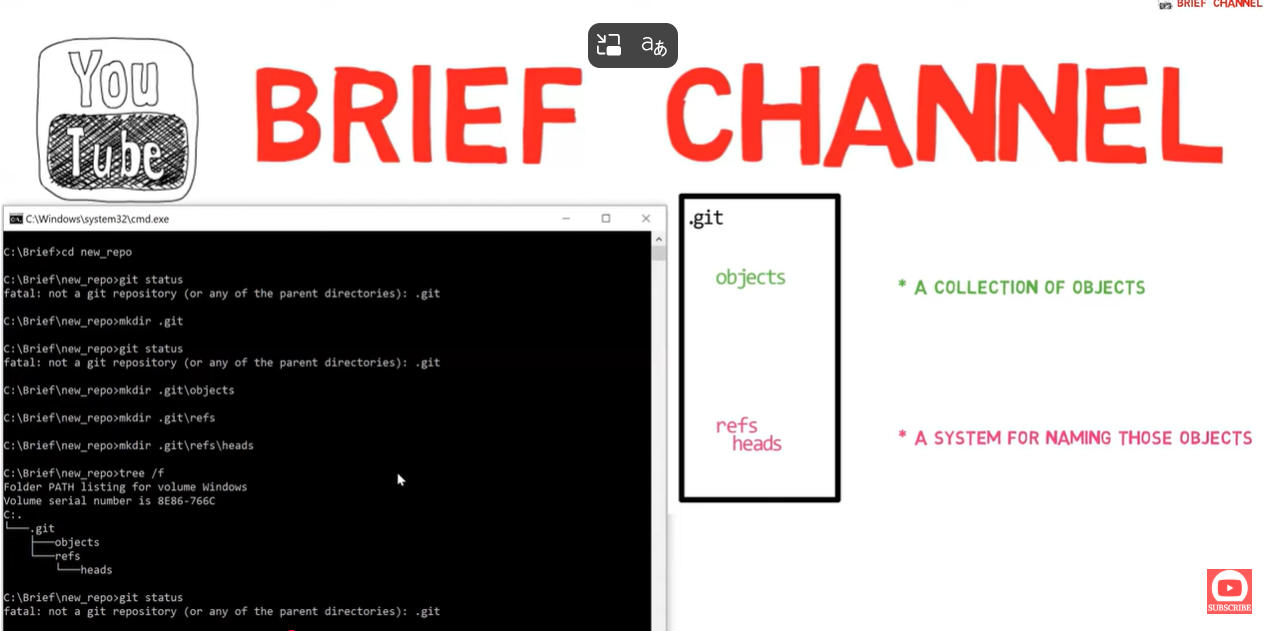
Step 2: Create HEAD
Git needs to know the current branch:
# Point HEAD to master branch
echo "ref: refs/heads/master" > .git/HEAD

# Now Git recognizes it!
git status
Output:
On branch master

No commits yet

nothing to commit (create/copy files and use "git add" to track)
🎉 We just created a Git repository without git init!
.git/
├── HEAD              ← Contains: ref: refs/heads/master
├── objects/          ← Empty (no blobs yet)
└── refs/
    └── heads/        ← Empty (no branches yet)
Step 3: Create a Blob (file contents)
Instead of git add, we'll use git hash-object:
# Create a blob from stdin and write it (-w)
echo "Hello from scratch repo!" | git hash-object --stdin -w
Output:
9319a0a8769459fe40ef3849dd2b19b9b31d3f1b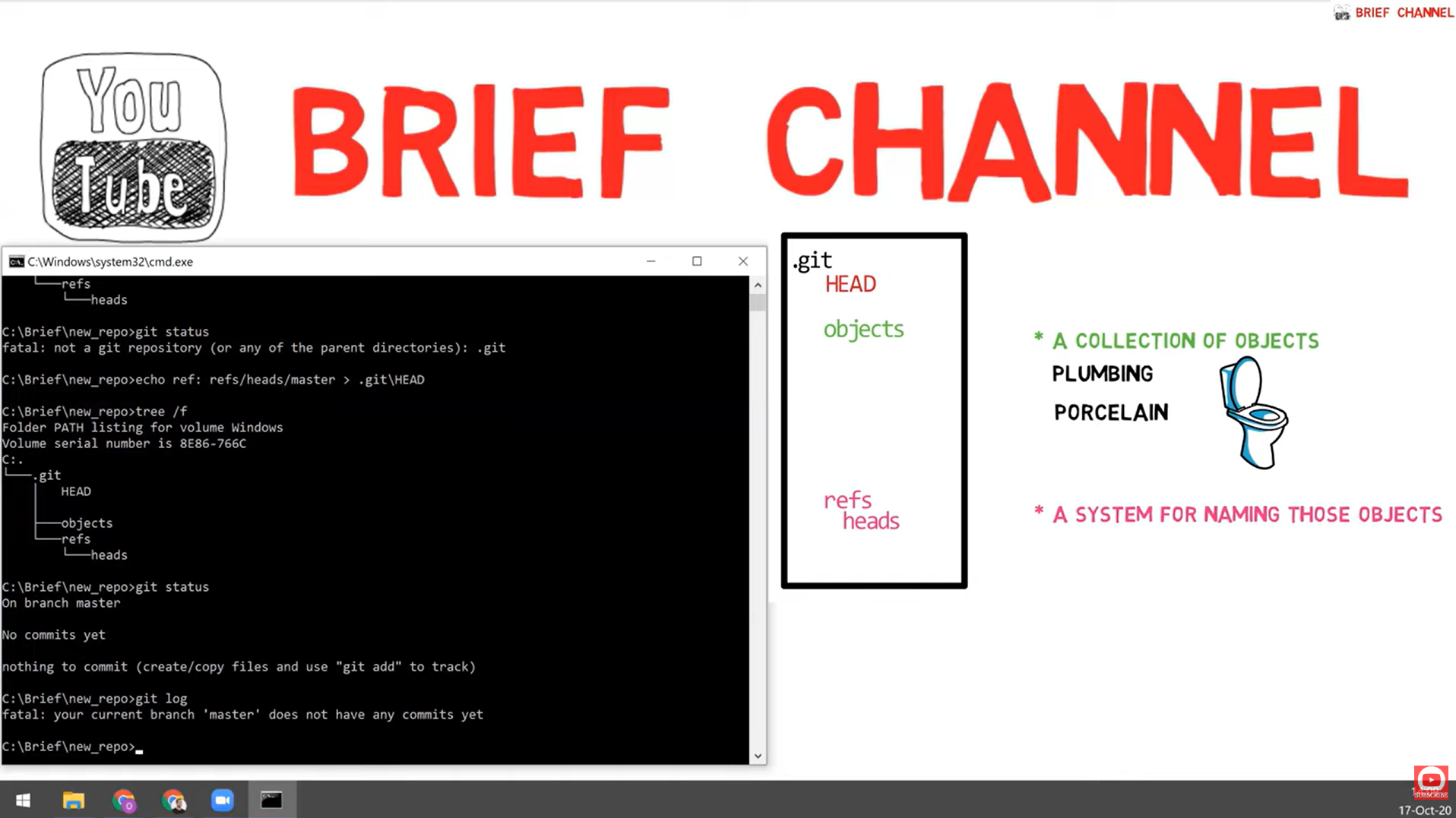
What happened?
# See the new object
tree .git/objects
.git/objects/
├── 93/
│ └── 19a0a8769459fe40ef3849dd2b19b9b31d3f1b
├── info/
└── pack/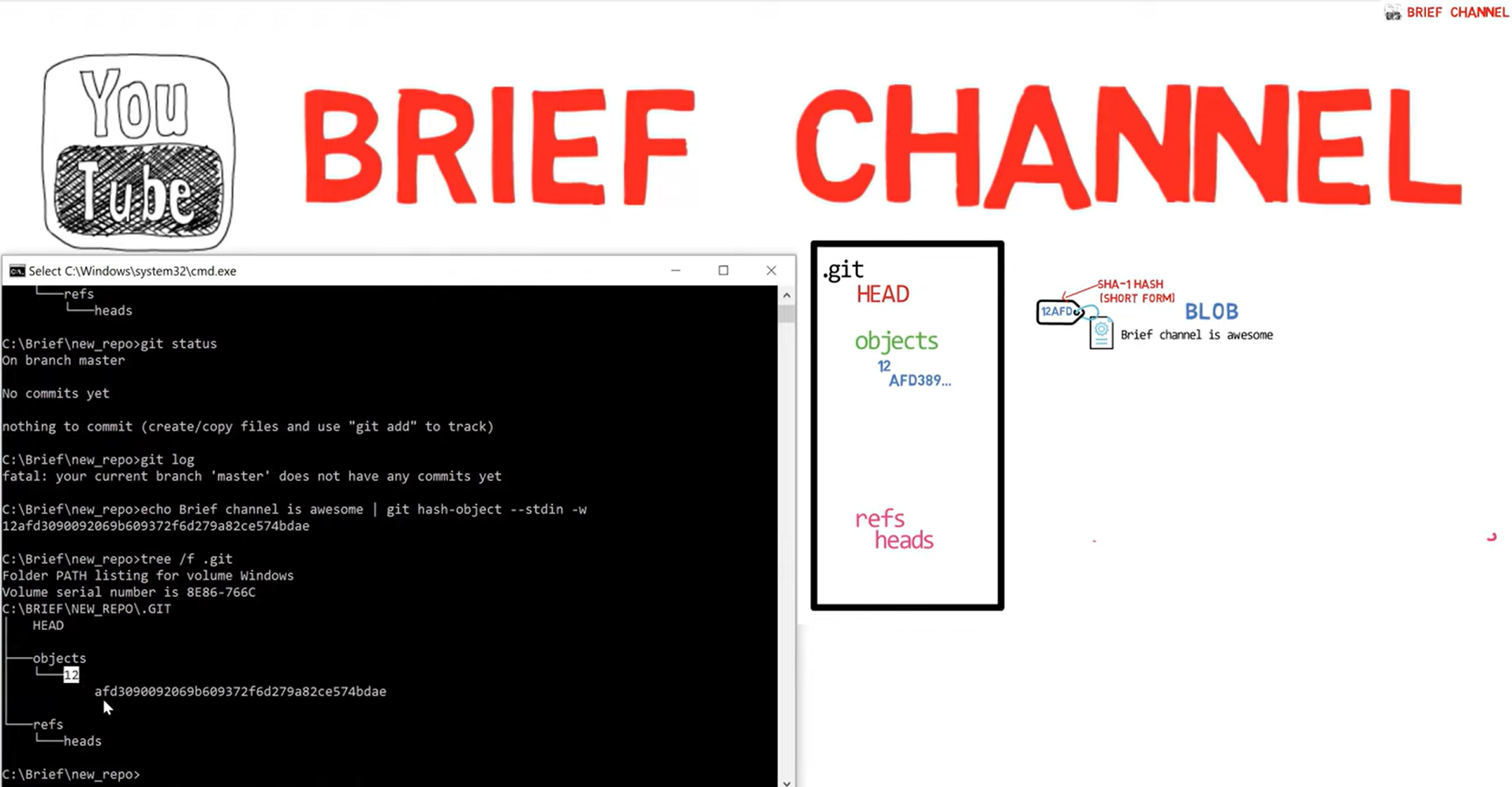
Git splits the hash: first 2 chars = directory name, remaining 38 = filename.
This is an optimization: instead of 300,000 files in one folder, Git can have 256 folders with ~1,172 files each. Much faster lookups!
Verify the Blob
# Check object type
git cat-file -t 9319a0a8769459fe40ef3849dd2b19b9b31d3f1b
# Output: blob

# Check object contents
git cat-file -p 9319a0a8769459fe40ef3849dd2b19b9b31d3f1b
# Output: Hello from scratch repo!
Step 4: Add Blob to Index (Staging Area)
The blob exists, but it's not tracked yet:
git status
# Shows: nothing to commit
📋 Deep Dive: What is the Staging Area (Index)?
🎯 The Index Explained
The Index (also called Staging Area or Cache) is a binary file at .git/index that acts as a bridge between your working directory and the next commit.
Think of it as a "draft" of your next commit!
The Three Areas of Git
What Does the Index Store?
The index stores a list of entries, each containing:
| Field | Description | Example |
|---|---|---|
| File path | Where the file lives | src/hello.txt |
| Blob SHA | Hash of file contents | 9319a0a876... |
| File mode | Permissions | 100644 (regular file) |
| Timestamps | For detecting changes | mtime, ctime |
| File size | For quick comparison | 35 bytes |
┌─────────────────────────────────────────────────────────────┐
│                     .git/index (binary)                      │
├─────────────────────────────────────────────────────────────┤
│  Entry 1: hello.txt  → blob 9319a0a8... │ mode 100644       │
│  Entry 2: src/app.js → blob 4f2e8c1a... │ mode 100644       │
│  Entry 3: run.sh     → blob 7a8b9c0d... │ mode 100755       │
└─────────────────────────────────────────────────────────────┘
Why Does the Index Exist?
Commit only some changes, not everything
Fast comparison without reading all files
Prepare everything before committing
Handle conflicts before finalizing
🔧 Adding Our Blob to the Index
We need to add our blob to the index (staging area):
# Add blob to index with a filename
git update-index --add --cacheinfo 100644 \
    9319a0a8769459fe40ef3849dd2b19b9b31d3f1b \
    hello.txt
Parameters explained:
--add: Add a new entry to the index--cacheinfo: We're providing cache info directly (not from a file)100644: File mode (regular file, not executable)9319a0a...: The blob SHA we created earlierhello.txt: The filename to associate with this blob
File Modes Reference
| Mode | Type | Description |
|---|---|---|
100644 | Regular file | Normal file (rw-r--r--) |
100755 | Executable | Script or binary (rwxr-xr-x) |
120000 | Symlink | Symbolic link |
040000 | Directory | Used in trees |
# Check what happened
ls .git
# Output: HEAD  index  objects  refs

# The index file was created!
🤯 The "Deleted" File Mystery
git statusOn branch master
No commits yet
Changes to be committed:
(use "git rm --cached <file>..." to unstage)
new file: hello.txt
Changes not staged for commit:
deleted: hello.txt ← File doesn't exist in working dir!What's Happening Here?
⚠️ Understanding the "Deleted" Status
Git is comparing THREE things:
- Index says: "hello.txt should exist with content SHA 9319a0a8..."
- Working directory says: "There's no file called hello.txt"
- Git concludes: "The file was deleted from working directory!"
The Three-Way Comparison
Git status actually compares:
| Comparison | What It Shows |
|---|---|
| HEAD vs Index | "Changes to be committed" |
| Index vs Working Dir | "Changes not staged for commit" |
┌─────────────────────────────────────────────────────────────────┐
│                        git status output                         │
├─────────────────────────────────────────────────────────────────┤
│                                                                  │
│  HEAD (last commit)     Index (staging)      Working Directory   │
│  ═══════════════════    ═══════════════      ════════════════    │
│  (no commits yet)   →   hello.txt exists  →  hello.txt MISSING   │
│                                                                  │
│  Result:                                                         │
│  • "new file: hello.txt" (HEAD→Index: file added)               │
│  • "deleted: hello.txt"  (Index→WD: file missing)               │
│                                                                  │
└─────────────────────────────────────────────────────────────────┘
This is Actually Normal!
This situation happens because:
- We created a blob (file contents in object database)
- We added an index entry (telling Git this blob is "hello.txt")
- But we never created the actual file on disk!
- A blob without an index entry (orphaned object)
- An index entry without a working file (our current situation)
- A working file without an index entry (untracked file)
Fix: Create the Working Directory File
# Extract blob contents to file
git cat-file -p 9319a0a8769459fe40ef3849dd2b19b9b31d3f1b > hello.txt

git status
On branch master
No commits yet
Changes to be committed:
(use "git rm --cached <file>..." to unstage)
new file: hello.txtNow we have:
- ✅ Blob in object database
- ✅ Entry in index
- ✅ File in working directory
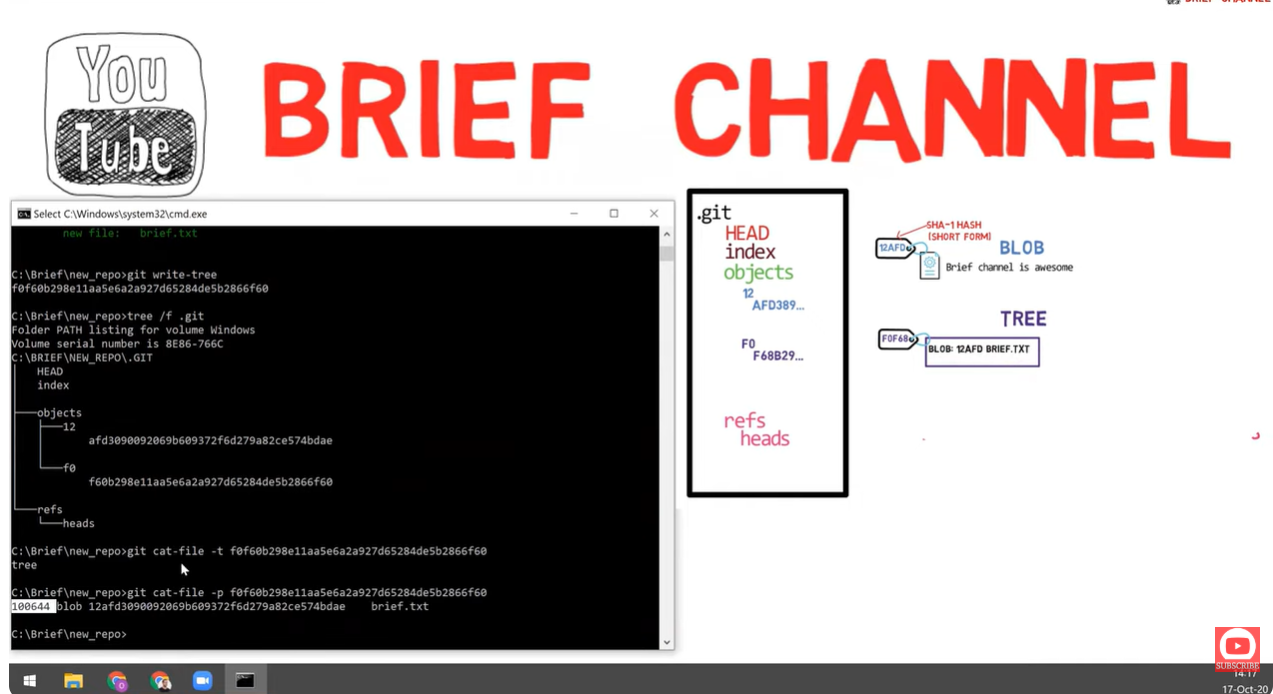
Step 5: Create a Tree
The index has our staged files. Now create a tree from it:
git write-treeOutput:
5d602270f7e18bdf87859adc086fa0a90fb89e39What happened?
# Verify tree was created
tree .git/objects
.git/objects/
├── 5d/
│ └── 602270f7e18bdf87859adc086fa0a90fb89e39 ← New tree!
├── 93/
│ └── 19a0a8769459fe40ef3849dd2b19b9b31d3f1b ← Our blob# Inspect the tree
git cat-file -t 5d602270f7e18bdf87859adc086fa0a90fb89e39
# Output: tree
git cat-file -p 5d602270f7e18bdf87859adc086fa0a90fb89e39
# Output: 100644 blob 9319a0a8769459fe40ef3849dd2b19b9b31d3f1b hello.txt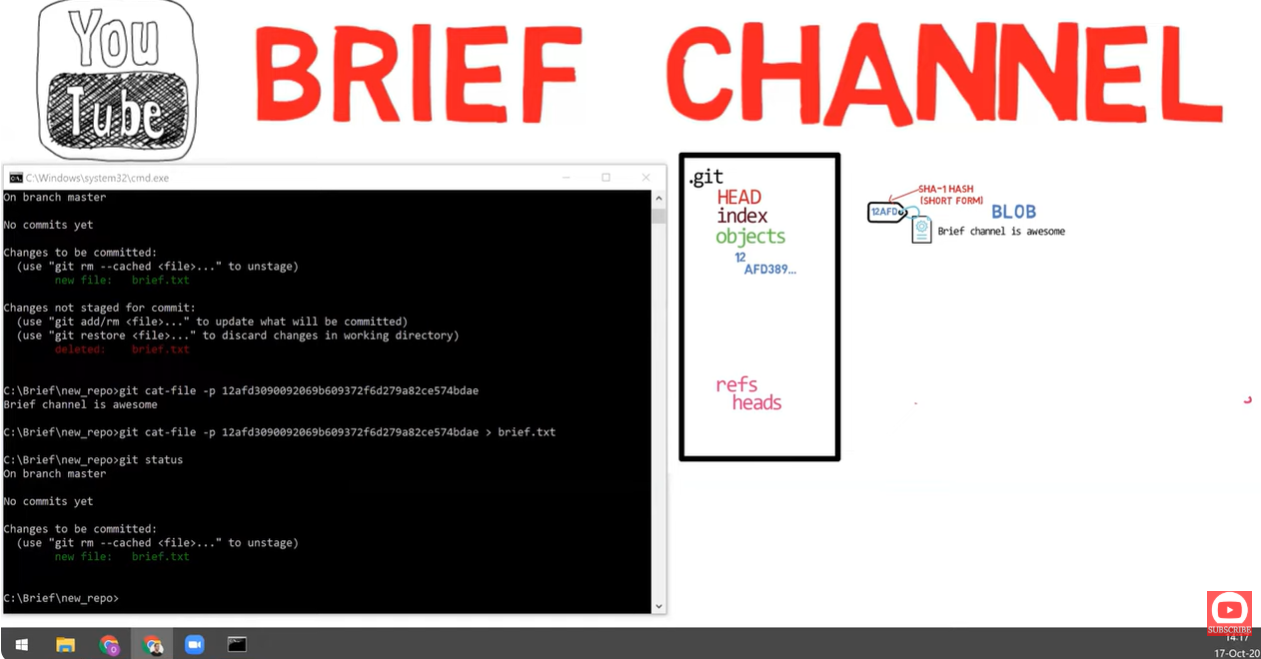
Step 6: Create a Commit
Now create a commit pointing to our tree:
# May need to set identity first
git config --global user.email "you@example.com"
git config --global user.name "Your Name"

# Create commit
git commit-tree 5d602270f7e18bdf87859adc086fa0a90fb89e39 -m "Initial commit"
Output:
a52f8f31b84c2e5c0ea76bf21c9f57f30476af91What happened?
# Inspect the commit
git cat-file -p a52f8f31b84c2e5c0ea76bf21c9f57f30476af91
tree 5d602270f7e18bdf87859adc086fa0a90fb89e39
author Your Name <you@example.com> 1769447140 +0000
committer Your Name <you@example.com> 1769447140 +0000
Initial commit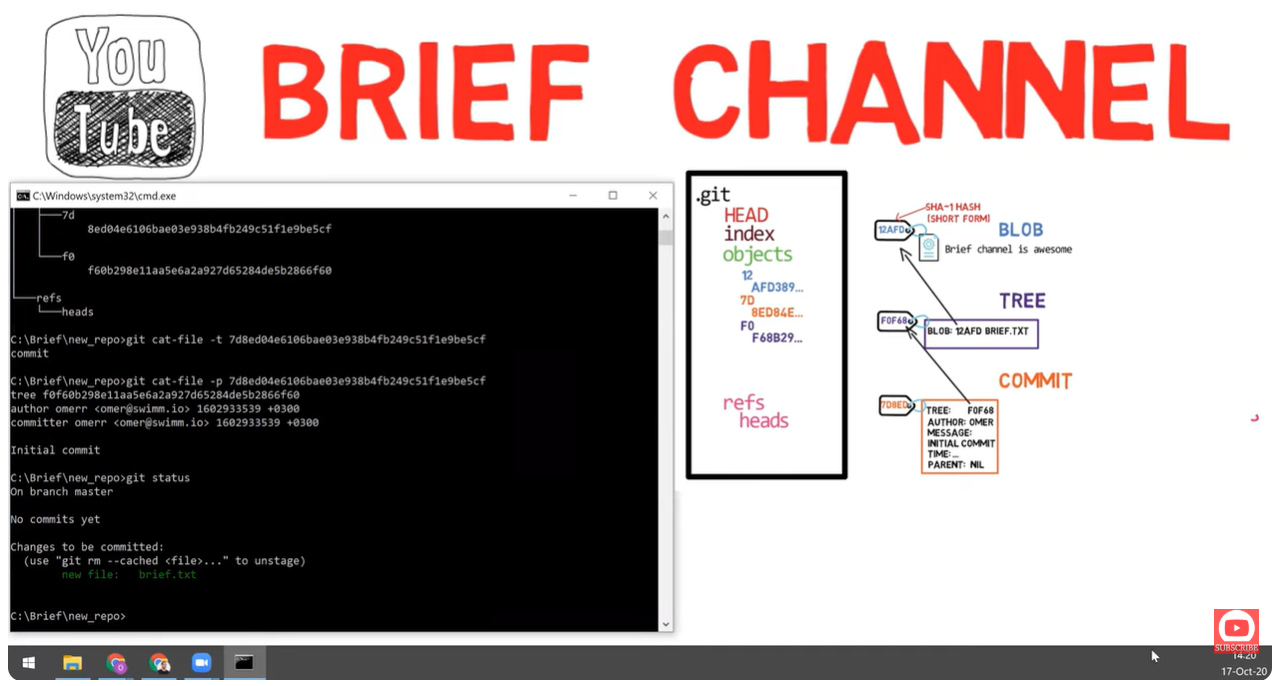
Step 7: Update Branch Reference
The commit exists, but git status still says "No commits yet":
git status
# Still shows: No commits yet
Why? Because the master branch doesn't point to anything yet!
# Check refs/heads
ls .git/refs/heads/
# Empty!
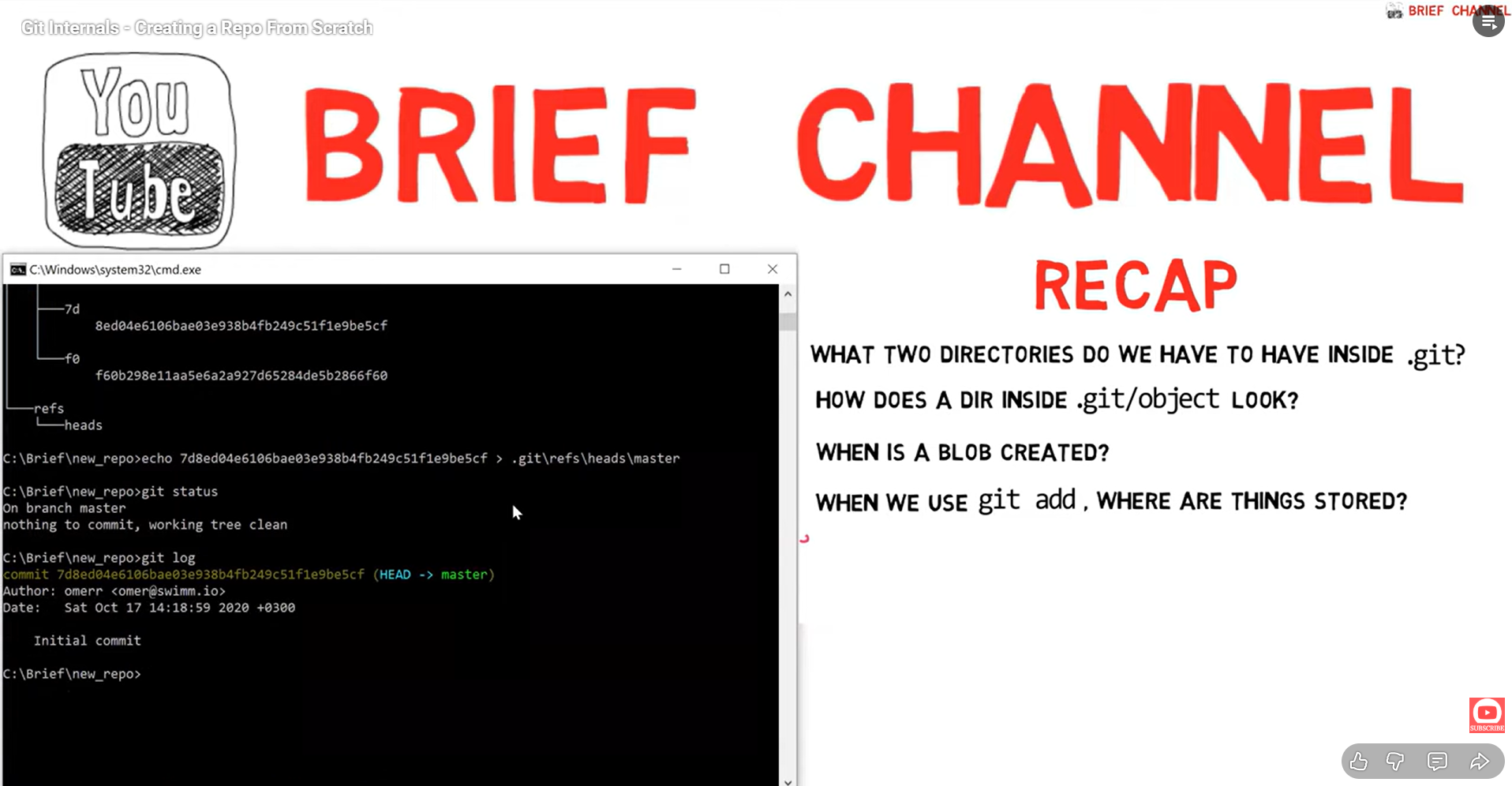
Let's fix that:
# Point master to our commit
echo "a52f8f31b84c2e5c0ea76bf21c9f57f30476af91" > .git/refs/heads/master

# Alternative (safer) way:
# git update-ref refs/heads/master a52f8f31b84c2e5c0ea76bf21c9f57f30476af91git statusOn branch master
nothing to commit, working tree clean🎉 SUCCESS! We created a complete commit without using git add or git commit!
📊 Complete Flow Visualization
🎯 What We Learned
| Porcelain Command | Equivalent Plumbing |
|---|---|
git init | mkdir -p .git/{objects,refs/heads} + create HEAD |
git add file | git hash-object -w file + git update-index --add |
git commit -m "msg" | git write-tree + git commit-tree + update refs |
📁 Final Repository Structure
scratch-repo/
├── hello.txt                          ← Working directory file
└── .git/
    ├── HEAD                           ← ref: refs/heads/master
    ├── index                          ← Binary staging area
    ├── objects/
    │   ├── 5d/
    │   │   └── 602270f7e18bdf...     ← Tree object
    │   ├── 93/
    │   │   └── 19a0a8769459fe...     ← Blob object
    │   └── a5/
    │       └── 2f8f31b84c2e5c...     ← Commit object
    └── refs/
        └── heads/
            └── master                 ← a52f8f31b84c2e5c...
🚀 What's Next?
🌿 Next: Working with Branches From Scratch (Part B)
Now that we can create commits manually, let's create and switch branches without using git branch or git checkout!
📝 Quick Reference
Commands Used
# Create blob
echo "content" | git hash-object --stdin -w

# Inspect object
git cat-file -t SHA    # type
git cat-file -p SHA    # content
git cat-file -s SHA    # size

# Update index
git update-index --add --cacheinfo MODE SHA FILENAME

# Create tree
git write-tree

# Create commit
git commit-tree TREE_SHA -m "message"
git commit-tree TREE_SHA -m "message" -p PARENT_SHA

# Update ref
git update-ref refs/heads/BRANCH COMMIT_SHA
File Modes
| Mode | Type |
|---|---|
100644 | Regular file |
100755 | Executable |
120000 | Symlink |
040000 | Directory (tree) |