
🔥 Rewriting History & Overcoming Git-asters - Part 2
🛠️ Cherry-Pick, Revert & Reflog
Three more essential tools for your Git disaster recovery toolkit
📋 Prerequisites
In the previous video, we learned about
git reset with its three modes (--soft, --mixed, --hard). Make sure to understand those before continuing! 🎯 What We'll Learn
In this lesson, we'll add three new tools to our toolbox:
git cherry-pick- Apply changes from specific commitsgit revert- Reverse changes (safe for pushed commits!)git reflog- Recover "lost" commits
🧪 Setting Up Our Lab Repository
Let's create a small repository to experiment with:
# Create and initialize repo
mkdir git-lab && cd git-lab
git init

# Create first file and commit
echo "hi" > 1.txt
git add 1.txt
git commit -m "commit 1"

# Create a feature branch
git checkout -b feature-branch

# Add a file on feature branch
echo "introducing a feature branch" > a.txt
git add a.txt
git commit -m "commit 2.0"

# Go back to main
git checkout main
Our current state:
🍒 Git Cherry-Pick: Moving Commits Between Branches
The Problem: Committed to Wrong Branch!
Let's say we're on main and make a change:
# On main branch
echo "change" >> 1.txt
git add 1.txt
git commit -m "commit 3"
Oops! We actually wanted this change to be on feature-branch, not main!
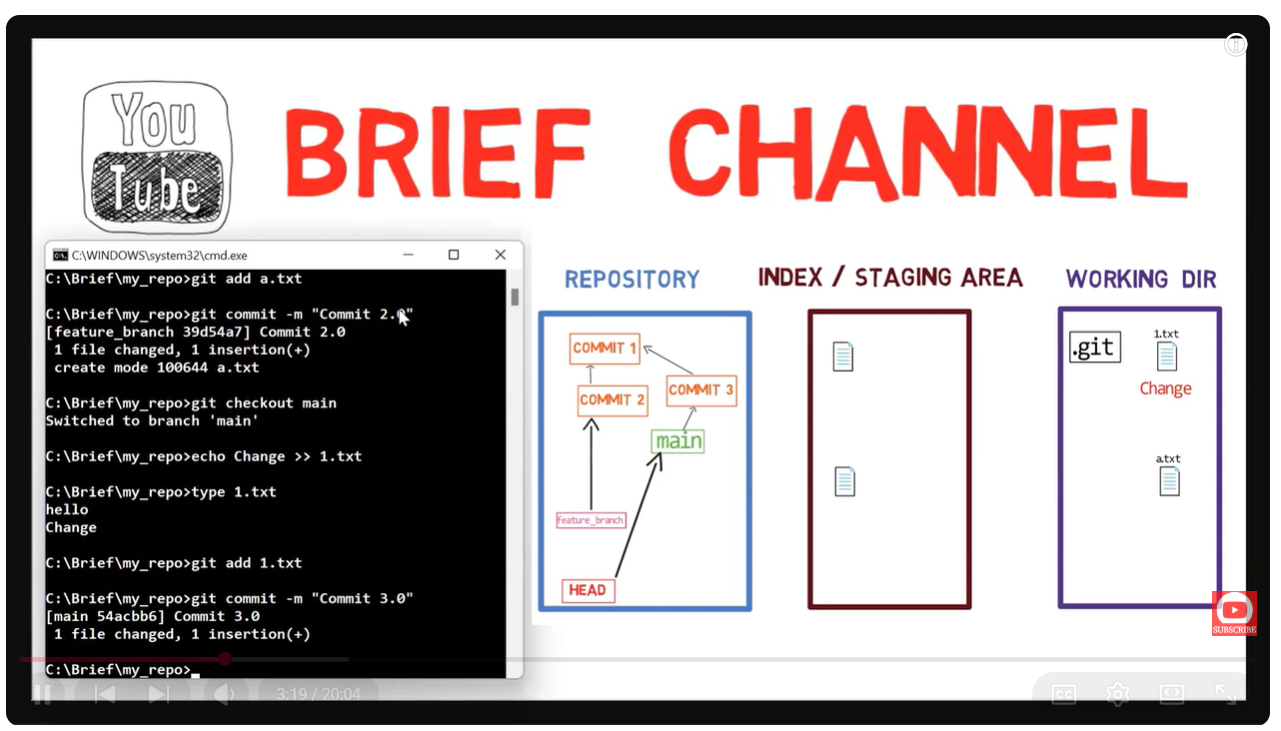
Current State vs Desired State
The Solution: Cherry-Pick!
First, let's see what changes commit 3 introduced:
git diff HEAD~1 HEAD
# Shows: added "change" to 1.txt
Now, let's apply those changes to feature-branch:
# Switch to feature branch
git checkout feature-branch

# Cherry-pick the commit from main
git cherry-pick <sha-of-commit-3>- Takes the changes introduced in the specified commit
- Generates a new commit with those same changes
- Updates the current branch to point to the new commit
Verify it worked:
git log --oneline
# Shows: commit 3.0 is now on feature-branch!

git diff HEAD~1 HEAD
# Shows same changes we saw earlier
Finish the Job: Reset Main
Now we need to remove commit 3 from main:
git checkout main
git reset --hard HEAD~1
Done! We successfully moved the commit from main to feature-branch! 🎉
↩️ Git Revert: Undoing Pushed Commits Safely
The New Problem: Pushed a Mistake!
Let's create more commits:
# Create new file
echo "my new file" > 2.txt
git add 2.txt
git commit -m "commit 4"

# Add more content (with a typo!)
echo "more test" >> 2.txt  # Oops! Should be "text" not "test"
git add 2.txt
git commit -m "commit 5"

# Imagine we pushed this to remote!
# git push origin main
Now we realize there's a typo. With git reset, we could undo it... BUT:
⚠️ The Problem with Reset on Pushed Commits
If we've already pushed to remote, someone might have already pulled our commit! Using git reset would rewrite history, making our repository inconsistent with theirs.
Rule: Don't use git reset on commits that have been pushed (unless you're 100% sure no one else has pulled them).
The Solution: Git Revert!
Instead of removing the commit, we create a new commit that reverses the changes:
# See what commit 5 introduced
git diff HEAD~1 HEAD
# Shows: added "more test" line

# See the reverse (what we want to undo)
git diff HEAD HEAD~1
# Shows: removing that line

# Revert the commit!
git revert HEAD
Git opens an editor for the commit message. The default "Revert commit 5.0" is fine.
git log --oneline
# Shows: new "Revert" commit on top!

# Verify the changes
git show HEAD
# Shows: the line "more test" was removed
Revert vs Reset Comparison
| Aspect | git reset | git revert |
|---|---|---|
| Creates new commit | ❌ No | ✅ Yes |
| Rewrites history | ✅ Yes (dangerous!) | ❌ No |
| Safe after pushing | ❌ No | ✅ Yes |
| Requires force push | ✅ Yes | ❌ No |
🛟 Git Reflog: Your Safety Net
The Disaster: Lost a Commit!
Let's create an important commit:
echo "a lot of work" >> 1.txt
git add 1.txt
git commit -m "commit 6 - lots of precious work!"
Now imagine we accidentally run:
git reset --hard HEAD~1Oh no! Our precious work is gone! 😱
git log --oneline
# commit 6 is NOT there!

cat 1.txt
# Our changes are GONE from the file!
But Wait... Is It Really Gone?
The commit object for "commit 6" was created and stored in Git's object database. The
git reset only moved the branch pointer - the commit object is still there! If we have the SHA-1 of the commit, we can recover it:
# If you know the SHA...
git cat-file -p <sha-of-commit-6>
# The commit is still there!

git reset --hard <sha-of-commit-6>
# We're back! 🎉
But What If We Don't Know the SHA?
This is where git reflog saves the day!
git reflogOutput:
abc1234 HEAD@{0}: reset: moving to HEAD~1
def5678 HEAD@{1}: commit: commit 6 - lots of precious work!
ghi9012 HEAD@{2}: commit: commit 5
...Git silently records what HEAD points to every time it changes:
- Every commit
- Every branch switch
- Every reset
- Every checkout
Using Reflog to Recover
# Option 1: Use the SHA from reflog
git reset --hard def5678

# Option 2: Use the reflog reference
git reset --hard HEAD@{1}

# Option 3: View reflog with full details
git log -g
The HEAD@{n} syntax means "what HEAD pointed to n changes ago":
HEAD@{0}= current HEADHEAD@{1}= previous HEAD positionHEAD@{2}= two changes ago- etc.
Creating a Branch from Lost Commit
Instead of resetting, you can also create a new branch:
git checkout -b recovered-work <sha-of-commit-6>
# or
git checkout -b recovered-work HEAD@{1}
📊 Summary: Our Complete Toolkit
Quick Reference Table
| Tool | Use When | What It Does |
|---|---|---|
git reset --soft | Squashing commits | Moves HEAD, keeps staging |
git reset --mixed | Reorganizing | Moves HEAD, resets staging |
git reset --hard | Discarding everything | Resets all three areas |
git cherry-pick | Wrong branch | Copies changes to current branch |
git revert | Undoing pushed commits | Creates reverse commit |
git reflog | Lost a commit | Shows HEAD history |
🎯 Key Takeaways
Applies changes from specific commits to current branch
Reverses changes in new commit - safe after push!
Your safety net - shows history of HEAD positions
Current state → Desired state = Choose your tool
💡 The Important Lesson
🧠 It's All Just Pointers!
Everything in Git is pointers to commit objects. When you understand this:
- Branches are just pointers to commits
- HEAD is just a pointer to a branch (or commit)
- Reset just moves these pointers
- Commits are (almost) never truly deleted
When in doubt: Draw the current state, draw the desired state, then pick the right tool!
🧠 Quiz: Test Your Understanding
1. When should you use `git revert` instead of `git reset`?
Use git revert when the commit has already been pushed to a shared remote. It creates a new commit that reverses the changes, which is safe to push normally without rewriting history.
2. What does `git cherry-pick` actually do?
It takes the changes introduced by a specific commit (the diff between that commit and its parent) and applies those same changes as a new commit on the current branch.
3. You accidentally ran `git reset --hard` and lost commits. Are they gone forever?
No! The commit objects are still in Git's database. Use git reflog to find the SHA of the lost commit, then git reset --hard <sha> or git checkout -b <new-branch> <sha> to recover.
4. What does `HEAD@{1}` mean?
It's reflog syntax meaning "what HEAD pointed to before the last change". HEAD@{0} is current, HEAD@{1} is one change ago, HEAD@{2} is two changes ago, etc.
5. You committed to `main` but wanted to commit to `feature`. How do you fix it?
git checkout feature- switch to feature branchgit cherry-pick <sha>- copy the commit to featuregit checkout main- switch back to maingit reset --hard HEAD~1- remove the commit from main
🚀 Congratulations!
🎉 You've Completed the Git Internals Series!
You now understand how Git works under the hood and have a complete toolkit for handling Git disasters:
- git reset (soft/mixed/hard)
- git cherry-pick
- git revert
- git reflog
The key is understanding that it's all about pointers to commit objects. When you're unsure, draw the current and desired states!