Introduction to Microsoft Entra ID
Heads up! Microsoft renamed Azure Active Directory (Azure AD) to Microsoft Entra ID. You'll still see "Azure AD" everywhere online, but they're the same thing. Even the instructor admits he's been calling it Azure AD for 7+ years and still slips up!
What Even Is Identity Management?
Think of identity management like the bouncer at a club. Before anyone gets in (accesses your cloud resources), they need to prove who they are. That's what Entra ID does—it's Azure's way of asking "Who are you?" and "Are you allowed to be here?"
Good security = Good identity management. It's that simple.
Cloud AD vs. On-Prem AD: They're NOT the Same Thing
This trips people up all the time. Just because both have "Active Directory" in the name doesn't mean you can swap one for the other.
The Reality for Most Companies: You'll run BOTH in a hybrid setup. Your on-prem AD handles local stuff (file servers, printers), and Entra ID handles cloud stuff (Azure, Office 365, SaaS apps). They sync up so users have one password everywhere.
Why Should You Care About Entra ID?
It's not just for logging into Azure. Entra ID becomes your single source of truth for identity:
One login to rule them all. That's the dream, right?
The Three Pillars: Account vs. Tenant vs. Subscription
This is where people get confused. These are three separate things that work together:
| Concept | What It Is | Real-World Analogy |
|---|---|---|
| Account | Your identity (email + password) | Your employee badge |
| Tenant | Your organization's directory | The company itself |
| Subscription | Billing arrangement | The company credit card |
Pro tip: One tenant can have MANY subscriptions. That's why Azure always asks you to pick one when creating resources.
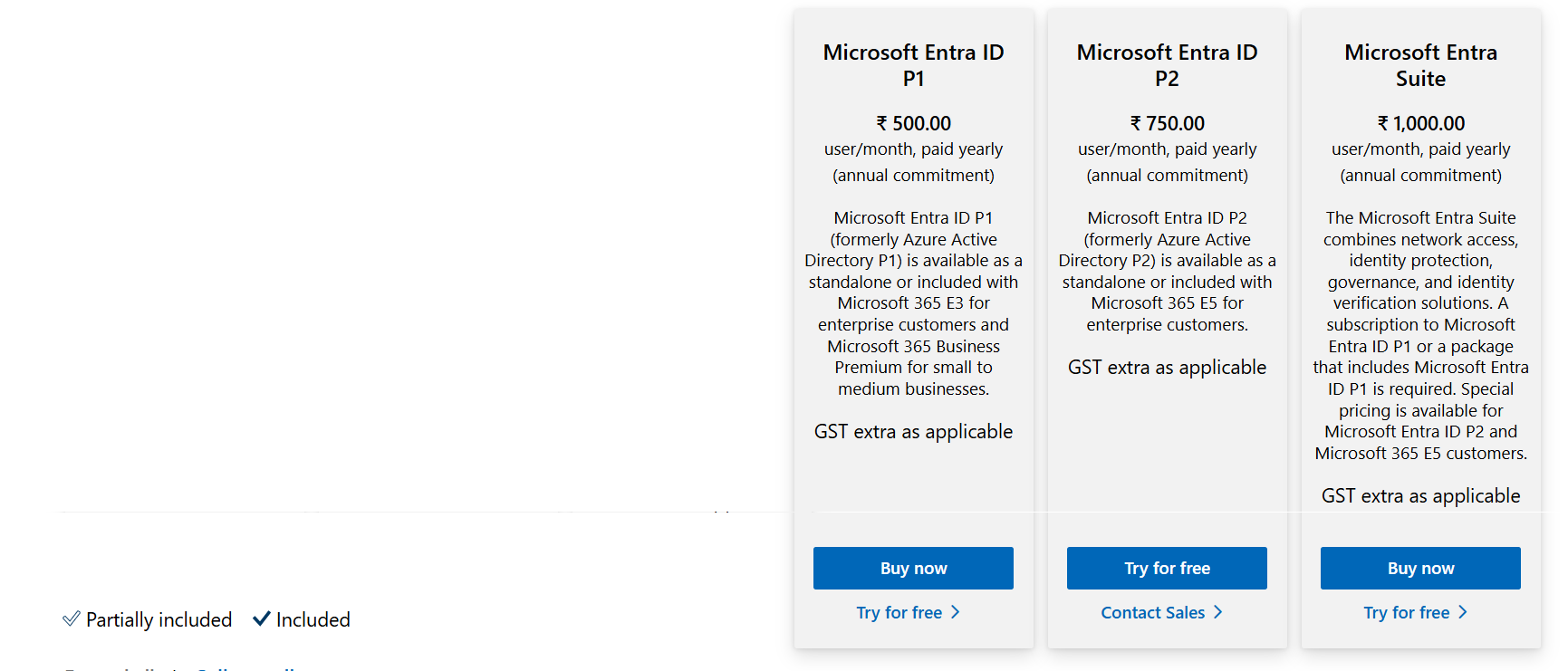
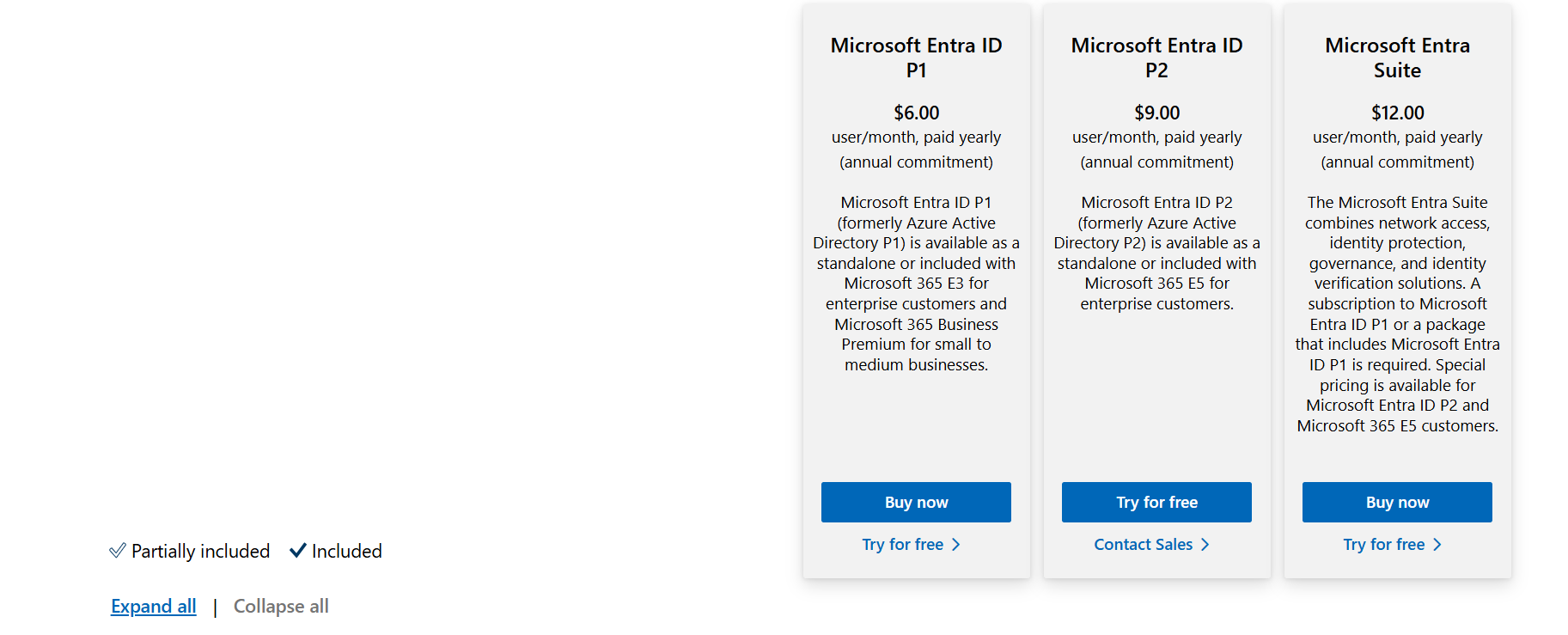
Pricing: Free vs. P1 vs. P2
Entra ID pricing is per-user. The good news? You can mix licenses—give P2 to your admins and keep everyone else on Free.
Quick Comparison
| Feature | Free | P1 | P2 |
|---|---|---|---|
| SLA (Money-back guarantee) | ❌ | ✅ | ✅ |
| Unlimited Users | ✅ | ✅ | ✅ |
| Conditional Access | ❌ | ✅ | ✅ |
| Dynamic Groups | ❌ | ✅ | ✅ |
| Self-Service Password Reset | Basic | Full + Write-back | ✅ |
| AI-based Risk Detection | ❌ | ❌ | ✅ |
| Access Reviews | ❌ | ❌ | ✅ |
📌 For the exam: Conditional Access is the "brain" of security in Entra—it lets you create rules like "block logins from unknown countries" or "require MFA outside the office."
Getting Premium Features
Option 1: Free Trial (One-Time Only!)
Navigate to Roles and administrators and look for the "Get a free trial" banner. You get 30 days of P2 for free.
⚠️ Warning: You can only do this ONCE per tenant. Don't waste it!
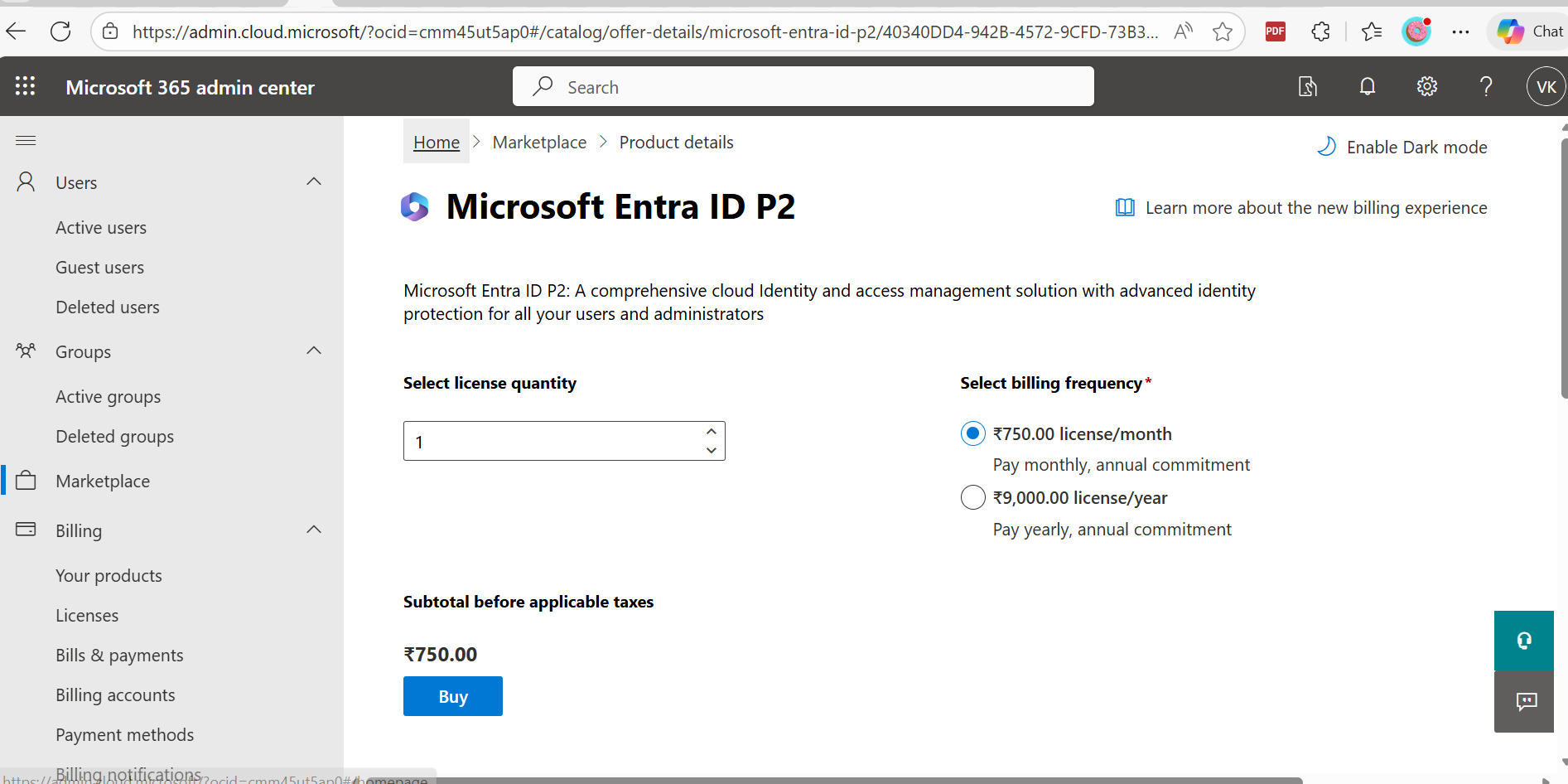
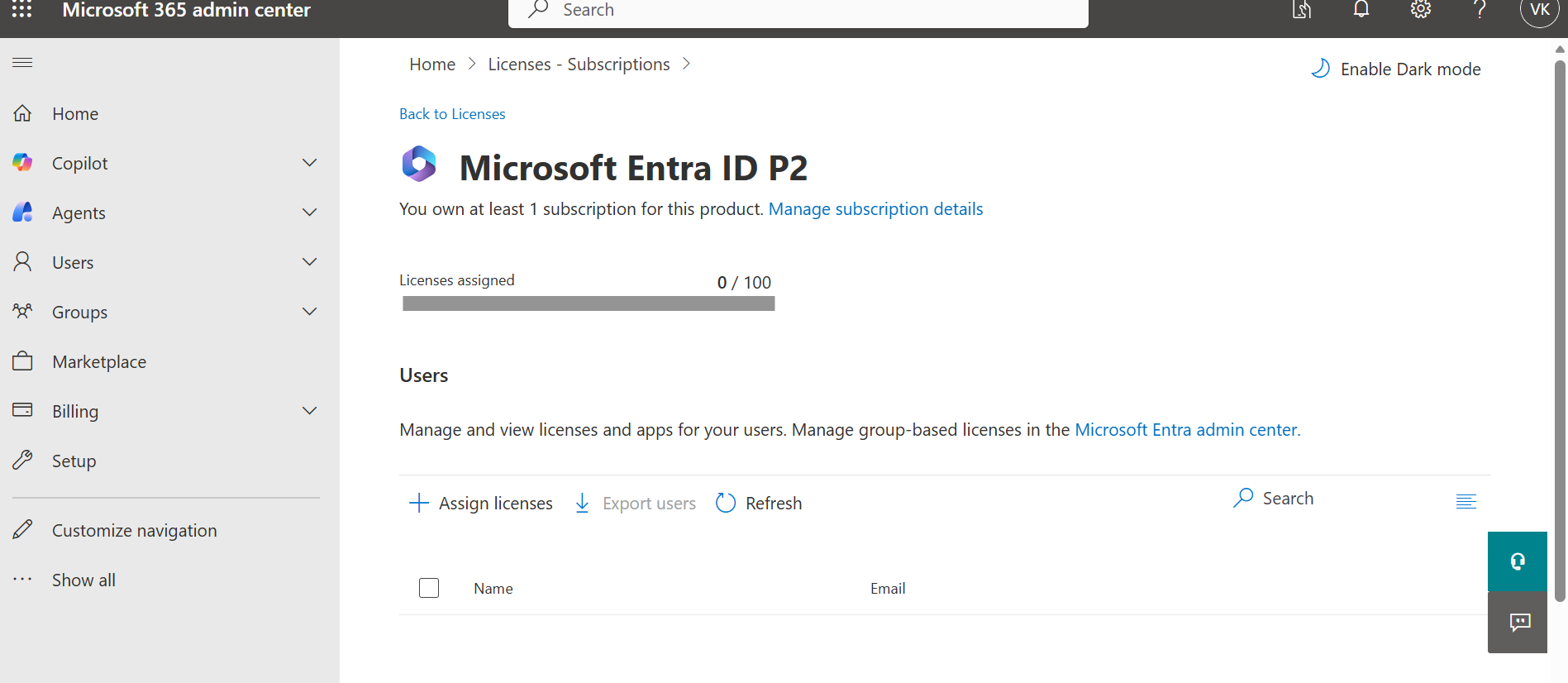
Option 2: Buy It
Go to Microsoft Admin Center > Marketplace > Security and purchase P1 or P2 licenses.
Roles: Who Can Do What?
Key Points:
- Every tenant MUST have at least one Global Administrator
- Global Admin = unlimited power (create users, groups, manage everything)
- Custom Roles require P1 or P2 (lets you create "partial" admins)
User Types
| Type | Description |
|---|---|
| Member | Internal user, full member of your org |
| Guest | External user (partner, contractor), limited access |
Creating a New Tenant (And Why You Might Not Be Able To)
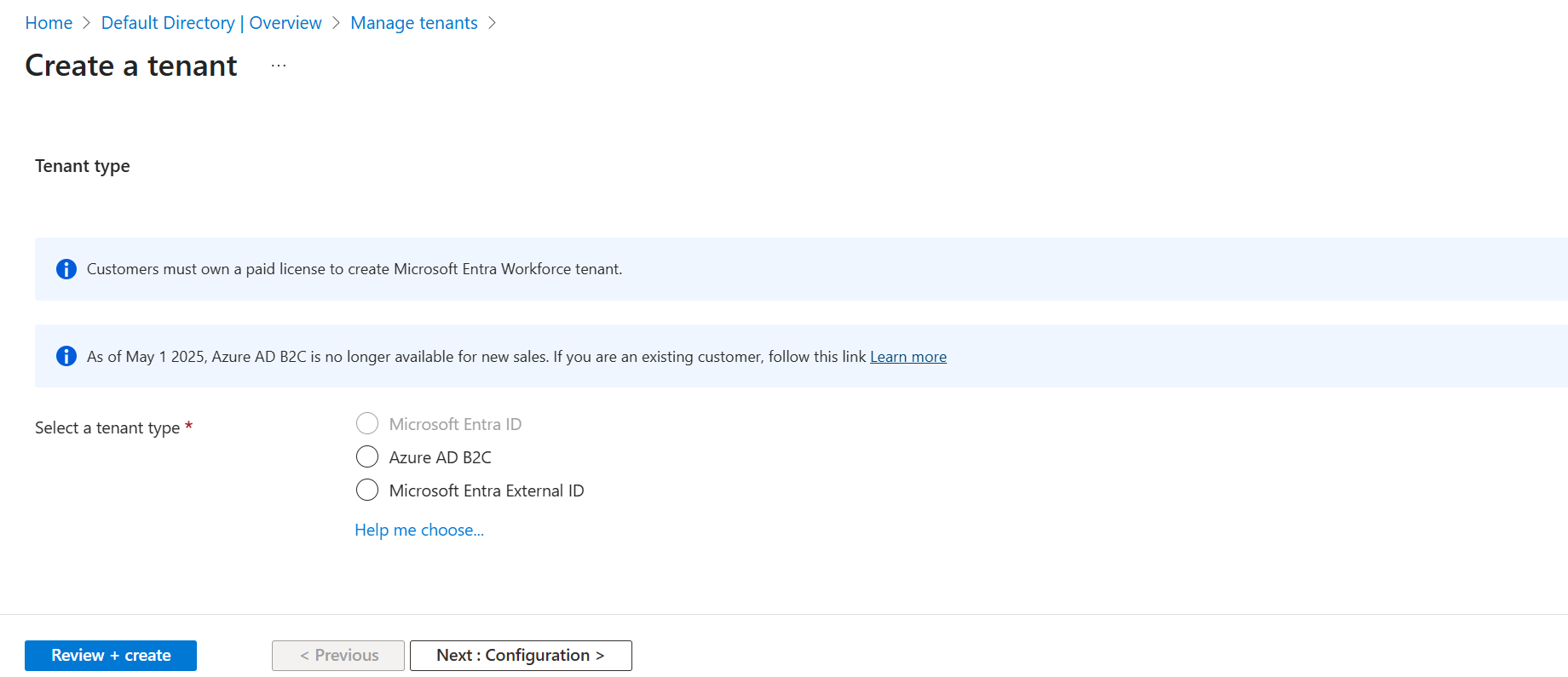
The Bad News: Microsoft recently changed the rules. You now need a paid license (M365, Enterprise Agreement, etc.) to create new Entra ID tenants. If you only have Pay-As-You-Go, you might see the option grayed out.
The Good News: If you're already a Global Admin on your current tenant, you don't need to create a new one to learn this stuff!
Steps to Create a Tenant (If You Can)
- Search for Microsoft Entra ID in the portal
- Click Manage Tenants → + Create
- Choose Microsoft Entra ID (not B2C)
- Pick an Organization Name and unique Domain Name
- Select your Region (affects data residency)
- Solve the CAPTCHA and wait ~2-5 minutes
Switching Between Tenants
Got multiple directories? Here's how to jump between them:
Pro tip: Star your frequently-used tenants as favorites!
Adding a Custom Domain
By default, you get an ugly domain like yourcompany.onmicrosoft.com. Nobody wants users logging in with joe@yourcompany.onmicrosoft.com. Let's fix that.
Why Bother?
- Professional look:
joe@company.comlooks way better - Brand consistency: Your domain, your identity
- App integration: Some apps expect your real domain
How to Add Your Domain
- Go to Entra ID → Custom domain names → + Add
- Enter your domain (e.g.,
company.com) - Copy the TXT record Azure gives you
- Add it to your domain registrar (GoDaddy, NameCheap, etc.)
- Come back and click Verify
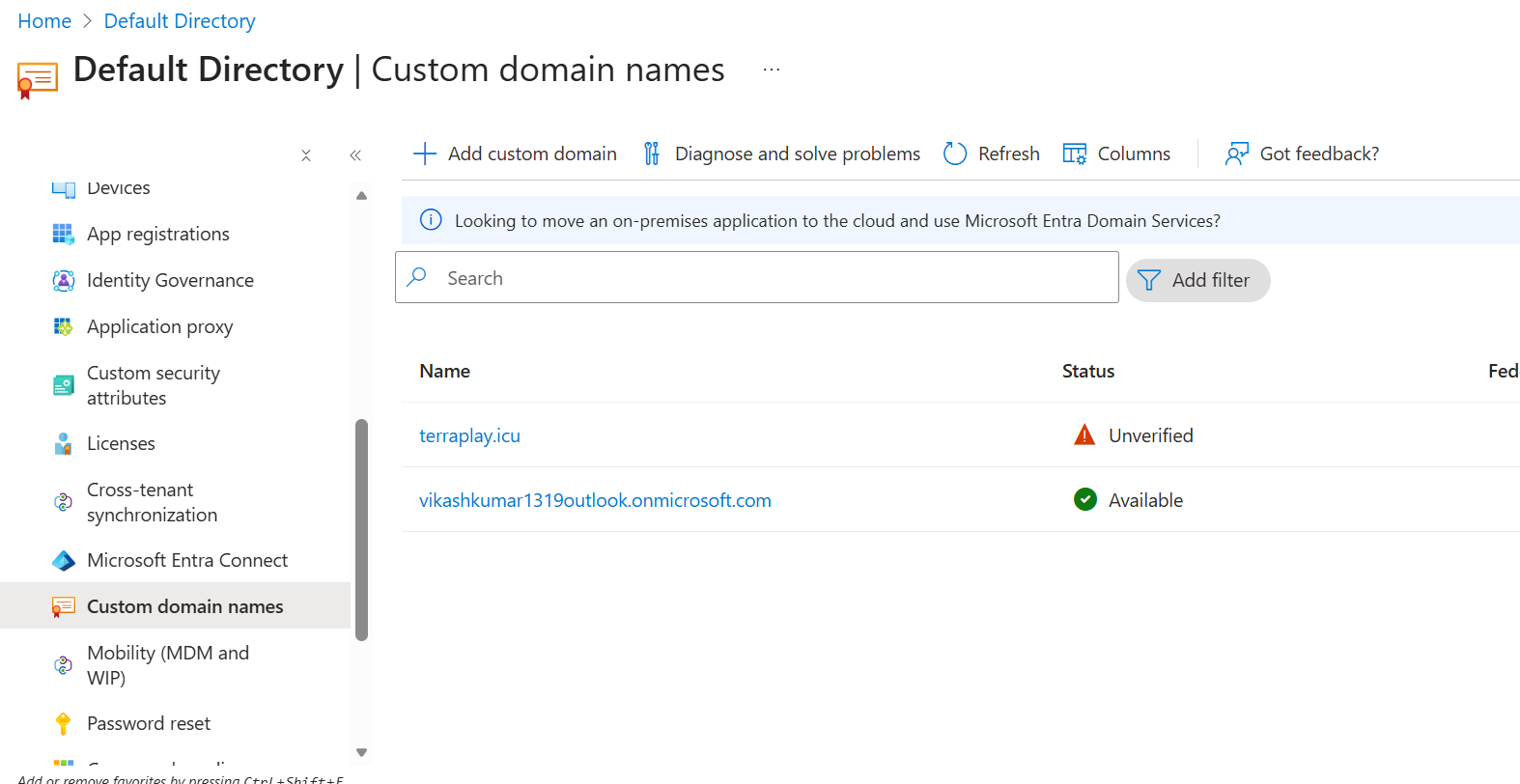
⚠️ One domain = One tenant. You can't use the same domain in multiple Entra ID directories.
Quick Reference Card
| Task | Where to Find It |
|---|---|
| Switch tenants | Gear icon → Manage Tenants OR Profile → Switch Directory |
| Find Tenant ID | Entra ID → Overview |
| Add users | Entra ID → Users → + New user |
| Add custom domain | Entra ID → Custom domain names |
| Get P2 trial | Roles and administrators → Free trial banner |
| Buy licenses | admin.microsoft.com → Marketplace → Security |
What's Next?
Now that you understand the basics of Entra ID, the next topics will cover:
- Creating and managing Users
- Working with Groups (including dynamic groups)
- Setting up Conditional Access policies
- Configuring MFA and security defaults
📖 Reference: Microsoft Entra Pricing