
Azure Storage Access Tiers and Cost Optimization
Lecture 4 Lecture 13 Exam Topic Cost ManagementOverview
Access tiers in Azure Storage represent a price/performance balance for data access. The core principle is simple: the less frequently you access data, the cheaper it is to store -- but the more expensive it is to read. Azure allows you to mix tiers within the same storage account, set a default tier at the account level, and override the tier on individual blobs.
Lifecycle management builds on top of access tiers by providing policy-based automation to move data between tiers as it ages, delivering significant cost savings without manual intervention.
Access Tiers (Lecture 4)
Tier Comparison Matrix (LRS, East US 2)
| Tier | Storage $/GB/mo | Read $/10K ops | Write $/10K ops | Use Case | Min Retention |
|---|---|---|---|---|---|
| Premium | $0.15 | $0.0014 | $0.0175 | Ultra-low latency, frequent access | N/A |
| Hot | $0.0184 | $0.004 | $0.05 | Frequently accessed, everyday | N/A |
| Cool | $0.01 | $0.01 | $0.10 | Infrequent, backups, <1x/hr | 30 days |
| Cold | $0.0036 | $0.10 | $0.18 | Rarely accessed | 90 days |
| Archive | $0.002 | $5.00 ($50 high priority) | $0.10 | Long-term compliance | 180 days |
See Exact Pricing Reference below for full breakdowns including data retrieval, volume discounts, and additional features.
Exam Tip
The exam tests your understanding of the inverse relationship between storage cost and access cost. Cheaper storage always means more expensive reads. Know the minimum retention periods: Cool = 30 days, Cold = 90 days, Archive = 180 days.
Breakeven Analysis
Understanding when each tier becomes cost-effective is critical for both the exam and real-world scenarios:
- Cool pays for itself if data is accessed less than ~1 time per hour
- Cold saves ~95% vs Hot (roughly 5% of the original storage cost per GB)
- Archive has multi-hour retrieval times (4+ hours minimum) but the cheapest storage rate
Real-World Cost Calculation -- 1 TB (1,024 GB) Stored for 1 Year (LRS, East US 2)
| Tier | Monthly Cost | Annual Cost | Savings vs Hot |
|---|---|---|---|
| Hot | $18.84/month | $226.10/year | -- |
| Cool | $10.24/month | $122.88/year | Save $103.22 (46%) |
| Cold | $3.69/month | $44.24/year | Save $181.86 (80%) |
| Archive | $2.05/month | $24.58/year | Save $201.52 (89%) |
These numbers assume storage cost only (1,024 GB x tier rate). Factor in read/write operation costs and data retrieval fees based on your actual access patterns. Archive retrieval alone can be $5.00/10K reads.
Archive Storage -- Special Characteristics
Archive tier is fundamentally different from the other tiers. Think of it as the modern equivalent of offline magnetic tape from the mainframe era. Data is not immediately accessible.
Archive Tier Constraints
- Data cannot be accessed quickly -- it requires rehydration before reading
- High priority read costs $6.50 per 10,000 operations vs 0.5-1.3 cents normally
- Minimum retrieval delay is 4+ hours (standard priority can take up to 15 hours)
- You are charged for a minimum of 180 days of storage regardless of when you delete or move the blob
Archive rehydration options:
| Rehydration Method | Time | Cost | Details |
|---|---|---|---|
| Standard priority | Up to 15 hours | Lower | Default option for most workloads |
| High priority | Under 1 hour | $6.50/10K ops | Only for objects <10 GB |
| Copy-based rehydration | Varies | Varies | Copy archived blob to a different tier (original stays archived) |
When to Use Archive
- Government compliance and regulatory archives
- Legal hold data that must be retained but is rarely accessed
- Historical backups that may never be needed but must exist
- Medical records, tax records, audit logs beyond active retention
Premium Tier Economics
WARNING
Premium tier is generally NOT cost-effective unless you are reading the same file essentially 24/7 with ultra-low latency requirements. For most high-frequency access patterns, consider using Azure Redis Cache or Azure CDN as alternatives to Premium blob storage.
Tier Decision Flowchart
Lifecycle Management (Lecture 13)
Lifecycle management lets you automatically move data between tiers as files age. Instead of manually changing tiers on thousands of blobs, you define rules and Azure handles the transitions for you.
Lifecycle Rule Components
Every lifecycle rule consists of four parts:
- Rule name -- A descriptive identifier (e.g., "Saving Money Rule")
- Scope -- Apply to all blobs in the account OR filter by specific container/prefix
- Blob type -- Target base blobs, snapshots, versions, or any combination
- Condition -- Trigger based on "last modified more than X days ago"
Available Actions
| Action | Description | Example |
|---|---|---|
| Move to Cool | Transition from Hot to Cool tier | After 30 days of no modification |
| Move to Cold | Transition from Hot/Cool to Cold tier | After 90 days of no modification |
| Move to Archive | Transition from any tier to Archive | After 180 days of no modification |
| Delete | Permanently remove the blob | Daily logs after 30 days |
Tier Transition Flow
Example Chain
A typical lifecycle policy moves data through tiers as it ages:
- Days 0-30: Hot tier (active use)
- Days 30-90: Cool tier (occasional reference)
- Days 90-180: Cold tier (rare access)
- Days 180+: Archive tier (compliance retention)
Minimum Retention Charges
Critical -- You Cannot Avoid Minimum Charges
When a blob is placed in a tier with a minimum retention period, you are billed for the full minimum duration even if you move or delete the blob earlier:
- Cool: 30-day minimum charge
- Cold: 90-day minimum charge
- Archive: 180-day minimum charge
You cannot avoid these charges by early deletion. However, even with the minimum charge penalty, it is still cheaper than keeping the data in Hot tier for the equivalent period.
Versioning and Snapshots
Lifecycle management can target base blobs, snapshots, and versions separately. This is powerful for cost optimization:
- Move old versions to cooler tiers while keeping the current version in Hot
- Automatically delete old snapshots after a retention period
- Apply different policies to base blobs vs their historical versions
Exam Tip
When an exam question asks about automatically moving blobs to save money, the answer is Lifecycle Management. It is the most efficient and easiest way to implement tiered storage cost optimization in Azure. No custom code, no Azure Functions -- just a policy.
Portal Walkthrough
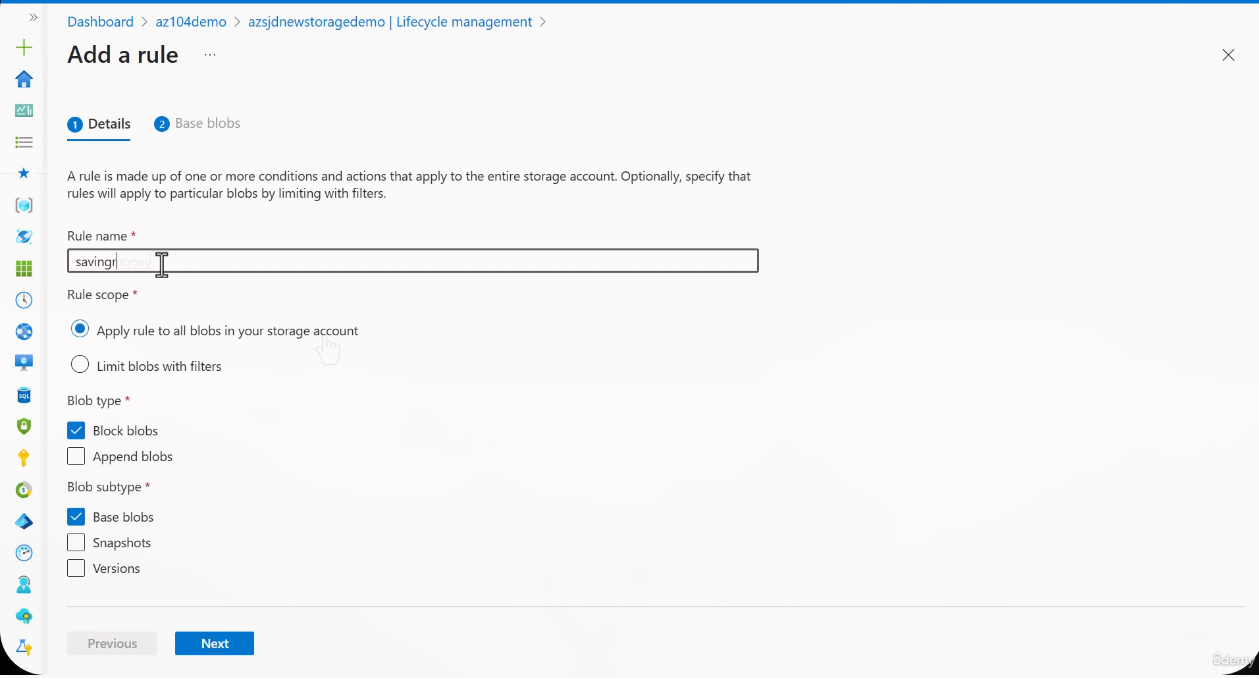
Step 1: Create the lifecycle rule
Define the rule name and scope. You can apply to all blobs or filter by container and prefix.
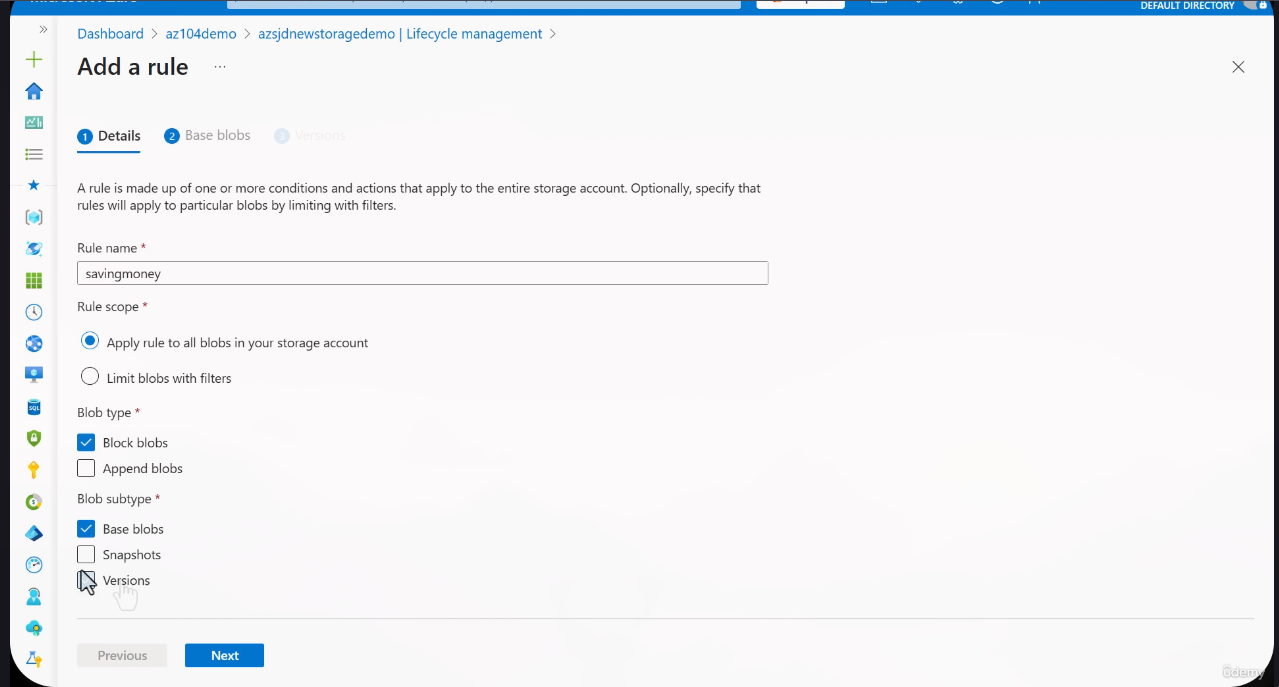
Step 2: Configure blob types
Select which blob types the rule applies to: base blobs, snapshots, versions, or append blobs.
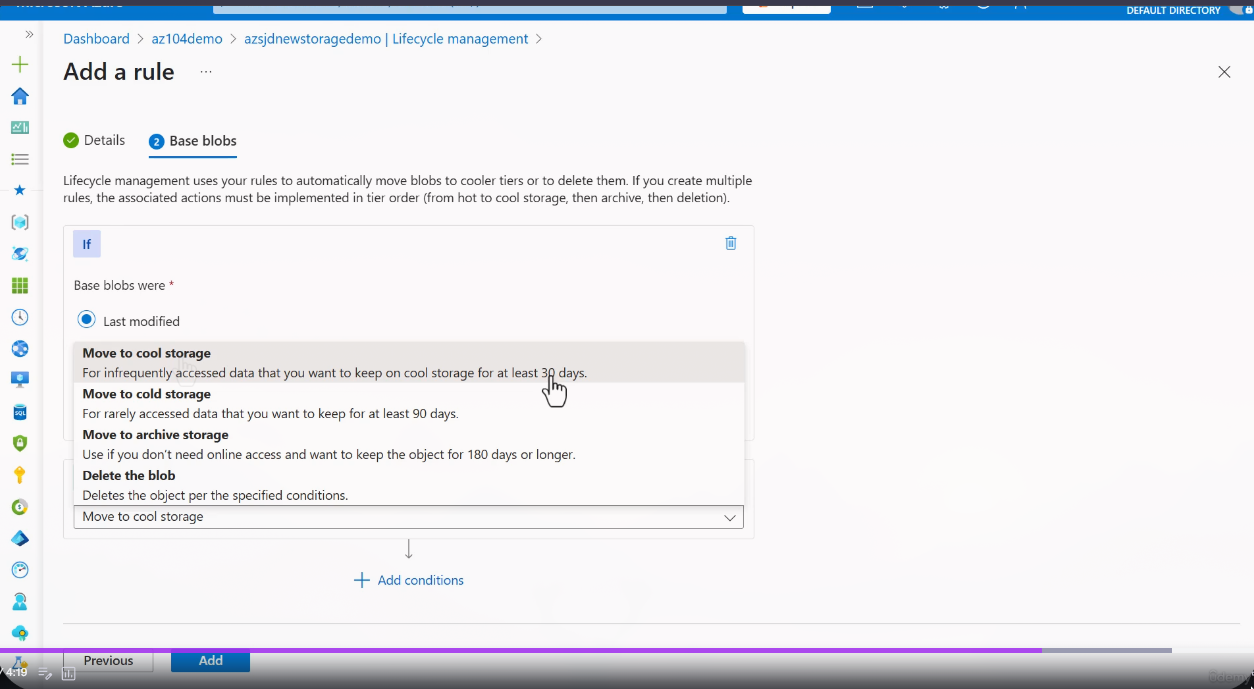
Step 3: Define actions
Set the conditions and actions -- move to Cool after X days, move to Archive after Y days, delete after Z days.
Cost Optimization Pipeline
direction: right

hot: Hot Tier {
  style.fill: "#22c55e"
  style.font-color: "#fff"
  label: "Hot Tier\n1.80 cents/GB/mo\nFrequent Access"
}

cool: Cool Tier {
  style.fill: "#3b82f6"
  style.font-color: "#fff"
  label: "Cool Tier\n1.00 cents/GB/mo\n30-day minimum"
}

cold: Cold Tier {
  style.fill: "#a855f7"
  style.font-color: "#fff"
  label: "Cold Tier\n0.33 cents/GB/mo\n90-day minimum"
}

archive: Archive Tier {
  style.fill: "#ef4444"
  style.font-color: "#fff"
  label: "Archive Tier\n0.20 cents/GB/mo\n180-day minimum"
}

delete: Delete {
  style.fill: "#1f2937"
  style.font-color: "#fff"
  label: "Delete\nEnd of Lifecycle"
}

lifecycle: Lifecycle Policy Engine {
  style.fill: "#f59e0b"
  style.font-color: "#000"
  label: "Lifecycle Policy Engine\nAutomatic Rule Evaluation"
}

lifecycle -> hot: "Day 0"
lifecycle -> cool: "After 30 days"
lifecycle -> cold: "After 90 days"
lifecycle -> archive: "After 180 days"
lifecycle -> delete: "After retention"

hot -> cool: "Automatic transition"
cool -> cold: "Automatic transition"
cold -> archive: "Automatic transition"
archive -> delete: "Optional cleanup"
Azure Storage Actions
John SavillAzure Storage Actions is a next-generation lifecycle management service that provides centralized task management across multiple storage accounts within the same tenant.
| Feature | Lifecycle Management | Azure Storage Actions |
|---|---|---|
| Scope | Single storage account | Multiple storage accounts (same tenant) |
| Blob types | Block blobs (tiering); all types (delete) | Block, page, append blobs |
| Namespace | Flat namespace only for tiering | Both flat and hierarchical (HNS) |
| Conditions | Age-based (days since modified/created/accessed) | Wildcards, group clauses, complex conditions |
| Actions | Tier change, delete | Tier change, delete, set immutability, set blob tags, undelete, legal holds |
| Identity | Built-in (storage account level) | Managed identity with data plane RBAC |
| Cost | Free (built into storage account) | Per-task execution charges |
INFO
Storage Actions uses a managed identity that must be granted data plane RBAC roles (e.g., Storage Blob Data Owner) on each target storage account. Unlike lifecycle management which operates implicitly within a single account.
Exam Tip
If an exam question asks about managing lifecycle across MULTIPLE storage accounts or performing actions beyond tier changes (like setting immutability policies or undeleting blobs at scale), the answer is Azure Storage Actions, not lifecycle management.
Learn more: Azure Storage Actions overview
CLI Reference
# Set a blob's access tier
az storage blob set-tier \
  --account-name myaccount \
  --container-name mycontainer \
  --name myblob \
  --tier Cool

# Create a lifecycle management policy from JSON file
az storage account management-policy create \
  --account-name myaccount \
  --resource-group myRG \
  --policy @policy.json

# View current lifecycle management policy
az storage account management-policy show \
  --account-name myaccount \
  --resource-group myRG

# Delete lifecycle management policy
az storage account management-policy delete \
  --account-name myaccount \
  --resource-group myRG

# List blobs with their access tiers
az storage blob list \
  --account-name myaccount \
  --container-name mycontainer \
  --query "[].{Name:name, Tier:properties.blobTier}" \
  --output table

# Rehydrate an archived blob (copy-based)
az storage blob copy start \
  --account-name myaccount \
  --destination-container mycontainer \
  --destination-blob myblob-rehydrated \
  --source-uri "https://myaccount.blob.core.windows.net/mycontainer/myblob" \
--tier Hot# Set a blob's access tier
$ctx = New-AzStorageContext -StorageAccountName "myaccount" -StorageAccountKey "mykey"
$blob = Get-AzStorageBlob -Container "mycontainer" -Blob "myblob" -Context $ctx
$blob.BlobClient.SetAccessTier("Cool")
# Create a lifecycle management policy
$action = Add-AzStorageAccountManagementPolicyAction `
-BaseBlobAction TierToCool -DaysAfterModificationGreaterThan 30
Add-AzStorageAccountManagementPolicyAction `
-InputObject $action `
-BaseBlobAction TierToArchive `
-DaysAfterModificationGreaterThan 180
$filter = New-AzStorageAccountManagementPolicyFilter -BlobType blockBlob
$rule = New-AzStorageAccountManagementPolicyRule `
-Name "SavingMoneyRule" `
-Action $action `
-Filter $filter
Set-AzStorageAccountManagementPolicy `
-ResourceGroupName "myRG" `
-AccountName "myaccount" `
-Rule $rule
# View current lifecycle management policy
Get-AzStorageAccountManagementPolicy `
-ResourceGroupName "myRG" `
-AccountName "myaccount"Example Lifecycle Policy JSON (policy.json)
{
  "rules": [
    {
      "enabled": true,
      "name": "SavingMoneyRule",
      "type": "Lifecycle",
      "definition": {
        "actions": {
          "baseBlob": {
            "tierToCool": {
              "daysAfterModificationGreaterThan": 30
            },
            "tierToCold": {
              "daysAfterModificationGreaterThan": 90
            },
            "tierToArchive": {
              "daysAfterModificationGreaterThan": 180
            },
            "delete": {
              "daysAfterModificationGreaterThan": 365
            }
          },
          "snapshot": {
            "tierToCool": {
              "daysAfterCreationGreaterThan": 30
            },
            "delete": {
              "daysAfterCreationGreaterThan": 90
            }
          },
          "version": {
            "tierToCool": {
              "daysAfterCreationGreaterThan": 30
            },
            "delete": {
              "daysAfterCreationGreaterThan": 90
            }
          }
        },
        "filters": {
          "blobTypes": [
            "blockBlob"
          ],
          "prefixMatch": [
            "logs/",
            "backups/"
          ]
        }
      }
    }
  ]
}
Lab Exercises
Hands-On Practice
Complete these exercises to reinforce your understanding of access tiers and lifecycle management.
Lab 1: Upload Blobs and Set Access Tiers via Portal
- Navigate to your Storage Account in the Azure Portal
- Create a container named
tier-testing - Upload three different files (e.g., text files of varying sizes)
- For each blob, click on the blob name and change the access tier:
- File 1: Keep as Hot
- File 2: Set to Cool
- File 3: Set to Archive
- Observe the tier displayed in the blob list view
Lab 2: Create a Lifecycle Management Policy
- In your Storage Account, navigate to Data management > Lifecycle management
- Click Add a rule
- Name the rule "CostOptimizationRule"
- Set scope to Limit blobs with filters and target the
tier-testingcontainer - Configure actions:
- Move to Cool storage after 30 days since last modification
- Move to Archive storage after 180 days since last modification
- Review and create the policy
Lab 3: Change a Blob Tier via Azure CLI
# Ensure you are logged in
az login

# Set the blob tier to Cool
az storage blob set-tier \
  --account-name <your-account> \
  --container-name tier-testing \
  --name <your-blob-name> \
  --tier Cool

# Verify the change
az storage blob show \
  --account-name <your-account> \
  --container-name tier-testing \
  --name <your-blob-name> \
  --query "properties.blobTier"
Lab 4: Observe Archive Rehydration
- Set a blob's tier to Archive using CLI or Portal
- Attempt to download the blob -- observe the error indicating the blob must be rehydrated
- Initiate rehydration by changing the tier back to Hot or Cool
- Note the time it takes for the blob to become accessible (check
x-ms-archive-statusheader)
Lab 5: Calculate Cost Savings for Your Data
Using the pricing matrix above, calculate the annual cost for your own data pattern:
- Determine your total data volume in GB
- Estimate access frequency for each data category
- Map each category to the appropriate tier
- Calculate the total cost vs keeping everything in Hot
- Document your projected savings
Exact Azure Blob Storage Pricing Reference
Pricing Configuration Baseline
The tables below reference LRS (Locally-Redundant Storage), East US 2 region, Flat Namespace, USD. Prices change -- always verify against the official pricing page. Different redundancy options (ZRS, GRS, RA-GRS, GZRS) will have higher prices.
Official pricing page (select your own config): Azure Blob Storage Pricing
Azure Pricing Calculator (build estimates): Azure Pricing Calculator
Block Blob Data Storage (Pay-As-You-Go, LRS, East US 2)
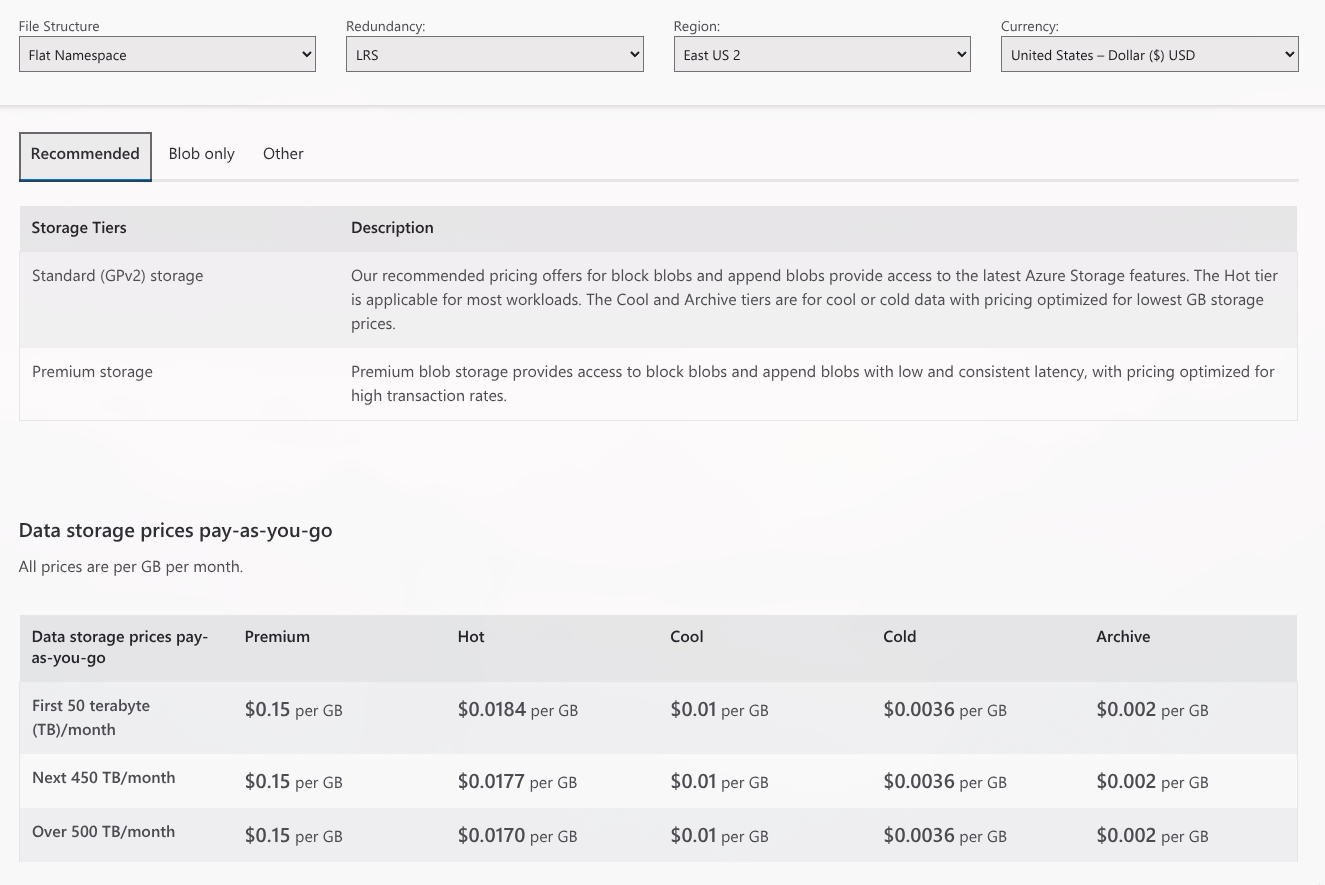
| Tier | First 50 TB/month | Next 450 TB/month | Over 500 TB/month |
|---|---|---|---|
| Premium | $0.15 per GB | $0.15 per GB | $0.15 per GB |
| Hot | $0.0184 per GB | $0.0177 per GB | $0.0170 per GB |
| Cool | $0.01 per GB | $0.01 per GB | $0.01 per GB |
| Cold | $0.0036 per GB | $0.0036 per GB | $0.0036 per GB |
| Archive | $0.002 per GB | $0.002 per GB | $0.002 per GB |
Azure Storage Reserved Capacity
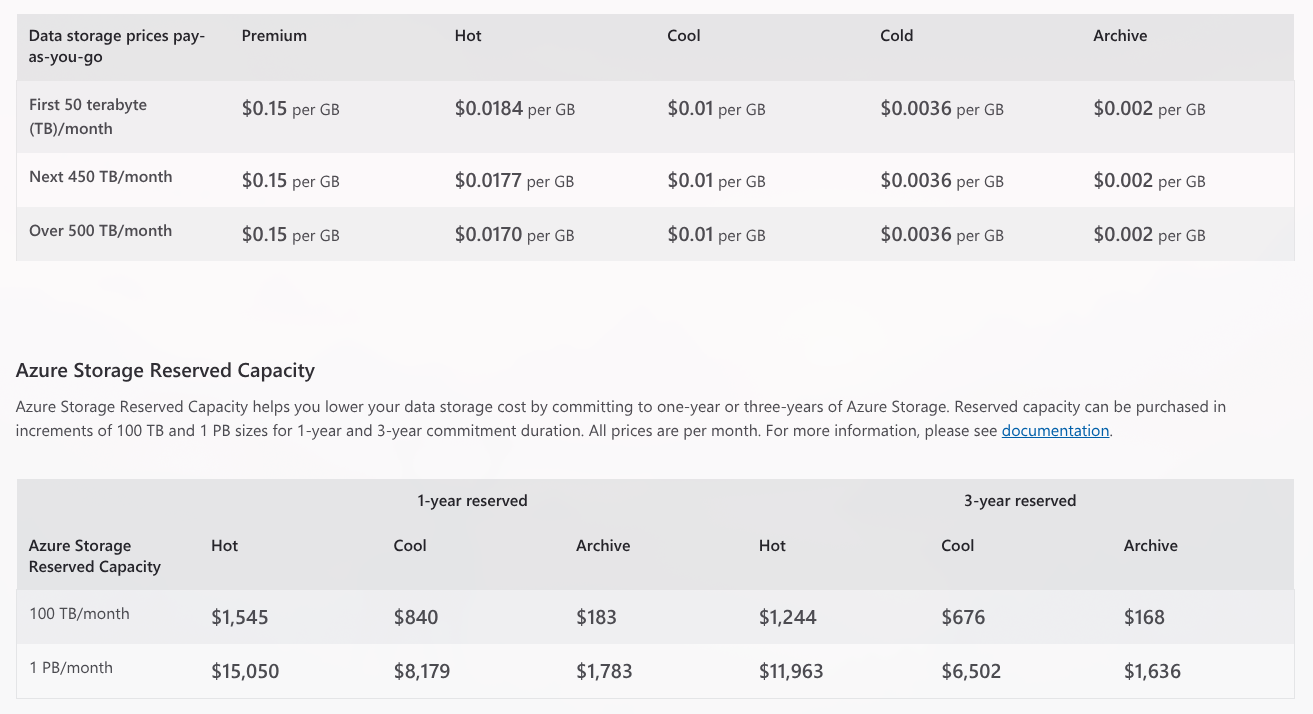
Reserved capacity offers discounted rates for committed storage volumes:
| Reserved Capacity | Hot (1yr) | Cool (1yr) | Archive (1yr) | Hot (3yr) | Cool (3yr) | Archive (3yr) |
|---|---|---|---|---|---|---|
| 100 TB/month | $1,545 | $840 | $183 | $1,244 | $676 | $168 |
| 1 PB/month | $15,050 | $8,179 | $1,783 | $11,963 | $6,502 | $1,636 |
Operations and Data Transfer (LRS, East US 2)
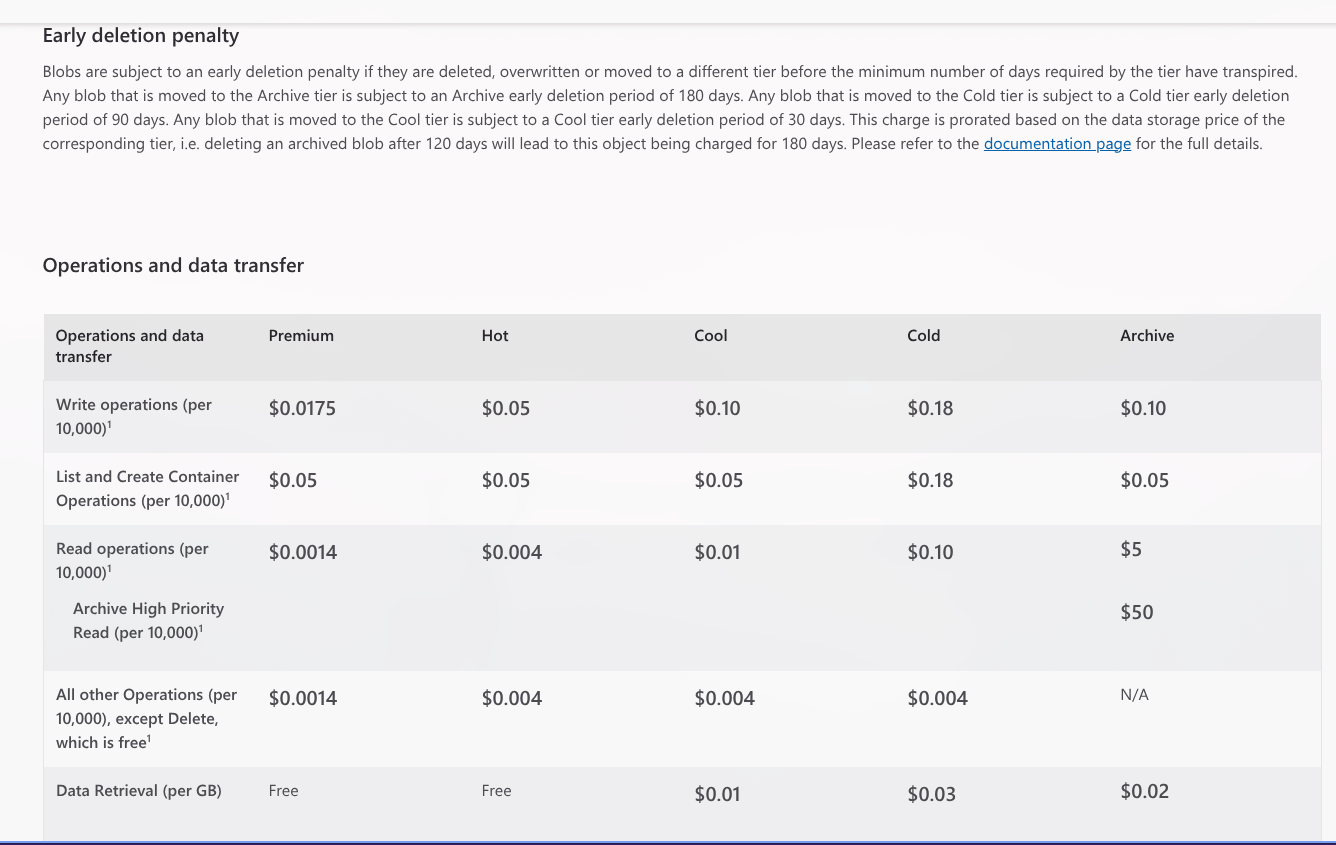
| Operation | Premium | Hot | Cool | Cold | Archive |
|---|---|---|---|---|---|
| Write ops (per 10K) | $0.0175 | $0.05 | $0.10 | $0.18 | $0.10 |
| List/Create Container (per 10K) | $0.05 | $0.05 | $0.05 | $0.18 | $0.05 |
| Read ops (per 10K) | $0.0014 | $0.004 | $0.01 | $0.10 | $5.00 |
| Archive High Priority Read (per 10K) | -- | -- | -- | -- | $50.00 |
| All other ops (per 10K) | $0.0014 | $0.004 | $0.004 | $0.004 | N/A |
| Data retrieval (per GB) | Free | Free | $0.01 | $0.03 | $0.02 |
| Archive High Priority Retrieval (per GB) | -- | -- | -- | -- | $0.10 |
Exam Tip -- Early Deletion Charges
If you delete or move a blob before its minimum retention period, you are charged for the remaining days as if the blob stayed for the full period:
- Cool: Prorated for remaining days of 30
- Cold: Prorated for remaining days of 90
- Archive: Prorated for remaining days of 180
Point-in-Time Restore (LRS, East US 2)
| Operation | Price |
|---|---|
| Data processed (per MB) | $0.15 |
Additional Blob Features and Pricing
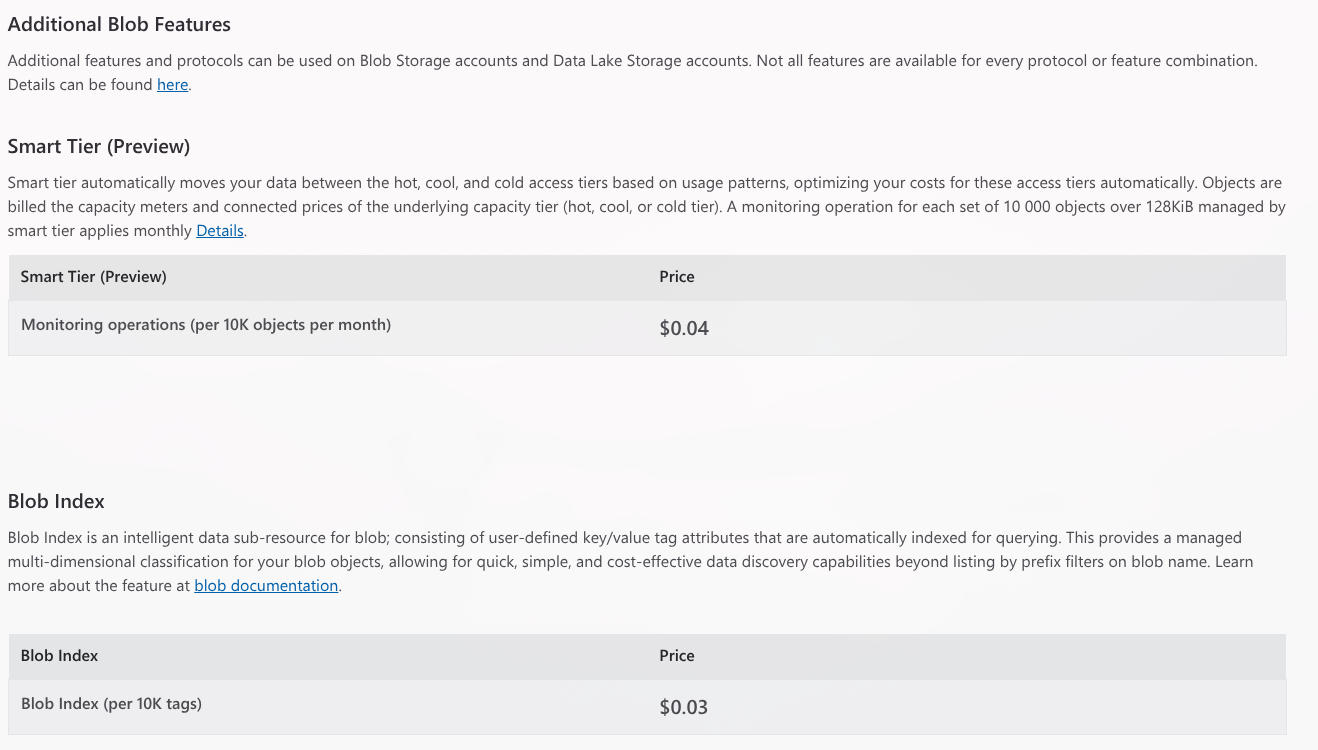
Smart Tier (Preview)
Smart Tier automatically moves your data between Hot, Cool, and Cold tiers based on usage patterns, optimizing costs without manual lifecycle rules. Objects are billed at the capacity and operation prices of the underlying tier they are placed in.
| Feature | Price |
|---|---|
| Monitoring operations (per 10K objects/month) | $0.04 |
Smart Tier vs Lifecycle Management
- Smart Tier: Automatic, usage-pattern-based, per-object monitoring cost, no rules to configure
- Lifecycle Management: Rule-based, age-driven, no monitoring cost, requires explicit policy setup
Smart Tier is best when access patterns are unpredictable. Lifecycle Management is best when you know the age-based access curve of your data.
Blob Index
Blob Index provides key-value tag attributes on blobs that are automatically indexed for querying. This enables multi-dimensional classification and discovery of blobs beyond just prefix-based filtering.
| Feature | Price |
|---|---|
| Index tags (per 10K tags) | $0.03 |
Use cases: Tag blobs with metadata like department=finance, classification=confidential, project=alpha and query across containers.
Learn more: Blob Index documentation
SFTP (SSH File Transfer Protocol)
| Feature | Price |
|---|---|
| SFTP-enabled storage account (per hour) | $0.30 |
SFTP is billed whenever the feature is enabled on the storage account, regardless of usage. Disable SFTP when not in use to avoid charges.
Blob Inventory
Blob Inventory generates scheduled reports about the state of your blobs, providing insights into blob properties, metadata, tags, access tier, size, and last modified time across containers.
| Setting | Options |
|---|---|
| Schedule | Daily or weekly |
| Scope | All containers or filter by prefix |
| Blob types | Block, page, append (select which to include) |
| Include versions | Optionally include blob versions in report |
| Output format | CSV or Apache Parquet |
| Output location | Dedicated container ($inventory-policy) in same storage account |
| Feature | Price |
|---|---|
| Blob inventory reports (per million objects scanned) | $0.003 |
TIP
Blob Inventory reports are stored as blobs themselves. Set up a lifecycle management rule to automatically delete old inventory reports (e.g., delete after 30 days) to avoid accumulating storage costs from the reports.
Change Feed
| Feature | Price |
|---|---|
| Changes logged (per 10K changes) | Included in write operation costs |
No separate charge -- change feed events are counted as part of the write operations that triggered them.
Encryption Scopes
| Feature | Price |
|---|---|
| Per encryption scope per month | $2.50 |
Encryption scopes allow per-container or per-blob encryption keys (CMK). Each scope incurs a monthly charge.
Geo-Replication Data Transfer
| Feature | Price |
|---|---|
| Geo-replication data transfer (per GB) | $0.02 |
Applies to GRS, RA-GRS, GZRS, RA-GZRS when data is replicated to the secondary region.
MS Learn References
- Access tiers for blob data
- Lifecycle management overview
- Azure Blob Storage pricing
- Azure Pricing Calculator
- Archive rehydration overview
- Smart Tier (Preview)
- Blob Index tags
- Azure Storage Actions overview
- Blob Inventory
- SFTP support
- Encryption scopes
Key Takeaways
Exam Tip -- Summary
- Access tiers trade storage cost for access cost -- cheaper storage means more expensive reads
- Minimum retention periods are enforced via billing: Cool (30 days), Cold (90 days), Archive (180 days)
- Archive tier requires rehydration (hours to access) -- it is NOT immediately readable
- Lifecycle management is the answer when asked about automating tier transitions for cost savings
- Premium tier is rarely cost-effective -- consider Redis or CDN for high-frequency access patterns
- You CAN mix tiers within the same storage account -- set a default and override per blob
- Lifecycle rules can target base blobs, snapshots, and versions independently