
Access Keys and Shared Access Signatures (SAS)
Scott Duffy Lecture 10 AZ-104Overview
Authentication to Azure Storage revolves around two core mechanisms: access keys (full administrative secrets) and Shared Access Signatures (limited, time-bound tokens derived from those keys). Understanding how these work, how they can be compromised, and how to rotate them is critical for the AZ-104 exam and for securing production workloads.
Exam Tip
Expect questions on the difference between access keys and SAS tokens, the two-key rotation workflow, and how to revoke a leaked SAS token. Know that the only way to invalidate an ad-hoc SAS token is to regenerate the signing key -- and that this invalidates all SAS tokens signed by that key.
Access Keys
When you create a storage account with key-based authentication (as opposed to Entra ID-only), Azure generates two access keys. Each key is a long sequence of letters, numbers, uppercase characters, lowercase characters, and symbols -- making it impossible to guess or brute force.
What an Access Key Grants
- Full administrative access to the entire storage account
- Create, read, update, and delete files across all containers and services
- Anyone who possesses the key and has network access to the endpoint has complete control
- There is no granularity -- a key is all-or-nothing
DANGER
An access key is the most powerful credential for a storage account. It grants unrestricted access to every blob, file, queue, and table within the account. Treat it with the same care as a root password. If a key is exposed, an attacker has full control of your data.
Screenshot: Access Keys in the Azure Portal
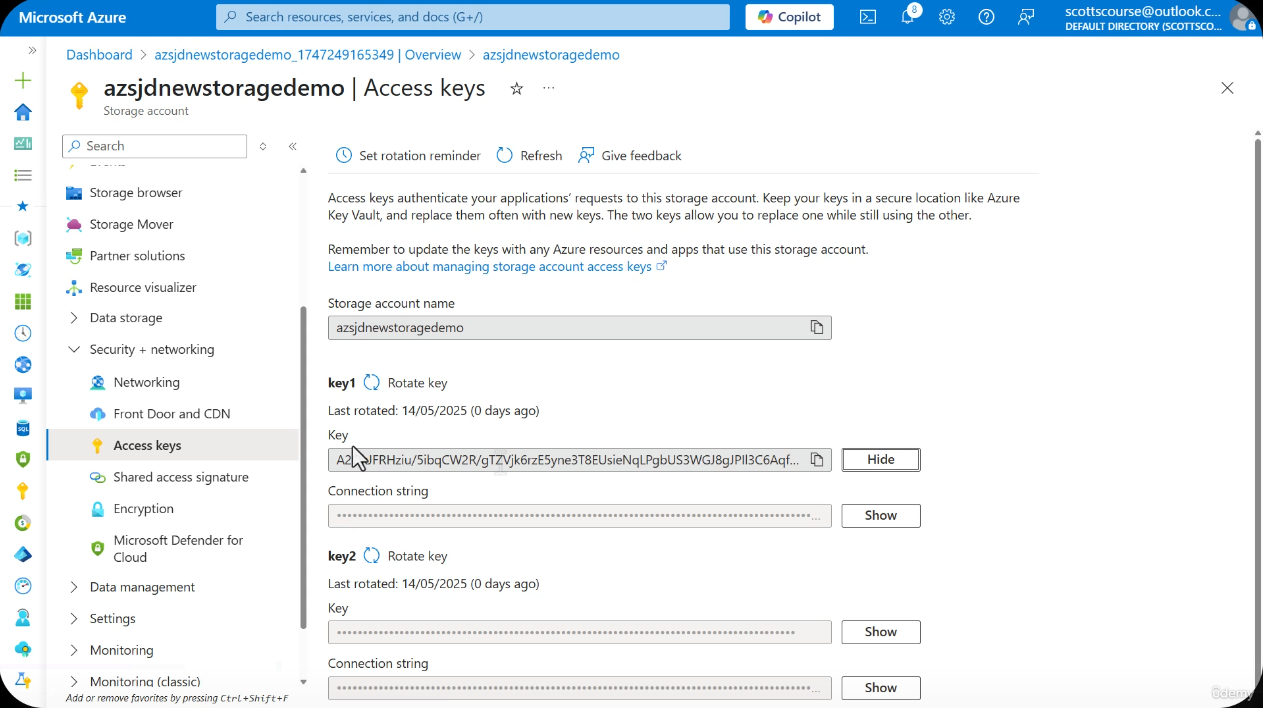
Navigate to your storage account > Security + networking > Access keys. The keys are obscured by default -- click "Show" to reveal them. Two keys (key1 and key2) are provided for rotation purposes.
Key Rotation (Regeneration)
Clicking Rotate key immediately invalidates the current key. Every application, script, or connection string using that key will lose access instantly -- both legitimate consumers and malicious actors.
Why Two Keys Exist
Microsoft provides two keys specifically to avoid service interruption during rotation. The workflow is:
- Switch all applications to Key 2 -- update connection strings, environment variables, and secrets stores
- Republish and verify -- confirm all legitimate applications work correctly with Key 2
- Regenerate Key 1 -- the compromised or old key becomes permanently invalid; any attacker using it is immediately locked out
Key Rotation Reminder
Azure provides a built-in key rotation reminder policy. You can configure a reminder interval (e.g., every 6 months) directly from the Access keys blade. This helps enforce regular rotation as part of your security hygiene. For fully automated rotation, integrate with Azure Key Vault (see Key Vault Integration below).
Key Rotation Sequence Diagram
Real-World Risk: Exposed Keys
Hardcoding an access key directly in source code and then pushing that code to a public GitHub repository is one of the most common and dangerous mistakes in cloud security.
Compromised in Minutes
Security scanning tools and bots constantly scan public GitHub repositories for exposed Azure storage keys, AWS credentials, and other secrets. If you push code containing an access key, your storage account can be compromised within minutes -- not hours or days. Immediate action is required: regenerate the key.
What to Do If a Key Is Exposed
- Immediately go to the storage account > Security + networking > Access keys
- Regenerate the compromised key (follow the two-key rotation workflow if applications depend on it)
- Audit storage account activity logs for unauthorized access
- Remove the key from the source code and move it to a secure secrets manager (Key Vault, environment variables)
- Update
.gitignoreto prevent future accidental commits of secrets files
Access Key Security Model
direction: right

title: {
  label: Azure Storage Access Key Security Model
  near: top-center
  shape: text
  style.font-size: 24
  style.bold: true
}

storage: Azure Storage Account {
  shape: cylinder
  style.fill: "#1a73e8"
  style.font-color: white
  blobs: Blob Service
  files: File Service
  queues: Queue Service
  tables: Table Service
}

keys: Two-Key System {
  style.fill: "#FFF3E0"
  key1: Key 1 {
    shape: hexagon
    style.fill: "#F44336"
    style.font-color: white
  }
  key2: Key 2 {
    shape: hexagon
    style.fill: "#4CAF50"
    style.font-color: white
  }
}

sas_gen: SAS Token Generation {
  style.fill: "#E8F0FE"
  account_sas: Account SAS {
    shape: rectangle
    style.fill: "#42A5F5"
    style.font-color: white
  }
  service_sas: Service SAS {
    shape: rectangle
    style.fill: "#66BB6A"
    style.font-color: white
  }
  user_del: User Delegation SAS {
    shape: rectangle
    style.fill: "#AB47BC"
    style.font-color: white
  }
}

app: Application {
  shape: rectangle
  style.fill: "#E8F5E9"
}

attacker: Attacker {
  shape: rectangle
  style.fill: "#FFCDD2"
}

keys.key1 -> storage: Full access {
  style.stroke: "#F44336"
  style.stroke-width: 2
}
keys.key2 -> storage: Full access {
  style.stroke: "#4CAF50"
  style.stroke-width: 2
}

keys.key1 -> sas_gen.account_sas: Signs token {
  style.stroke: "#FF9800"
  style.stroke-width: 2
}
keys.key2 -> sas_gen.service_sas: Signs token {
  style.stroke: "#FF9800"
  style.stroke-width: 2
}

entra: Entra ID Credentials {
  shape: diamond
  style.fill: "#7E57C2"
  style.font-color: white
}
entra -> sas_gen.user_del: Signs token\n(no key exposure) {
  style.stroke: "#7E57C2"
  style.stroke-width: 2
}

sas_gen.account_sas -> storage: Limited access {
  style.stroke: "#42A5F5"
  style.stroke-dash: 5
}
sas_gen.service_sas -> storage: Limited access {
  style.stroke: "#66BB6A"
  style.stroke-dash: 5
}
sas_gen.user_del -> storage: Limited access {
  style.stroke: "#AB47BC"
  style.stroke-dash: 5
}

app -> keys.key2: Uses active key
attacker -> keys.key1: Compromised key\n(regenerate to revoke) {
  style.stroke: red
  style.stroke-dash: 5
}
Shared Access Signatures (SAS)
A Shared Access Signature is a URI-based token that grants limited, time-bound access to storage resources without exposing the full access key. Instead of handing out the master key, you generate a SAS token that encodes exactly what permissions are granted, for how long, and to which resources.
Screenshot: Generate SAS Overview
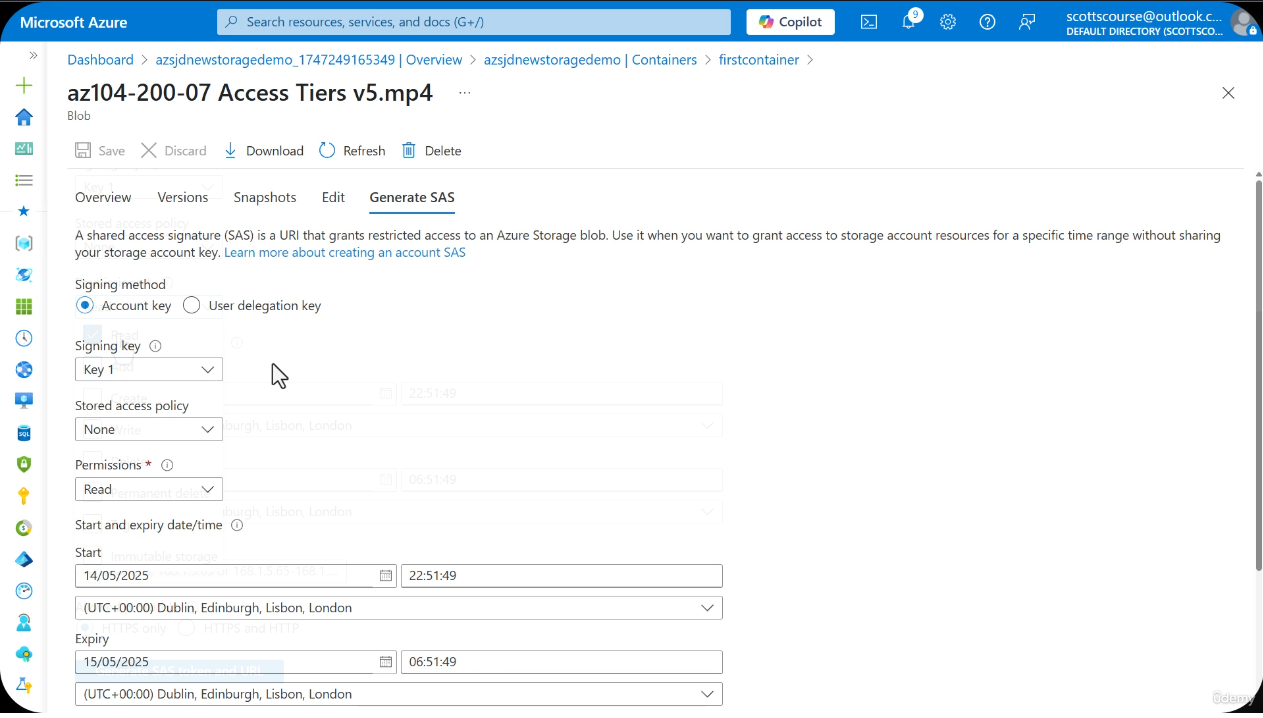
Navigate to a blob or container > Generate SAS. The portal shows the signing key, permissions, start/end times, IP constraints, and protocol options.
Screenshot: SAS Permissions Configuration
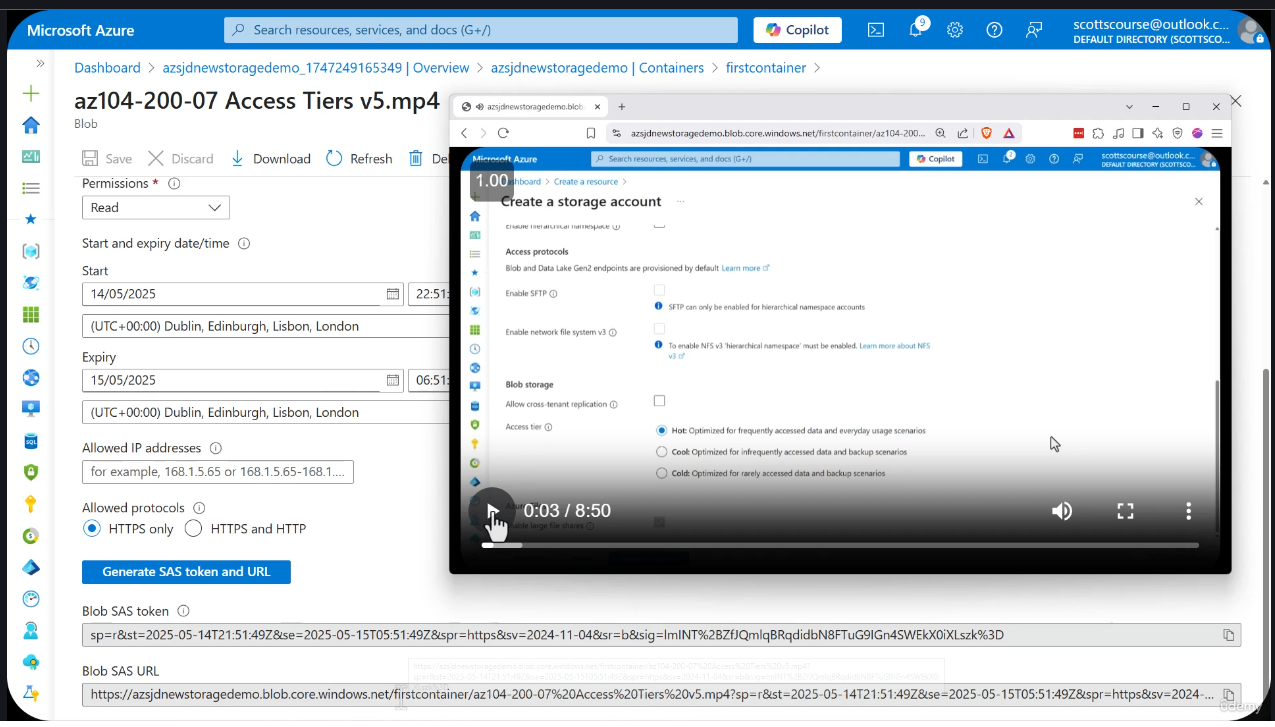
The permissions checkboxes allow fine-grained control: read, add, create, write, delete, list. The HTTPS-only option restricts the protocol for additional security.
SAS Token Components
| Component | Description |
|---|---|
| Signing key | Which access key (Key 1 or Key 2) signs the token |
| Permissions | Read, write, delete, list, add, create, etc. |
| Start time | When the token becomes valid |
| Expiry time | When the token stops working |
| IP constraints | Optional restriction to specific IP addresses |
| Protocol | HTTPS only or HTTPS + HTTP |
| Signature | HMAC-SHA256 hash of all settings, signed by the access key |
SAS Token Anatomy
A SAS token embeds all of its settings directly in the URL query string. The signature at the end is a cryptographic hash that prevents tampering -- if any parameter is altered, the signature becomes invalid.
SAS URL Parameter Reference
| Parameter | Meaning | Example |
|---|---|---|
sv | Signed version (API version) | 2022-11-02 |
ss | Signed services | bfqt (blob, file, queue, table) |
srt | Signed resource types | sco (service, container, object) |
sp | Signed permissions | rwdlacupi |
se | Signed expiry | 2024-12-31T23:59:59Z |
st | Signed start | 2024-01-01T00:00:00Z |
spr | Signed protocol | https |
sig | Signature | Base64-encoded HMAC-SHA256 |
Three Types of SAS Tokens
Azure supports three distinct types of Shared Access Signatures, each with different scoping and security characteristics.
1. Account SAS
- Grants access to multiple services within the storage account (blob, file, queue, table)
- Signed with the storage account access key
- Broadest scope -- can grant permissions across all resource types (service, container, object)
2. Service SAS
- Grants access to a single service only (e.g., just Blob Storage)
- Signed with the storage account access key
- Narrower scope than Account SAS -- limited to one service
3. User Delegation SAS (Most Secure)
- Signed with Microsoft Entra ID credentials instead of the storage account key
- The signing key is a user delegation key obtained from Entra ID
- No account key exposure -- even if the SAS token is compromised, the account key remains safe
- Supported only for Blob Storage
- Valid for a maximum of 7 days from the time of creation
Best Practice
Microsoft recommends using User Delegation SAS whenever possible. Because it is signed with Entra ID credentials rather than the account key, it eliminates the risk of key exposure. If the token is leaked, you can revoke the user's Entra ID permissions without regenerating the storage account key, which would otherwise break all other SAS tokens.
SAS Type Comparison
| Feature | Account SAS | Service SAS | User Delegation SAS |
|---|---|---|---|
| Scope | Multiple services | Single service | Blob only |
| Signed with | Account key | Account key | Entra ID credentials |
| Key exposure risk | Yes | Yes | No |
| Max validity | No limit | No limit | 7 days |
| Revocation | Regenerate key | Regenerate key | Revoke Entra permissions |
| Security level | Lower | Medium | Highest |
SAS Token Limitations
Critical Limitation
Once a SAS token is created, it cannot be revoked individually. The token is not named, not tracked, and not saved anywhere in the system. As soon as you leave the generation screen, the token is "gone and forgotten" from Azure's perspective -- but it remains valid until expiry.
Why SAS Tokens Cannot Be Revoked
- SAS tokens are stateless -- Azure does not maintain a registry of issued tokens
- The token is validated entirely by its cryptographic signature at request time
- There is no "revoke this specific token" API or portal option
The Only Revocation Method
If a SAS token is leaked or needs to be invalidated before its expiry:
- Regenerate the signing key that was used to create the token
- This invalidates ALL SAS tokens signed by that key -- not just the compromised one
- All legitimate applications using SAS tokens from the same key will also break
Test Result from Lecture
After regenerating the signing key, attempting to use a previously valid SAS URL returns:
AuthenticationFailed
Signature did not match.
The signature embedded in the SAS token was computed using the old key, so it no longer validates against the new key. This is the expected behavior and confirms the token has been successfully invalidated.
Ad-Hoc SAS vs Stored Access Policies
| Aspect | Ad-Hoc SAS | SAS with Stored Access Policy |
|---|---|---|
| Modify after creation | Cannot modify | Can update permissions, start/end times |
| Individual revocation | Not possible | Delete or modify the policy |
| Leaked token response | Regenerate key (breaks ALL tokens) | Delete the specific policy |
| Management overhead | None | Must create and manage policies |
| Covered in | This lecture | Next lecture (Stored Access Policies) |
INFO
Stored Access Policies solve the revocation problem by giving you a named, manageable entity that controls the SAS token's behavior. They are covered in the next lecture.
Key Vault Integration for Automatic Rotation
For production environments, manually rotating keys every few months is error-prone. Azure Key Vault can automate the entire process:
- Store storage account keys as Key Vault secrets
- Configure an automatic rotation policy with a defined interval
- Key Vault regenerates the key in Azure Storage and updates the secret automatically
- Applications retrieve the current key from Key Vault at runtime -- no hardcoded secrets
TIP
Key Vault integration is the recommended approach for managing storage account keys in production. It eliminates manual rotation, reduces human error, and ensures keys are never exposed in application code or configuration files.
CLI Reference
# List access keys for a storage account
az storage account keys list \
  --account-name myaccount \
  --resource-group myRG \
  --output table

# Regenerate key1
az storage account keys renew \
  --account-name myaccount \
  --resource-group myRG \
  --key key1

# Regenerate key2
az storage account keys renew \
  --account-name myaccount \
  --resource-group myRG \
  --key key2

# Generate an account SAS token (read + list, blob service, HTTPS only)
az storage account generate-sas \
  --account-name myaccount \
  --permissions rl \
  --resource-types sco \
  --services b \
  --expiry 2024-12-31T23:59:59Z \
  --https-only

# Generate a blob-level SAS token (read only)
az storage blob generate-sas \
  --account-name myaccount \
  --container-name mycontainer \
  --name myblob.txt \
  --permissions r \
  --expiry 2024-12-31T23:59:59Z \
  --https-only

# Generate a User Delegation SAS (signed with Entra ID)
az storage blob generate-sas \
  --account-name myaccount \
  --container-name mycontainer \
  --name myblob.txt \
  --permissions r \
  --expiry 2024-12-31T23:59:59Z \
  --as-user \
--auth-mode login# List access keys for a storage account
Get-AzStorageAccountKey `
-ResourceGroupName "myRG" `
-AccountName "myaccount"
# Regenerate key1
New-AzStorageAccountKey `
-ResourceGroupName "myRG" `
-AccountName "myaccount" `
-KeyName "key1"
# Regenerate key2
New-AzStorageAccountKey `
-ResourceGroupName "myRG" `
-AccountName "myaccount" `
-KeyName "key2"
# Create a storage context with the account key
$ctx = New-AzStorageContext `
-StorageAccountName "myaccount" `
-StorageAccountKey (Get-AzStorageAccountKey `
-ResourceGroupName "myRG" `
-AccountName "myaccount")[0].Value
# Generate an account SAS token
$sasToken = New-AzStorageAccountSASToken `
-Context $ctx `
-Service Blob `
-ResourceType Service,Container,Object `
-Permission "rl" `
-ExpiryTime (Get-Date).AddMonths(6) `
-Protocol HttpsOnly
# Generate a blob-level SAS token (read only)
$blobSas = New-AzStorageBlobSASToken `
-Context $ctx `
-Container "mycontainer" `
-Blob "myblob.txt" `
-Permission "r" `
-ExpiryTime (Get-Date).AddDays(30) `
-Protocol HttpsOnly `
-FullUriLab
Lab Objectives
Practice working with access keys and SAS tokens. Understand how key rotation invalidates SAS tokens and experience the "Signature did not match" error firsthand.
Step 1: View Your Storage Account Access Keys
- Navigate to your storage account in the Azure Portal
- Go to Security + networking > Access keys
- Click Show to reveal Key 1 and Key 2
- Note the key length and character complexity -- this is why brute force is not feasible
Step 2: Connect Azure Storage Explorer with Key 1
- Copy Key 1 from the portal
- Open Azure Storage Explorer (desktop application)
- Click the Connect icon > select Storage account or service
- Choose Account name and key
- Enter your storage account name and paste Key 1
- Verify you can browse containers and blobs with full access
Step 3: Generate a Read-Only SAS Token for a Specific Blob
- In the Azure Portal, navigate to a blob inside a container
- Click Generate SAS
- Set the following:
- Signing key: Key 1
- Permissions: Read only
- Start date/time: Now
- Expiry date/time: 1 hour from now
- Allowed protocols: HTTPS only
- Click Generate SAS token and URL
- Copy the Blob SAS URL (the full URL with the token appended)
Step 4: Test the SAS URL in a Browser
- Open a new browser tab (or an incognito/private window)
- Paste the Blob SAS URL into the address bar
- The blob should display or download -- confirming read access works
- Note that you did not need the full access key to retrieve this blob
Step 5: Regenerate the Signing Key and Retest
- Go back to Security + networking > Access keys
- Regenerate Key 1 (the key that signed the SAS token)
- Return to the browser tab with the SAS URL
- Refresh the page -- you should see:
AuthenticationFailed Signature did not match. - This confirms that regenerating the signing key invalidated the SAS token
Step 6 (Advanced): Generate a User Delegation SAS via CLI
# Ensure you are logged in with Entra ID
az login

# Assign yourself the Storage Blob Data Reader role (if not already assigned)
az role assignment create \
  --role "Storage Blob Data Reader" \
  --assignee <your-email@domain.com> \
  --scope /subscriptions/<sub-id>/resourceGroups/<rg>/providers/Microsoft.Storage/storageAccounts/<account>

# Generate a User Delegation SAS (no account key involved)
az storage blob generate-sas \
  --account-name <your-account> \
  --container-name <your-container> \
  --name <your-blob> \
  --permissions r \
  --expiry $(date -u -d "+1 hour" +%Y-%m-%dT%H:%M:%SZ) \
  --as-user \
  --auth-mode login

# Construct the full URL and test in a browser
echo "https://<your-account>.blob.core.windows.net/<container>/<blob>?<sas-token>"
Lab Cleanup
If you regenerated Key 1 during the lab, remember to update any applications or scripts that were using the old key. Switch them to Key 2 or the newly regenerated Key 1.