
Azure Storage Services
Scott Duffy Lecture 9 AZ-104Overview
Every Azure Storage account provides access to four distinct data services, each designed for a different category of storage workload. Understanding which service fits which scenario is critical for the AZ-104 exam and for real-world architecture decisions.
The four services are:
- Blob Storage -- Object storage for unstructured data (files, images, videos, backups)
- Azure Files -- Fully managed file shares with SMB and NFS protocol support
- Queue Storage -- Simple message queuing for asynchronous processing between components
- Table Storage -- NoSQL key-value store for structured, non-relational data
Exam Tip
Expect scenario-based questions that describe a workload and ask you to choose the correct storage service. The key differentiators are: protocol (REST vs SMB/NFS), data structure (flat vs hierarchical vs key-value vs messages), and access pattern (random read/write vs append-only vs FIFO).
Storage Account Service Architecture
direction: down

sa: Azure Storage Account {
  style.fill: "#e8f4f8"
  style.stroke: "#333"
  label: "Storage Account\nhttps://{account}.*.core.windows.net"

  blob: Blob Storage {
    style.fill: "#4a9"
    style.font-color: "#fff"
    label: "Blob Storage\nhttps://{account}.blob.core.windows.net/{container}/{blob}"
  }

  files: Azure Files {
    style.fill: "#38a"
    style.font-color: "#fff"
    label: "Azure Files\nhttps://{account}.file.core.windows.net/{share}/{directory}/{file}"
  }

  queue: Queue Storage {
    style.fill: "#a63"
    style.font-color: "#fff"
    label: "Queue Storage\nhttps://{account}.queue.core.windows.net/{queue}"
  }

  table: Table Storage {
    style.fill: "#a36"
    style.font-color: "#fff"
    label: "Table Storage\nhttps://{account}.table.core.windows.net/{table}"
  }
}

app: Applications & Services {
  style.fill: "#f5f5f5"
  web: Web Apps
  vm: Virtual Machines
  functions: Azure Functions
  logic: Logic Apps
}

app.web -> sa.blob: "REST / SDK / AzCopy"
app.vm -> sa.files: "SMB / NFS mount"
app.functions -> sa.queue: "Queue trigger"
app.logic -> sa.table: "REST / SDK"
Service Decision Tree
Use this decision tree to select the appropriate storage service for a given workload:
Comparison Table
| Feature | Blob | Files | Queue | Table |
|---|---|---|---|---|
| Protocol | REST/HTTP | SMB/NFS/REST | REST/HTTP | REST/HTTP |
| Structure | Flat (containers) | Hierarchical (directories) | FIFO messages | Key-value entities |
| Max item size | 190.7 TiB | 4 TiB (file) | 64 KB | 1 MB |
| Use case | Media, backups, data lakes | File shares, lift-and-shift | Async processing | NoSQL metadata |
| Access methods | URL, SDK, AzCopy | Mount, URL, SDK | SDK, REST | SDK, REST |
Azure Blob Storage
Blob storage is Azure's object storage solution for unstructured data. It is the most commonly used storage service and the default when you create a storage account. Blobs are organized into containers, which act as logical groupings (similar to folders, but the namespace is flat unless Data Lake Storage Gen2 hierarchical namespace is enabled).
Blob URL Format
https://{account}.blob.core.windows.net/{container}/{blob}Example:
https://myaccount.blob.core.windows.net/images/photo.jpgContainers
- A container is a logical grouping of blobs -- think of it like a top-level folder
- The namespace inside a container is flat by default (no real subdirectories)
- You can simulate directories using
/in blob names (e.g.,logs/2026/01/app.log), but these are virtual paths, not real folders - Enabling Data Lake Storage Gen2 (hierarchical namespace) gives you real directories with POSIX ACLs
Blob Types
Azure Blob Storage supports three distinct blob types, each optimized for different access patterns:
| Blob Type | Use Case | Max Size | Operations |
|---|---|---|---|
| Block | Files, images, video, documents | 190.7 TiB | Upload in blocks (up to 4000 MiB each), random read |
| Append | Logs, audit trails | 195 GiB | Append only, no modification of existing blocks |
| Page | VM disks (VHD files) | 8 TiB | Random read/write in 512-byte pages |
Block Blobs
Block blobs are the default blob type and the most commonly used. They are composed of blocks, each up to 4000 MiB in size, and the maximum total blob size is 190.7 TiB. Block blobs are ideal for uploading large files efficiently -- you can upload blocks in parallel and then commit them as a single blob.
- Upload files, images, videos, documents, and backups
- SDK and AzCopy automatically handle block-level parallelism for large uploads
- Support all access tiers (Hot, Cool, Cold, Archive)
Append Blobs
Append blobs are optimized for append operations. New blocks can only be added to the end of the blob -- you cannot modify or delete existing blocks. This makes them ideal for logging scenarios where data is written sequentially and should never be altered.
- Perfect for application logs, diagnostic logs, and audit trails
- Cannot modify or overwrite existing data (append-only guarantee)
- Maximum size: 195 GiB
Page Blobs
Page blobs are optimized for random read/write operations and are organized in 512-byte pages. Azure Virtual Machine disks (both OS disks and data disks) are backed by page blobs.
- Used internally by Azure for VHD files (managed and unmanaged disks)
- Support random read/write access at the page level (512-byte aligned)
- Maximum size: 8 TiB
INFO
In most day-to-day usage, you will work with block blobs. Page blobs are primarily managed by Azure itself for VM disk storage. Append blobs are a niche but important type for logging workloads where immutability of written data is required.
Screenshots
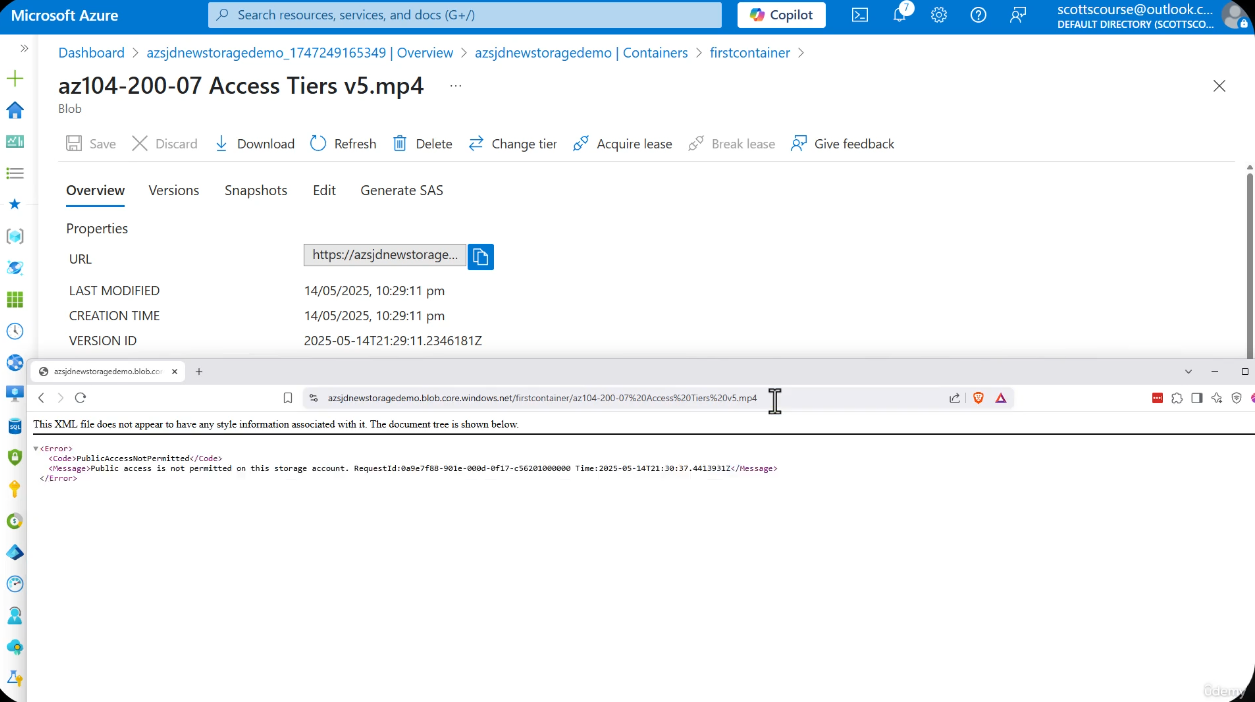
Azure Portal showing blob container properties, including public access level, lease state, and metadata.
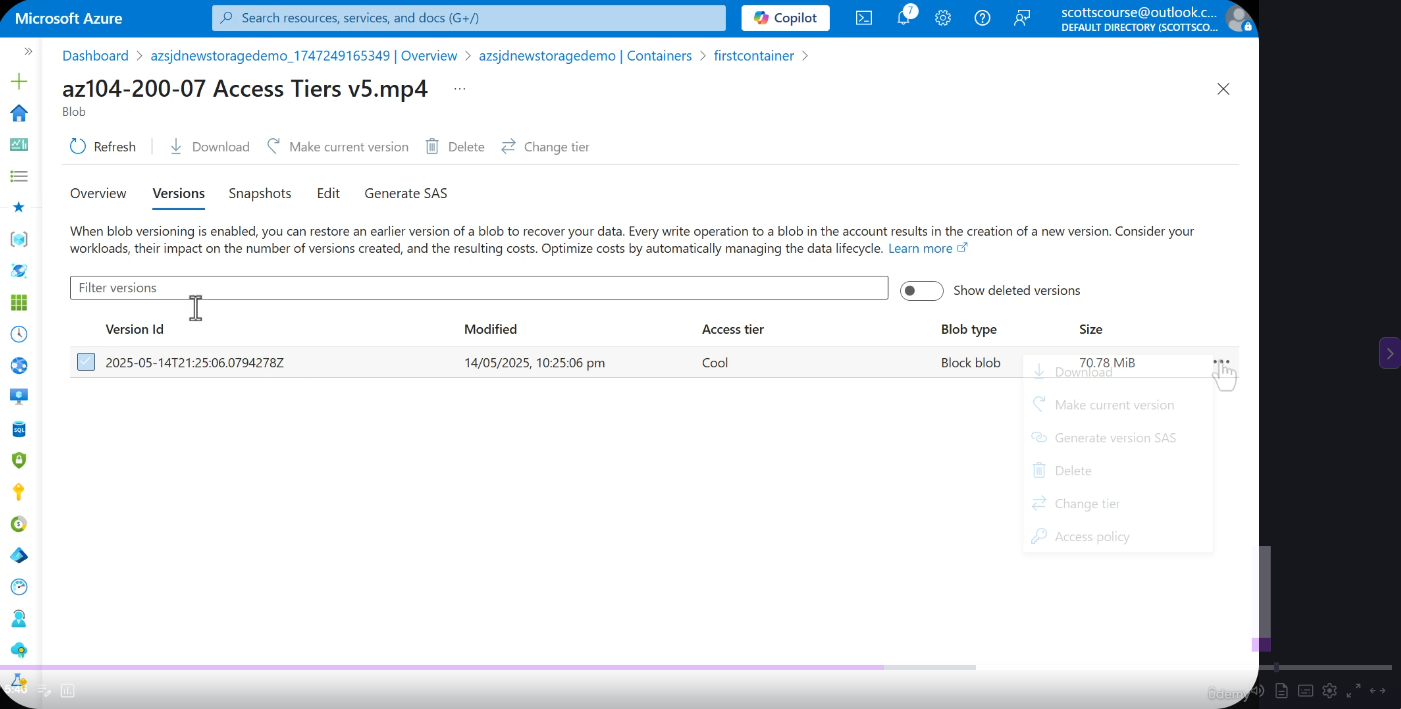
Detailed view of a blob showing its type, size, access tier, and URL.
Hierarchical Namespace (Data Lake Storage Gen2)
John SavillEnabling the Hierarchical Namespace (HNS) on a storage account upgrades Blob Storage into Azure Data Lake Storage Gen2. Instead of a flat namespace where / is simply part of a blob name, HNS provides real directory objects with metadata operations that complete in constant time, POSIX ACLs, and protocol support for NFS 3.0 and SFTP.
Flat vs Hierarchical Namespace
| Aspect | Flat Namespace (Default) | Hierarchical Namespace (HNS) |
|---|---|---|
| Directories | Virtual -- / is part of blob name | Real directory objects |
| Rename folder | Copy + delete every blob (slow) | Metadata change (instant) |
| Move folder | Copy + delete every blob (slow) | Pointer update (instant) |
| Delete folder | Delete every blob individually | Remove directory object (fast) |
| POSIX ACLs | Not available | Available |
| NFS 3.0 | Not available | Available |
| SFTP | Not available | Available |
| API | Blob REST API only | DFS REST API + Blob REST API |
| Hadoop/Spark | wasb:// driver | abfs:// driver (optimized) |
Flat namespace stores all blobs as a flat list with / in the name. HNS creates a real directory tree with O(1) rename, move, and delete operations on directories.
Feature Compatibility Matrix
HNS Feature Trade-offs
Enabling HNS disables several Blob Storage features. This decision is irreversible -- you cannot disable HNS after account creation.
| Feature | Without HNS | With HNS |
|---|---|---|
| Blob Versioning | Available | NOT available |
| Blob Index Tags | Available | NOT available |
| Point-in-Time Restore | Available | NOT available |
| Object Replication | Available | NOT available |
| Change Feed | Available | Available |
| Soft Delete (Blob) | Available | Available |
| Soft Delete (Container) | Available | Available |
| NFS 3.0 | Not available | Available |
| SFTP | Not available | Available |
| POSIX ACLs | Not available | Available |
| True Directories | Virtual only | Real objects |
Exam Tip
HNS cannot be changed after account creation. Know what you lose (versioning, blob index tags, point-in-time restore, object replication) and what you gain (NFS 3.0, SFTP, POSIX ACLs, real directories). Any question mentioning SFTP or NFS on blob storage requires HNS to be enabled.
Data Lake Pattern
Data Lake Storage Gen2 is designed for the ELT (Extract, Load, Transform) paradigm: ingest raw data first, store it cheaply, then transform it later. Storage is inexpensive compared to compute, so it is more cost-effective to land all data as-is and process it on demand using analytics engines like Synapse, Databricks, or HDInsight.
direction: right

ingest: Ingest {
  style.fill: "#4a9"
  style.font-color: "#fff"
  label: "Ingest\n(IoT, APIs, Apps, Logs)"
}

raw: Raw Zone {
  style.fill: "#38a"
  style.font-color: "#fff"
  label: "Raw Zone\n(Store as-is, no transformation)"
}

curated: Curated Zone {
  style.fill: "#a63"
  style.font-color: "#fff"
  label: "Curated Zone\n(Clean, transform, enrich)"
}

serve: Serve {
  style.fill: "#a36"
  style.font-color: "#fff"
  label: "Serve\n(Analytics / BI / ML)"
}

ingest -> raw: "Land raw data"
raw -> curated: "ELT pipelines"
curated -> serve: "Optimized queries"
DFS API and URL Format
When HNS is enabled, the storage account exposes a DFS (Distributed File System) endpoint in addition to the standard blob endpoint:
https://{account}.dfs.core.windows.net/{filesystem}/{directory}/{file}The standard Blob API also works for HNS-enabled accounts, but the DFS endpoint is the native interface for Data Lake operations. The ABFS driver (abfs://) is used by Hadoop, Spark, and Databricks to interact with Data Lake Storage Gen2 -- it replaces the older wasb:// driver and provides significantly better performance and reliability.
Lab: Flat vs Hierarchical Namespace Comparison
- Create two storage accounts -- one with HNS disabled (flat namespace) and one with HNS enabled (hierarchical namespace)
- In both accounts, create a container/filesystem named
test-data - Upload several files with path-like names (e.g.,
logs/2026/01/app.log,logs/2026/01/error.log) - In the flat namespace account, try renaming the
logs/2026/01/"folder" -- observe that Azure must copy and delete each blob individually - In the HNS account, rename the
logs/2026/01/directory -- observe the instant metadata operation - In the HNS account, navigate to the DFS endpoint in the portal and explore the directory structure
- Compare the available features (versioning, index tags) between the two accounts
Static Website Hosting
John SavillAzure Storage accounts can serve static web content (HTML, CSS, JavaScript, images) directly from a special blob container called $web. This is a lightweight, low-cost option for hosting single-page applications, documentation sites, landing pages, and other content that does not require server-side processing.
How It Works
- Enable static website hosting at the storage account level
- Azure automatically creates a
$webcontainer - Upload your HTML, CSS, JavaScript, and image files to the
$webcontainer - Content is served at:
https://{account}.z{N}.web.core.windows.net - Configure the index document (e.g.,
index.html) and error document (e.g.,404.html)
Static Website vs Azure Static Web Apps
| Feature | Storage Static Website | Azure Static Web Apps |
|---|---|---|
| Hosting | Blob $web container | Managed service |
| CDN | Manual (add Azure CDN) | Built-in global CDN |
| Backend APIs | None | Managed Azure Functions |
| Custom domains | CNAME (HTTP only natively) | Built-in with free SSL |
| CI/CD | Manual upload | GitHub/DevOps integration |
| Cost | Storage charges only | Free tier available |
Custom Domain
To use a custom domain with a static website, create a CNAME record pointing to the web endpoint ({account}.z{N}.web.core.windows.net). However, the native static website endpoint only supports HTTP for custom domains. For HTTPS with a custom domain, place Azure CDN in front of the storage account -- the CDN provides SSL termination and global caching.
CLI Reference
# Enable static website hosting
az storage blob service-properties update \
  --account-name myaccount \
  --static-website \
  --index-document index.html \
  --404-document 404.html

# Upload site content to $web container
az storage blob upload-batch \
  --account-name myaccount \
  --source ./site \
--destination '$web'# Enable static website hosting
Enable-AzStorageStaticWebsite `
-Context $ctx `
-IndexDocument "index.html" `
-ErrorDocument404Path "404.html"
# Upload site content to $web container
Get-ChildItem -Path "./site" -Recurse -File | ForEach-Object {
Set-AzStorageBlobContent `
-Container '$web' `
-File $_.FullName `
-Blob $_.Name `
-Context $ctx
}Lab: Host a Static Website
- In your storage account, go to Data management > Static website
- Click Enabled, set the index document to
index.htmland the error document to404.html - Note the primary endpoint URL that Azure provides
- Navigate to the
$webcontainer that was automatically created - Create a simple
index.htmlfile:html<!DOCTYPE html> <html><body><h1>Hello from Azure Static Website!</h1></body></html> - Upload
index.htmlto the$webcontainer - Create and upload a
404.htmlerror page - Open the primary endpoint URL in a browser -- verify the index page renders
- Navigate to a non-existent path (e.g.,
/does-not-exist) -- verify the 404 page renders
Azure Files
Azure Files provides fully managed file shares in the cloud, accessible via the industry-standard SMB (Server Message Block) and NFS (Network File System) protocols. Unlike Blob Storage's flat container model, Azure Files offers a true hierarchical directory structure with real folders.
Key Characteristics
| Property | Details |
|---|---|
| Protocols | SMB (port 445), NFS (port 2049), REST API |
| Directory structure | Hierarchical -- real folders and subfolders |
| Mountable | Windows, Linux, macOS -- mounts as a native network drive |
| Max share size | 100 TiB (standard), 100 TiB (premium) |
| Max file size | 4 TiB |
| Encryption | SMB 3.x encryption in transit, Azure Storage encryption at rest |
Use Cases
- Lift-and-shift: Migrate on-premises file shares to the cloud without changing application code
- Shared application settings: Configuration files shared across multiple application instances
- Diagnostic logs: Centralized log collection from multiple VMs or services
- Dev/test environments: Shared tools, scripts, and test data across teams
Azure File Sync
Azure File Sync extends Azure Files to on-premises Windows Servers, enabling:
- Cloud tiering: Frequently accessed files stay local; infrequently accessed files are tiered to Azure and recalled on demand
- Multi-site sync: Synchronize files across multiple on-premises servers and Azure
- Centralized backup: All data is backed up in Azure regardless of which server it lives on
- Fast disaster recovery: Provision a new server and sync from the cloud
TIP
Azure File Sync is a powerful hybrid solution. Think of it as a CDN for file shares -- hot files are cached locally for low-latency access, while the full dataset lives in Azure. This is a common exam topic when questions mention "extending on-premises file servers to the cloud."
File Share URL Format
https://{account}.file.core.windows.net/{share}/{directory}/{file}Azure Queue Storage
Azure Queue Storage provides simple, reliable message queuing for asynchronous communication between application components. It is designed for decoupling -- a producer pushes messages to the queue, and a consumer processes them independently.
Key Characteristics
| Property | Details |
|---|---|
| Protocol | REST/HTTP |
| Max message size | 64 KB |
| Queue capacity | Millions of messages (limited by storage account capacity) |
| Default message TTL | 7 days (configurable up to infinite) |
| Visibility timeout | Configurable -- hides a message from other consumers while one consumer processes it |
| Ordering | Approximate FIFO (not guaranteed strict ordering) |
Use Cases
- Decoupling application components: Frontend submits orders; backend processes them asynchronously
- Work item scheduling: Background jobs triggered by queue messages
- Order processing: E-commerce order pipeline with retry and dead-letter capability
- Load leveling: Smooth out traffic spikes by queuing requests during peak load
Queue URL Format
https://{account}.queue.core.windows.net/{queue}Queue vs Service Bus
When to Use Azure Service Bus Instead
Azure Queue Storage is simple and cost-effective, but for advanced messaging scenarios, consider Azure Service Bus:
| Feature | Queue Storage | Service Bus |
|---|---|---|
| Max message size | 64 KB | 256 KB (Standard), 100 MB (Premium) |
| Ordering | Approximate FIFO | Guaranteed FIFO (sessions) |
| Topics/Subscriptions | No | Yes (pub/sub pattern) |
| Transactions | No | Yes |
| Duplicate detection | No | Yes |
| Dead-letter queue | No (manual) | Built-in |
| Sessions | No | Yes (grouped processing) |
| Cost | Very low | Higher |
Rule of thumb: Use Queue Storage for simple, high-volume queuing. Use Service Bus when you need guaranteed ordering, pub/sub topics, transactions, or dead-letter handling.
Azure Table Storage
Azure Table Storage is a NoSQL key-value store for structured, non-relational data. It is schema-less, meaning each entity (row) in a table can have a completely different set of properties (columns). The only required properties are PartitionKey, RowKey, and Timestamp.
Key Characteristics
| Property | Details |
|---|---|
| Protocol | REST/HTTP, OData |
| Key structure | PartitionKey + RowKey = unique identifier |
| Schema | Schema-less -- entities can have different properties |
| Max entity size | 1 MB |
| Max properties per entity | 252 (plus 3 system properties) |
| Scalability | Automatic partitioning based on PartitionKey |
Use Cases
- Structured non-relational data: Data that does not require joins, foreign keys, or complex queries
- Address books and user profiles: Flexible schema for varying user attributes
- Device information: IoT device metadata with heterogeneous properties
- Application metadata: Configuration, feature flags, and settings storage
Table URL Format
https://{account}.table.core.windows.net/{table}Table Storage vs Cosmos DB Table API
When to Use Cosmos DB Table API Instead
Azure Table Storage is simple and inexpensive, but Cosmos DB Table API provides significant advantages for production workloads:
| Feature | Table Storage | Cosmos DB Table API |
|---|---|---|
| Latency | Variable | Single-digit ms (guaranteed SLA) |
| Throughput | ~20,000 ops/sec per partition | Unlimited (configurable RU/s) |
| Global distribution | Single region | Multi-region with automatic failover |
| Indexing | Primary index only (PartitionKey + RowKey) | Automatic secondary indexing on all properties |
| SLA | 99.9% | 99.999% (multi-region) |
| Cost | Lower | Higher (pay for provisioned throughput) |
Rule of thumb: Use Table Storage for development, low-throughput scenarios, and cost-sensitive workloads. Migrate to Cosmos DB Table API when you need global distribution, guaranteed low latency, or higher throughput. The SDK is compatible -- migration requires minimal code changes.
CLI and PowerShell Reference
Blob Storage Operations
# Create a blob container
az storage container create \
  --name mycontainer \
  --account-name myaccount

# Upload a blob
az storage blob upload \
  --account-name myaccount \
  --container-name mycontainer \
  --name myfile.txt \
  --file ./myfile.txt

# List blobs in a container
az storage blob list \
  --account-name myaccount \
  --container-name mycontainer \
  --output table

# Download a blob
az storage blob download \
  --account-name myaccount \
  --container-name mycontainer \
  --name myfile.txt \
  --file ./downloaded.txt

# Delete a blob
az storage blob delete \
  --account-name myaccount \
  --container-name mycontainer \
--name myfile.txt# Get storage context
$ctx = New-AzStorageContext `
-StorageAccountName "myaccount" `
-StorageAccountKey (Get-AzStorageAccountKey `
-ResourceGroupName "myRG" `
-Name "myaccount")[0].Value
# Create a blob container
New-AzStorageContainer -Name "mycontainer" -Context $ctx
# Upload a blob
Set-AzStorageBlobContent `
-Container "mycontainer" `
-File "./myfile.txt" `
-Blob "myfile.txt" `
-Context $ctx
# List blobs in a container
Get-AzStorageBlob -Container "mycontainer" -Context $ctx
# Download a blob
Get-AzStorageBlobContent `
-Container "mycontainer" `
-Blob "myfile.txt" `
-Destination "./downloaded.txt" `
-Context $ctx
# Delete a blob
Remove-AzStorageBlob `
-Container "mycontainer" `
-Blob "myfile.txt" `
-Context $ctxAzure Files Operations
# Create a file share
az storage share create \
  --name myshare \
  --account-name myaccount \
  --quota 100

# Create a directory in the share
az storage directory create \
  --name mydir \
  --share-name myshare \
  --account-name myaccount

# Upload a file to the share
az storage file upload \
  --share-name myshare \
  --source ./myfile.txt \
  --path mydir/myfile.txt \
  --account-name myaccount

# List files in a share
az storage file list \
  --share-name myshare \
  --account-name myaccount \
--output table$ctx = New-AzStorageContext `
-StorageAccountName "myaccount" `
-StorageAccountKey "<key>"
# Create a file share
New-AzStorageShare -Name "myshare" -Context $ctx
# Create a directory in the share
New-AzStorageDirectory `
-ShareName "myshare" `
-Path "mydir" `
-Context $ctx
# Upload a file to the share
Set-AzStorageFileContent `
-ShareName "myshare" `
-Source "./myfile.txt" `
-Path "mydir/myfile.txt" `
-Context $ctx
# List files in a share
Get-AzStorageFile -ShareName "myshare" -Context $ctxQueue Storage Operations
# Create a queue
az storage queue create \
  --name myqueue \
  --account-name myaccount

# Send a message to the queue
az storage message put \
  --queue-name myqueue \
  --account-name myaccount \
  --content "Hello World"

# Peek at messages (does not dequeue)
az storage message peek \
  --queue-name myqueue \
  --account-name myaccount \
  --num-messages 5

# Get (dequeue) a message
az storage message get \
  --queue-name myqueue \
  --account-name myaccount

# Delete a queue
az storage queue delete \
  --name myqueue \
--account-name myaccount$ctx = New-AzStorageContext `
-StorageAccountName "myaccount" `
-StorageAccountKey "<key>"
# Create a queue
New-AzStorageQueue -Name "myqueue" -Context $ctx
# Get the queue reference
$queue = Get-AzStorageQueue -Name "myqueue" -Context $ctx
# Send a message
$queueMessage = [Microsoft.Azure.Storage.Queue.CloudQueueMessage]::new("Hello World")
$queue.CloudQueue.AddMessageAsync($queueMessage)
# Peek at messages (does not dequeue)
$queue.CloudQueue.PeekMessagesAsync(5)
# Dequeue a message
$message = $queue.CloudQueue.GetMessageAsync().Result
$queue.CloudQueue.DeleteMessageAsync($message)Table Storage Operations
# Create a table
az storage table create \
  --name mytable \
  --account-name myaccount

# Insert an entity
az storage entity insert \
  --table-name mytable \
  --account-name myaccount \
  --entity PartitionKey=Users RowKey=user001 Name="Alice" Email="alice@example.com"

# Query entities by partition key
az storage entity query \
  --table-name mytable \
  --account-name myaccount \
  --filter "PartitionKey eq 'Users'"

# Delete an entity
az storage entity delete \
  --table-name mytable \
  --account-name myaccount \
  --partition-key Users \
  --row-key user001

# Delete a table
az storage table delete \
  --name mytable \
--account-name myaccount$ctx = New-AzStorageContext `
-StorageAccountName "myaccount" `
-StorageAccountKey "<key>"
# Create a table
New-AzStorageTable -Name "mytable" -Context $ctx
# Get table reference
$table = (Get-AzStorageTable -Name "mytable" -Context $ctx).CloudTable
# Insert an entity
$entity = New-Object Microsoft.Azure.Cosmos.Table.DynamicTableEntity("Users", "user001")
$entity.Properties.Add("Name", "Alice")
$entity.Properties.Add("Email", "alice@example.com")
$table.ExecuteAsync(
[Microsoft.Azure.Cosmos.Table.TableOperation]::InsertOrReplace($entity)
)
# Query entities by partition key
$filter = "PartitionKey eq 'Users'"
$query = New-Object Microsoft.Azure.Cosmos.Table.TableQuery
$query.FilterString = $filter
$table.ExecuteQuerySegmentedAsync($query, $null).Result.Results
# Delete an entity
$entityToDelete = $table.ExecuteAsync(
[Microsoft.Azure.Cosmos.Table.TableOperation]::Retrieve("Users", "user001")
).Result.Result
$table.ExecuteAsync(
[Microsoft.Azure.Cosmos.Table.TableOperation]::Delete($entityToDelete)
)Lab Exercises
Prerequisites
Ensure you have an active Azure subscription, a storage account created (from earlier labs), and the Azure CLI installed locally or access to Azure Cloud Shell.
Lab 1: Create a Blob Container and Upload Different File Types
- Navigate to your storage account in the Azure Portal
- Go to Data storage > Containers
- Click + Container, name it
lab-blobs, set access level to Private - Open the container and upload three different files:
- A text file (
.txt) - An image file (
.pngor.jpg) - A PDF document (
.pdf)
- A text file (
- Click on each blob and observe:
- The blob type (should be Block blob for all three)
- The blob URL, access tier, size, and content type
- Copy the URL of the image blob and try opening it in a browser -- note the 403 error because the container is private
Lab 2: Create a File Share and Add Directories and Files
- In your storage account, go to Data storage > File shares
- Click + File share, name it
lab-share, set quota to 5 GiB - Open the share and create two directories:
configandlogs - Navigate into the
configdirectory and upload a sample configuration file - Navigate into the
logsdirectory and upload a sample log file - Note the hierarchical structure -- these are real directories, unlike blob virtual paths
- Click Connect on the file share and review the mount commands for Windows, Linux, and macOS
Lab 3: Create a Queue, Send Messages, Peek and Dequeue
- In your storage account, go to Data storage > Queues
- Click + Queue, name it
lab-queue - Open the queue and click Add message -- add three messages:
- Message 1:
{"orderId": "001", "item": "Widget"} - Message 2:
{"orderId": "002", "item": "Gadget"} - Message 3:
{"orderId": "003", "item": "Gizmo"}
- Message 1:
- Observe the messages in the queue -- note they appear in order
- Click Peek on the first message (this does NOT remove it from the queue)
- Click Dequeue on the first message (this removes it from the queue)
- Verify only two messages remain
Lab 4: Create a Table, Insert Entities, and Query by Partition Key
- In your storage account, go to Data storage > Tables
- Click + Table, name it
labtable - Open the table and click Add entity
- Insert three entities with PartitionKey =
Employees:- RowKey:
emp001, Name:Alice, Department:Engineering - RowKey:
emp002, Name:Bob, Department:Marketing - RowKey:
emp003, Name:Carol, Department:Engineering, Title:Senior Engineer
- RowKey:
- Note that
emp003has an extra property (Title) that the others do not -- this demonstrates the schema-less nature of Table Storage - Use the query builder to filter by
PartitionKey eq 'Employees'and verify all three entities are returned - Add a filter for
Department eq 'Engineering'and verify only Alice and Carol are returned
Lab 5: Compare the Portal Experience for Each Service Type
- Open each of the four services you created (Containers, File shares, Queues, Tables) side by side
- Compare the portal experience:
- Blobs: Flat list with virtual path navigation, access tier shown per blob
- Files: True folder hierarchy with breadcrumb navigation, mount button available
- Queues: Message list with peek/dequeue actions, message metadata displayed
- Tables: Entity grid with query builder, schema varies per entity
- Document the key differences in navigation, available actions, and metadata displayed
Clean Up
After completing the labs, delete the test resources to avoid ongoing charges:
az storage container delete --name lab-blobs --account-name <your-account>
az storage share delete --name lab-share --account-name <your-account>
az storage queue delete --name lab-queue --account-name <your-account>
az storage table delete --name labtable --account-name <your-account>
MS Learn References
- Introduction to Azure Blob Storage
- Introduction to Azure Files
- Introduction to Azure Queue Storage
- Azure Table Storage overview
- Introduction to Azure Data Lake Storage Gen2
- Azure Data Lake Storage Gen2 hierarchical namespace
- Known issues with Azure Data Lake Storage Gen2
- Static website hosting in Azure Storage
- Map a custom domain to an Azure Blob Storage endpoint
Key Takeaways
Exam Tip -- Summary
- Blob Storage is for unstructured data (files, images, videos). Block blobs are the default type. Append blobs are for logs. Page blobs are for VM disks.
- Azure Files provides SMB/NFS file shares with true hierarchical directories -- the go-to answer for lift-and-shift file server migrations.
- Queue Storage decouples application components with simple 64 KB messages. For advanced messaging (topics, sessions, transactions), use Azure Service Bus instead.
- Table Storage is a NoSQL key-value store identified by PartitionKey + RowKey. For global distribution and guaranteed latency, use Cosmos DB Table API instead.
- Each service has a distinct URL pattern under the storage account:
.blob.,.file.,.queue.,.table.followed bycore.windows.net. - Know the max sizes: Block blob = 190.7 TiB, Page blob = 8 TiB, File = 4 TiB, Queue message = 64 KB, Table entity = 1 MB.