
Managing Users & Groups in Microsoft Entra ID
📝 Exam Update (July 2023): Microsoft removed Administrative Units, Manage Devices, and Bulk Operations from the AZ-104 exam. Those topics have been moved to archived-topics-not-on-exam.md.
The Big Picture
Before we dive in, let's understand how everything connects:
1. Creating Users
Users are the foundation of everything. No users = nobody can do anything.
Three Ways to Add Users
Creating an Internal User
Path: Entra ID → Users → + New user → Create user
Required Fields:
- Username:
walter.white@yourdomain.com - Display Name: Walter White
That's it! Everything else is optional. Azure will auto-generate a password.
💡 Free Tier Limit: Up to 500,000 objects (users + groups + contacts). That's plenty!
What Can a New User Do?
Nothing. A brand new user has zero permissions. They can log into Azure Portal and... stare at a blank screen. You need to assign roles or add them to groups for them to actually DO anything.
🧪 Lab: Creating Walter White with a Custom Domain
Let's make this fun! I set up terralearn.online as my custom domain and created everyone's favorite chemistry teacher.
Step 1: Verify Your Domain
First, I added my domain and Azure asked me to prove I own it:
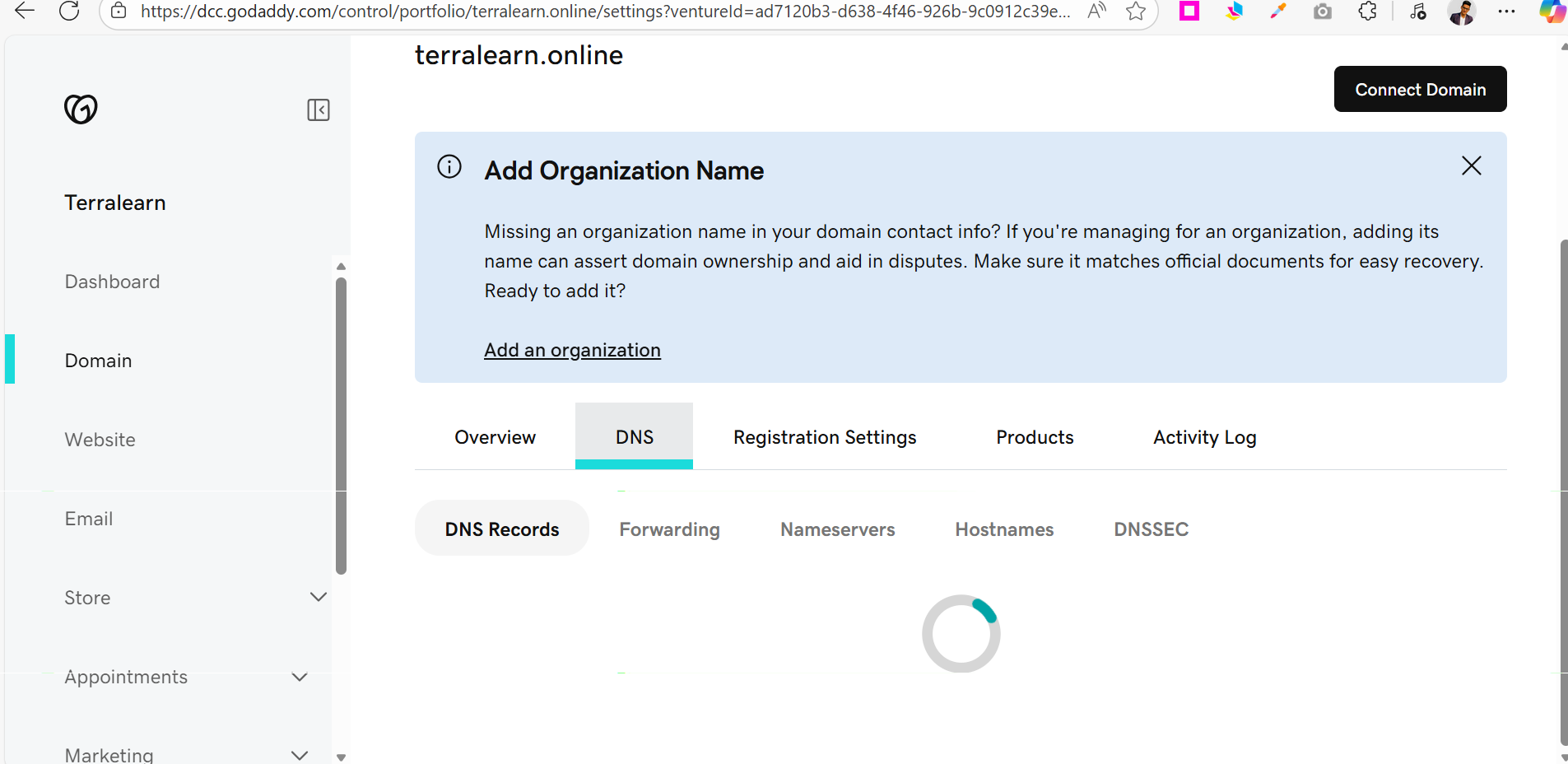
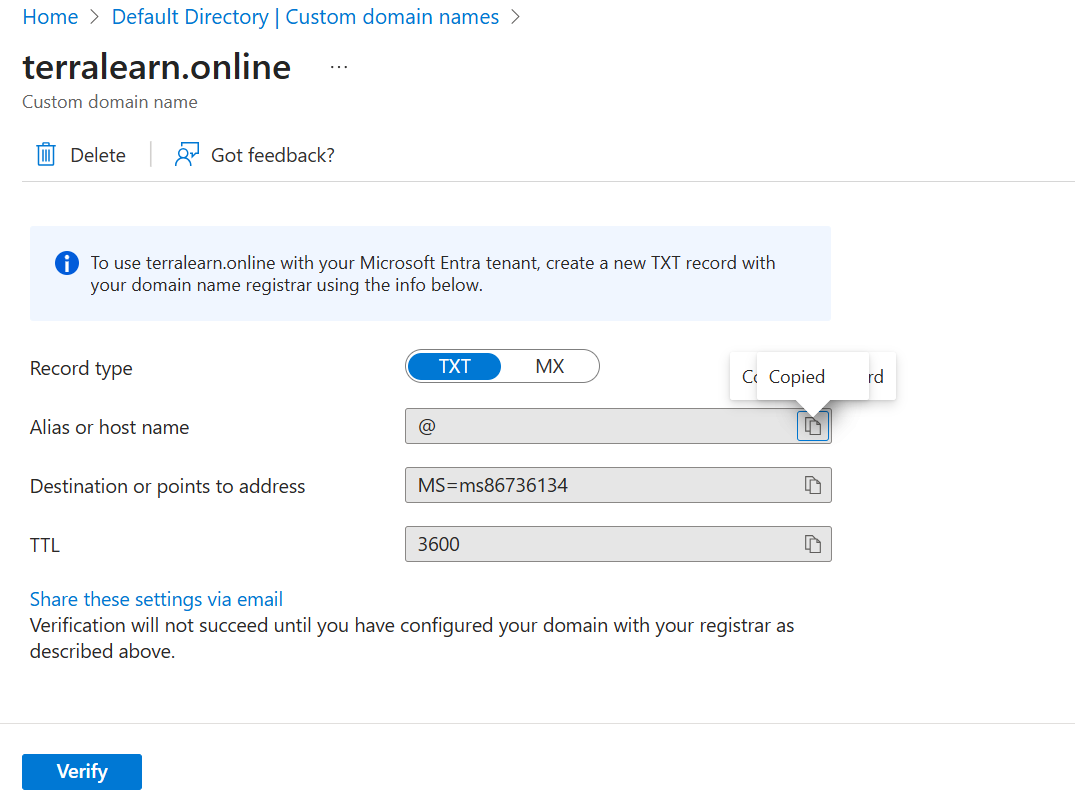
I added the TXT record in GoDaddy:
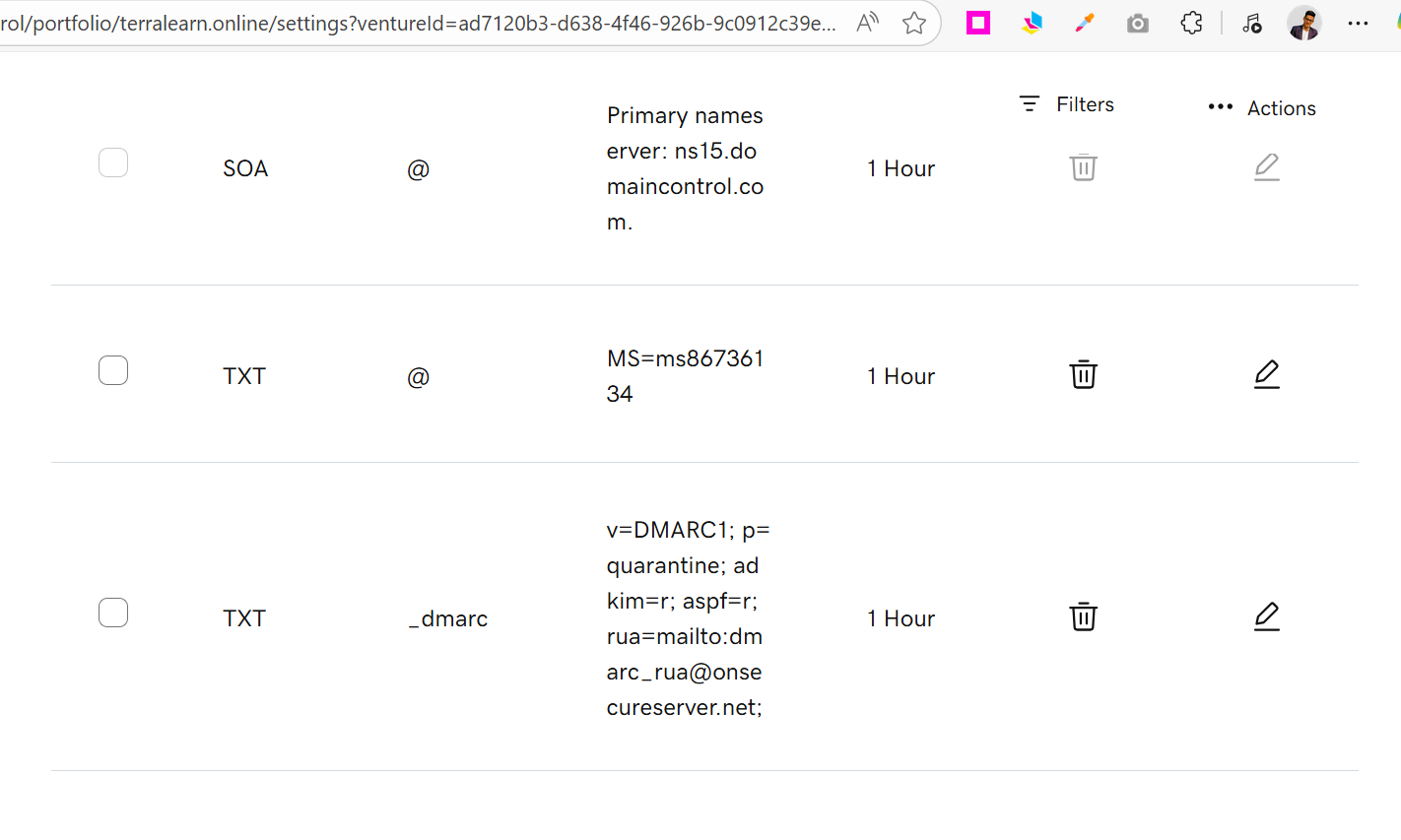
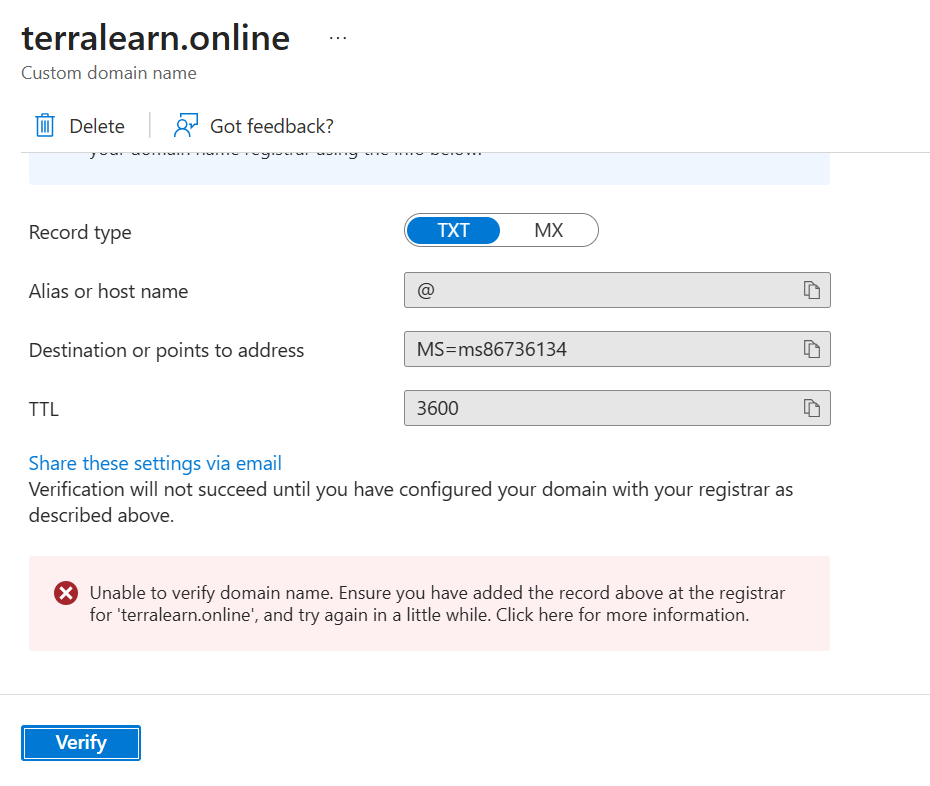
Got an error at first (DNS propagation takes time):
But after waiting... success!
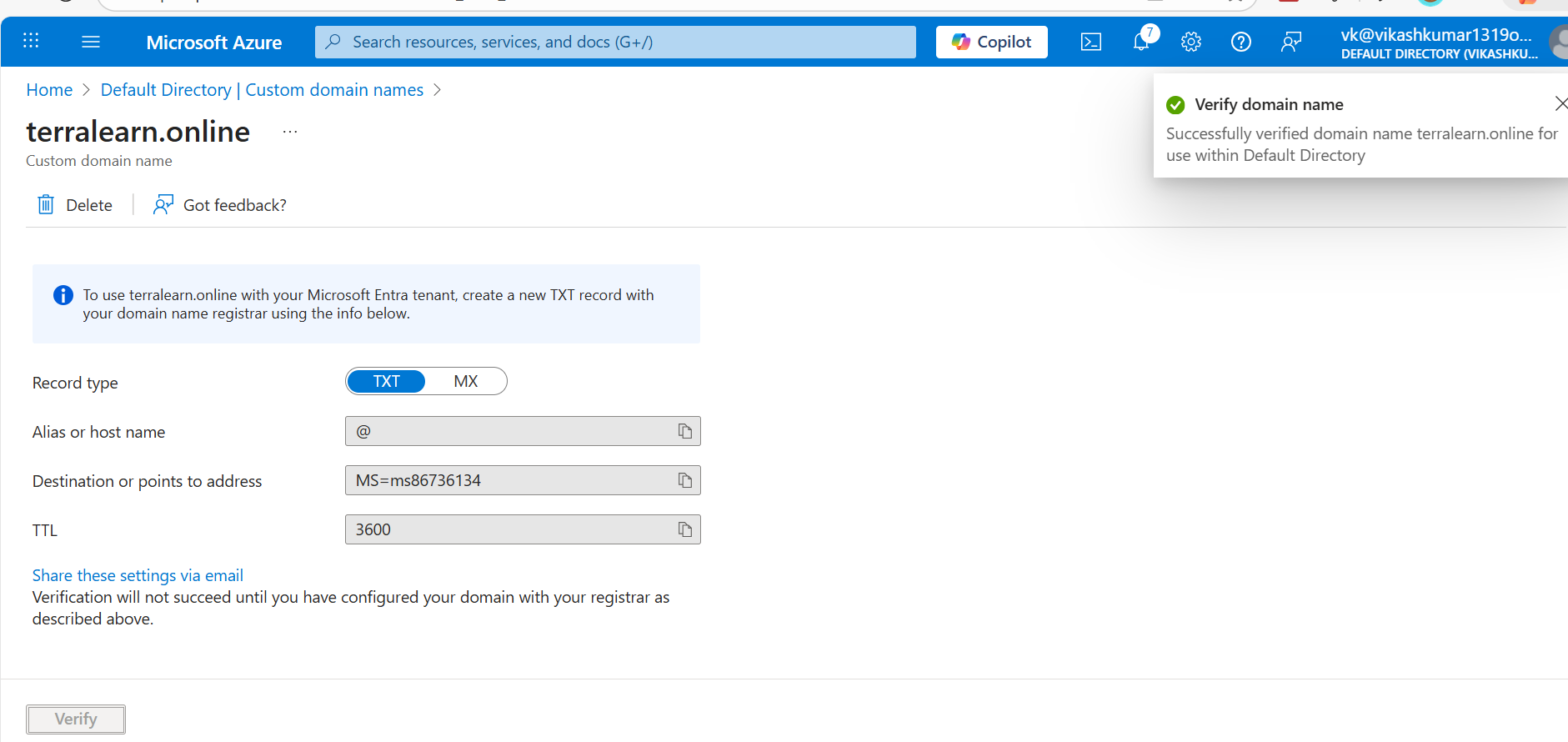
Quick DNS Check:
nslookup -type=TXT terralearn.online
# Output: terralearn.online text = "MS=ms86736134"
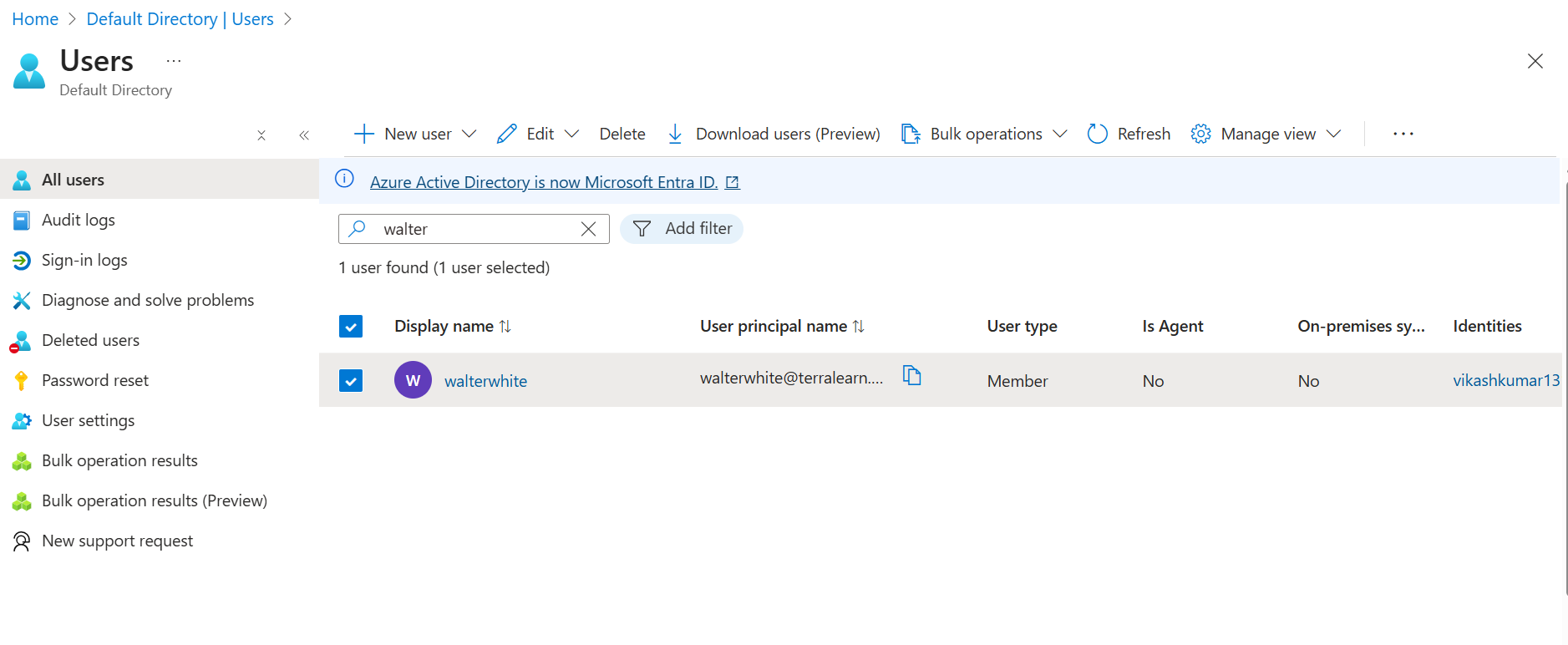
Step 2: Create Walter White
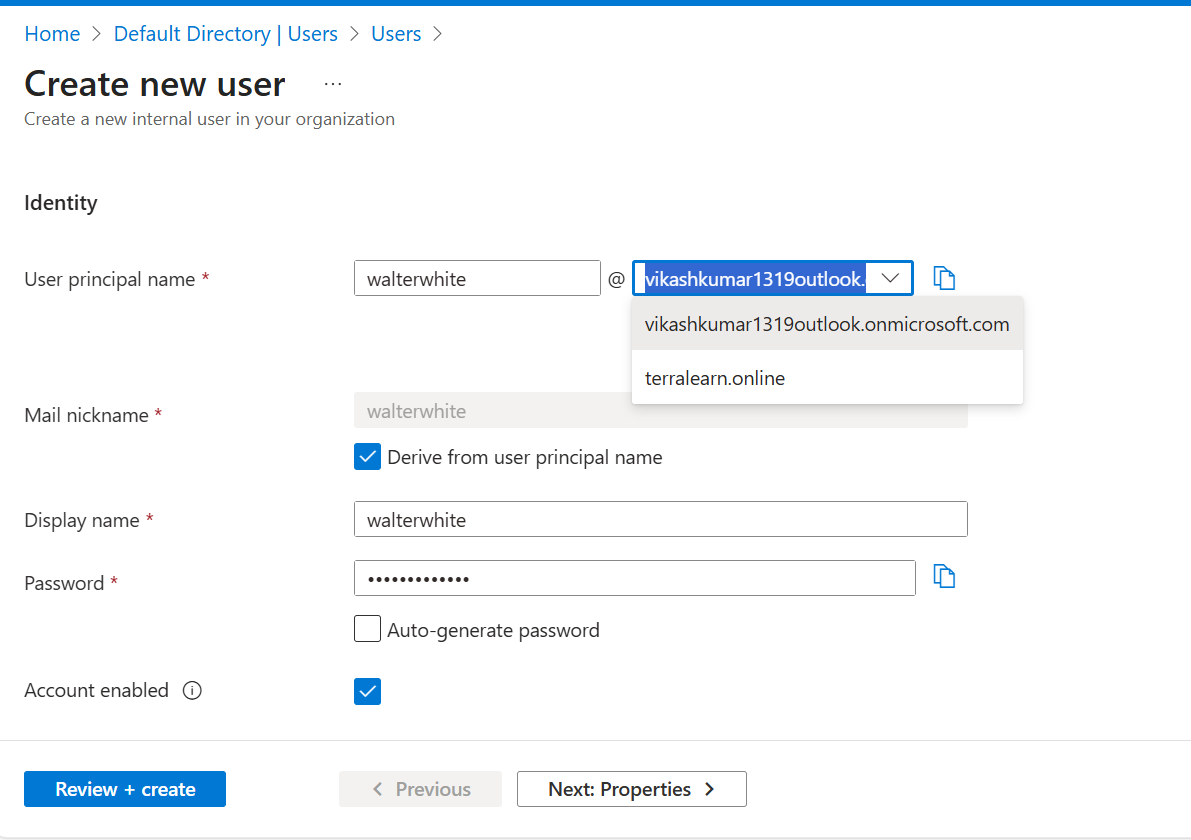
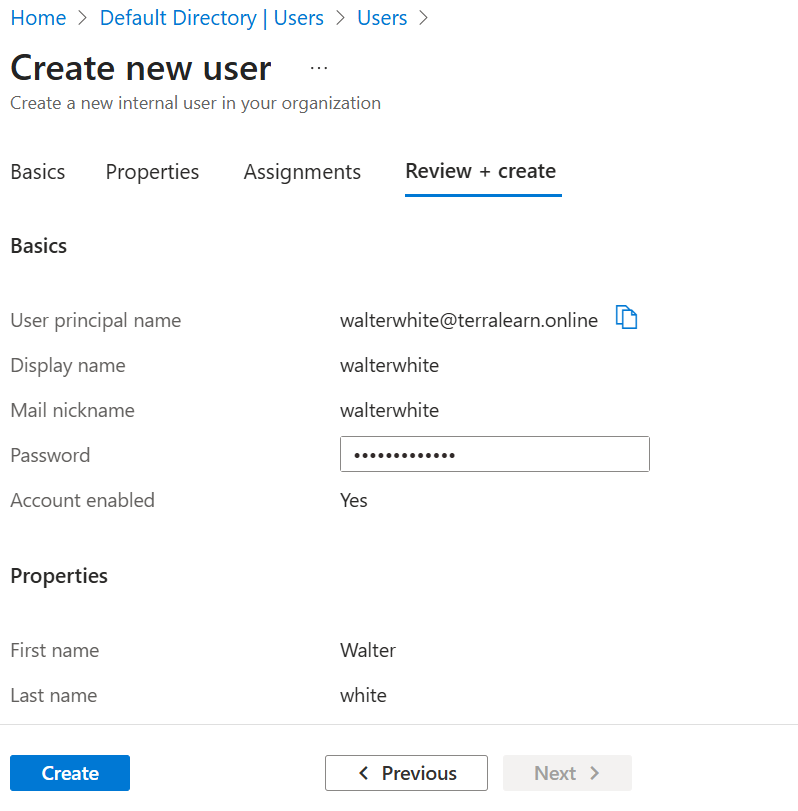
Step 3: First Login Experience
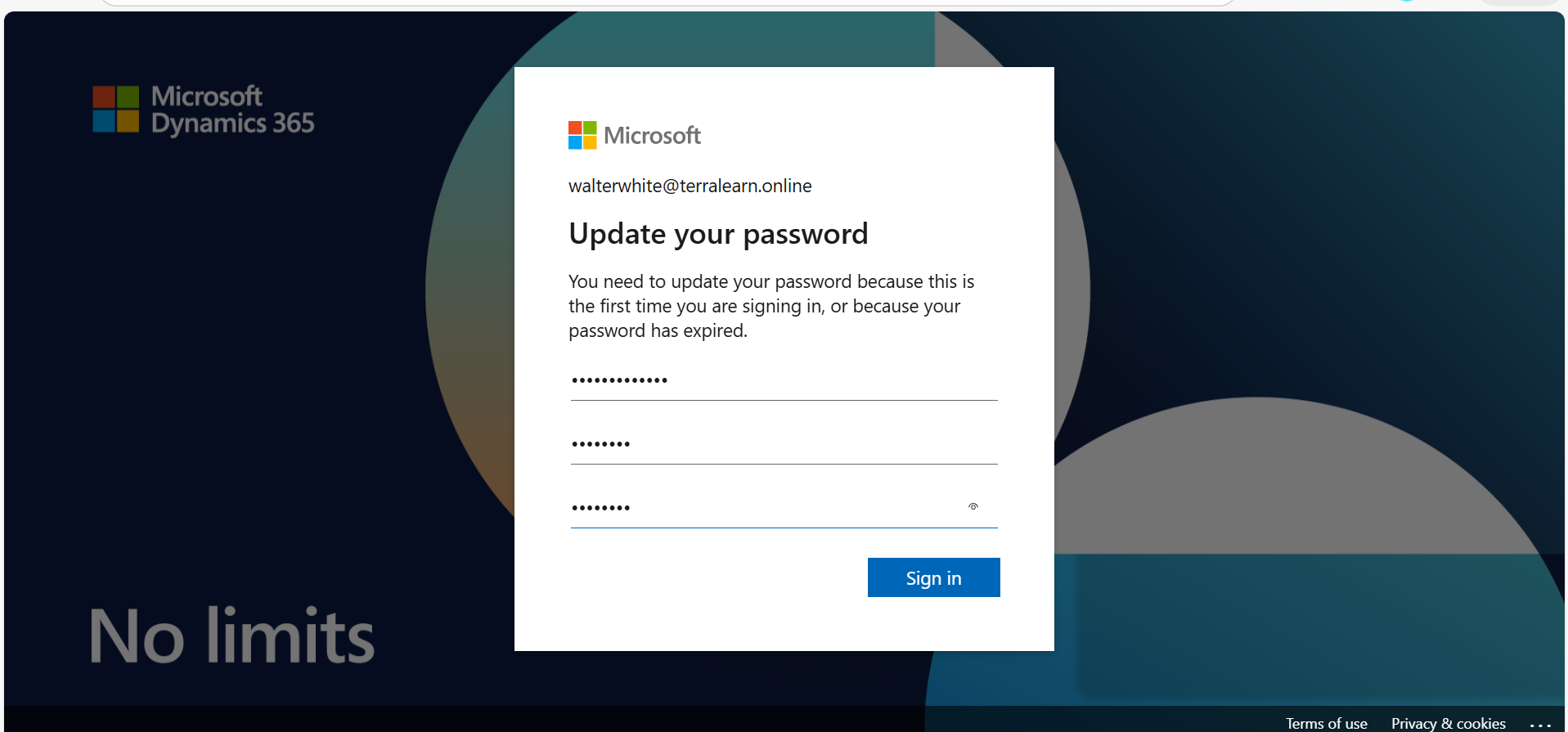
When Walter logs in for the first time:
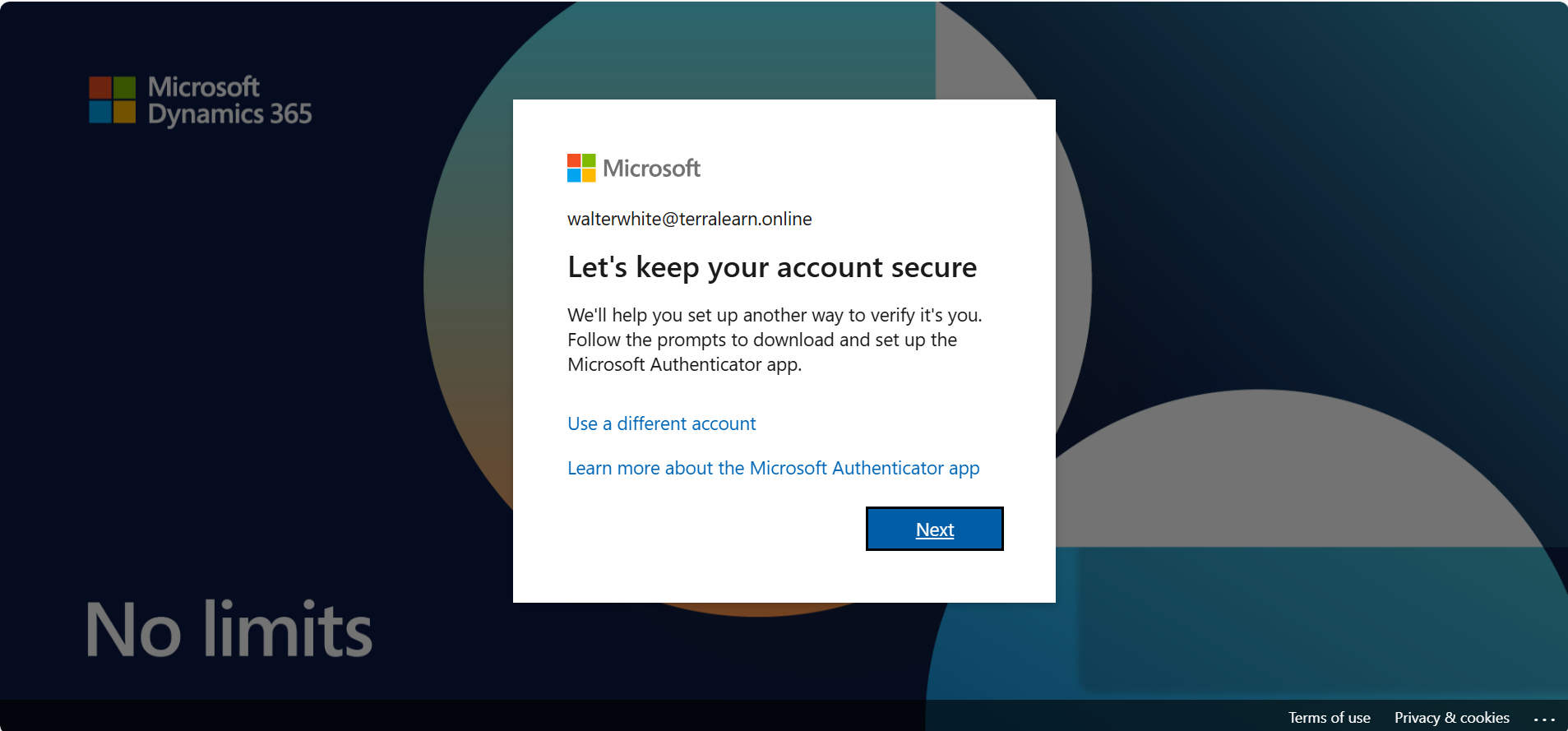
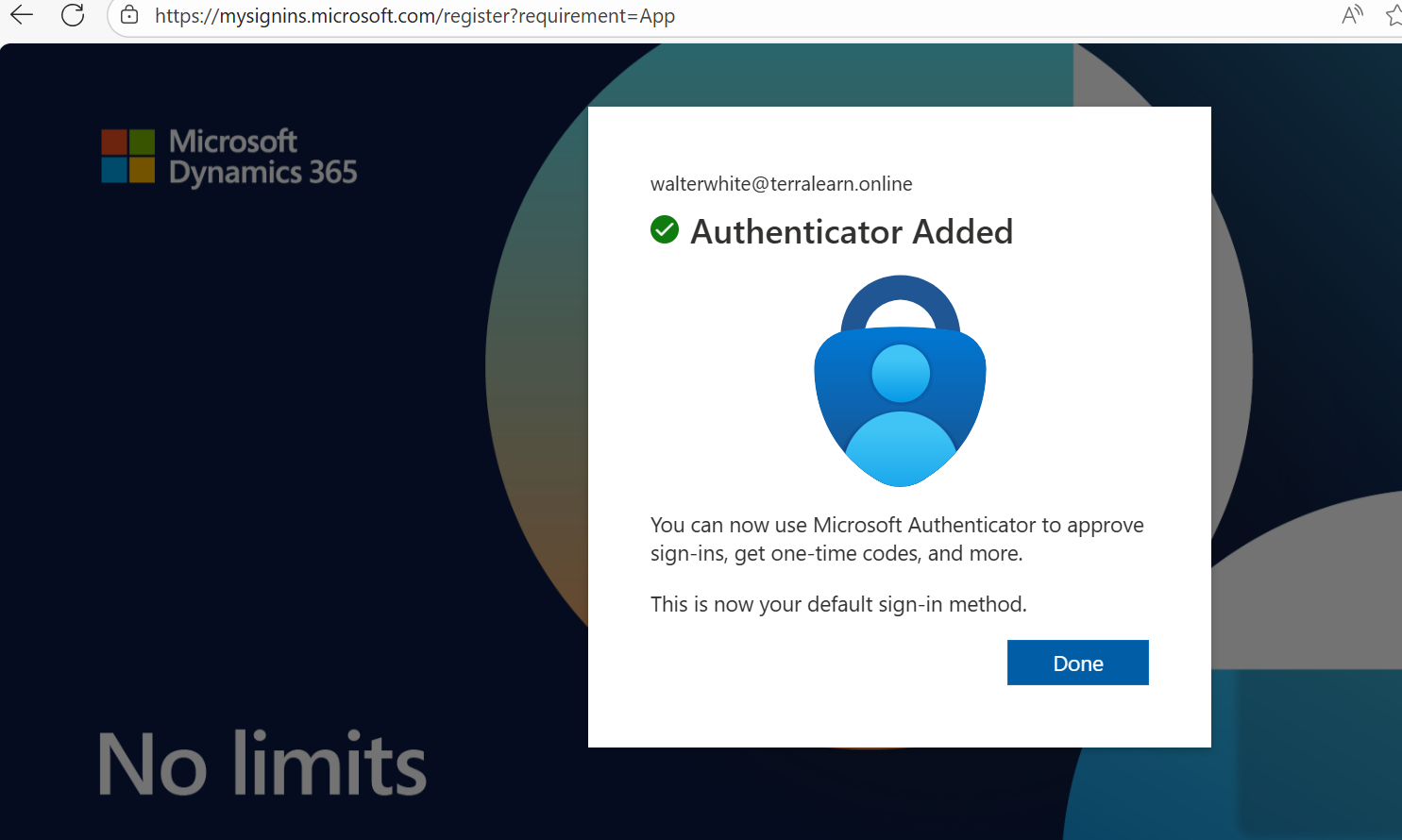
He's forced to set up MFA (because we're using P2):
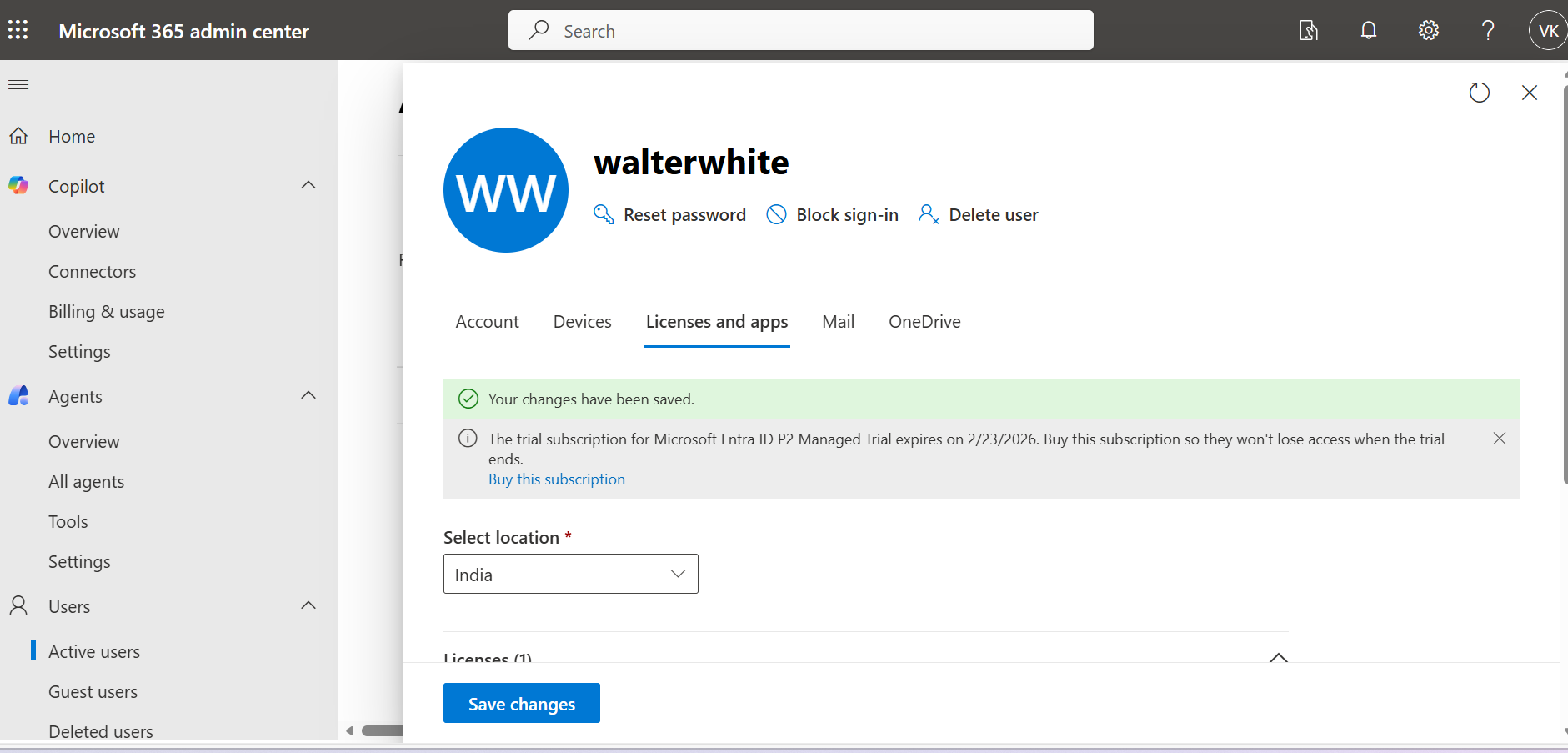
Step 4: Assign P2 License & PIM Role
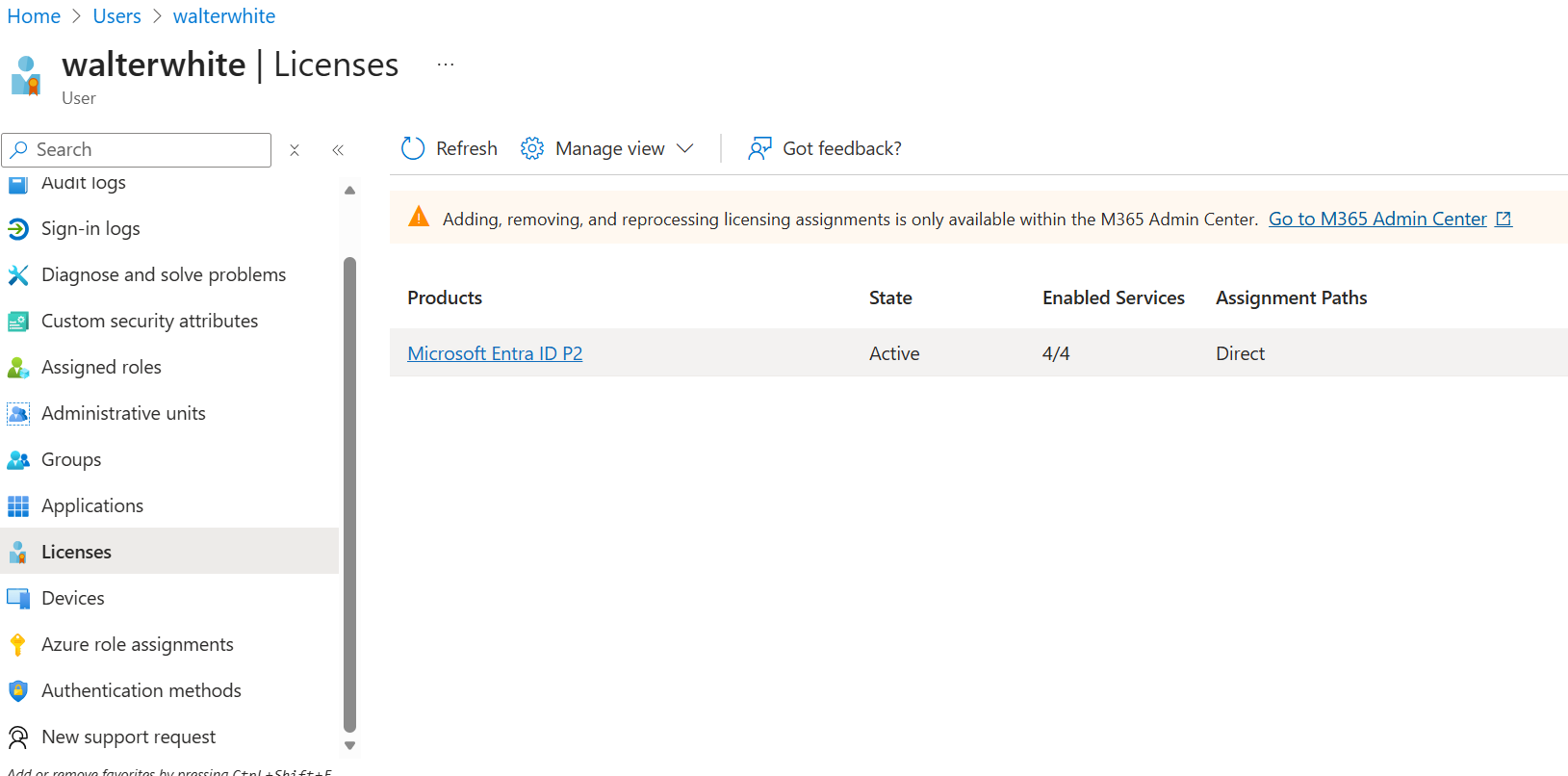
Walter needs his P2 license to access the good stuff:
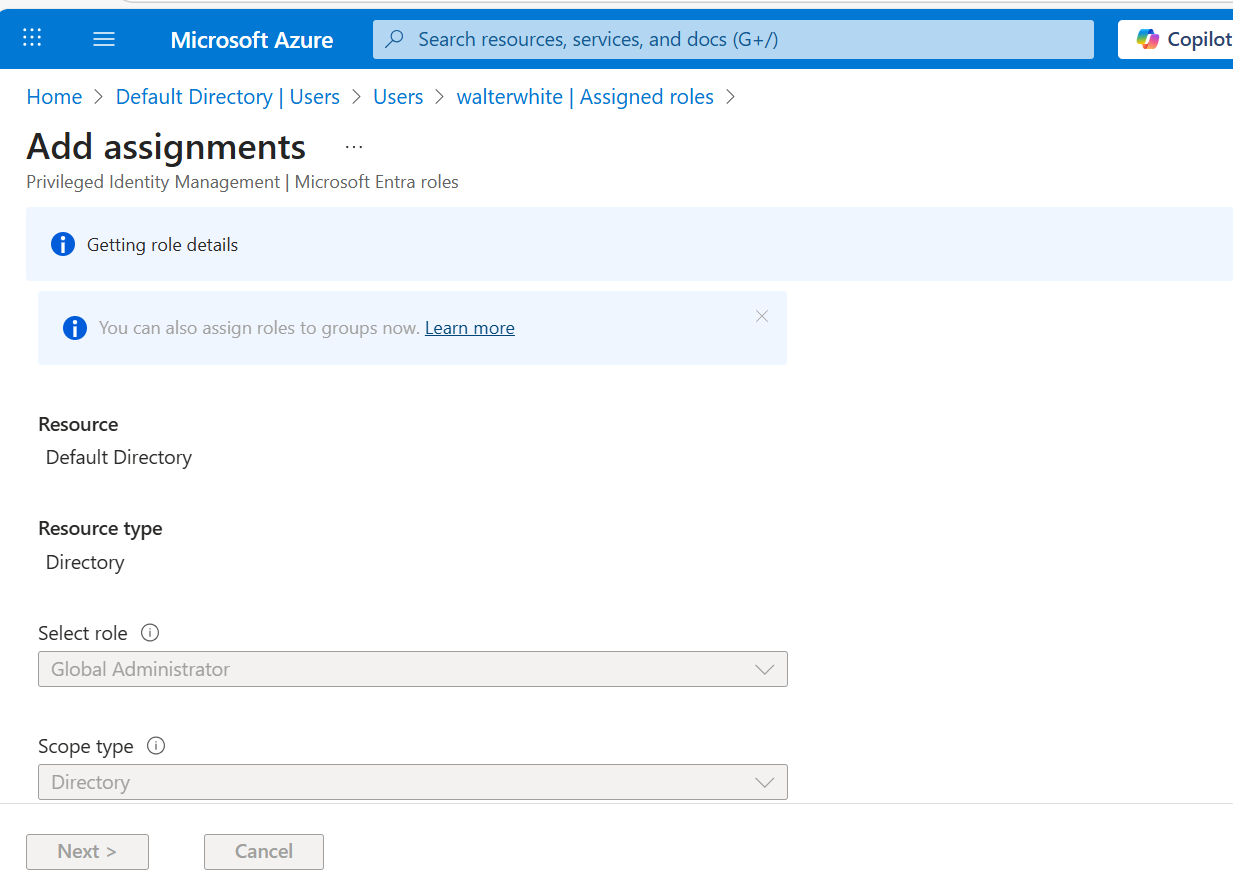
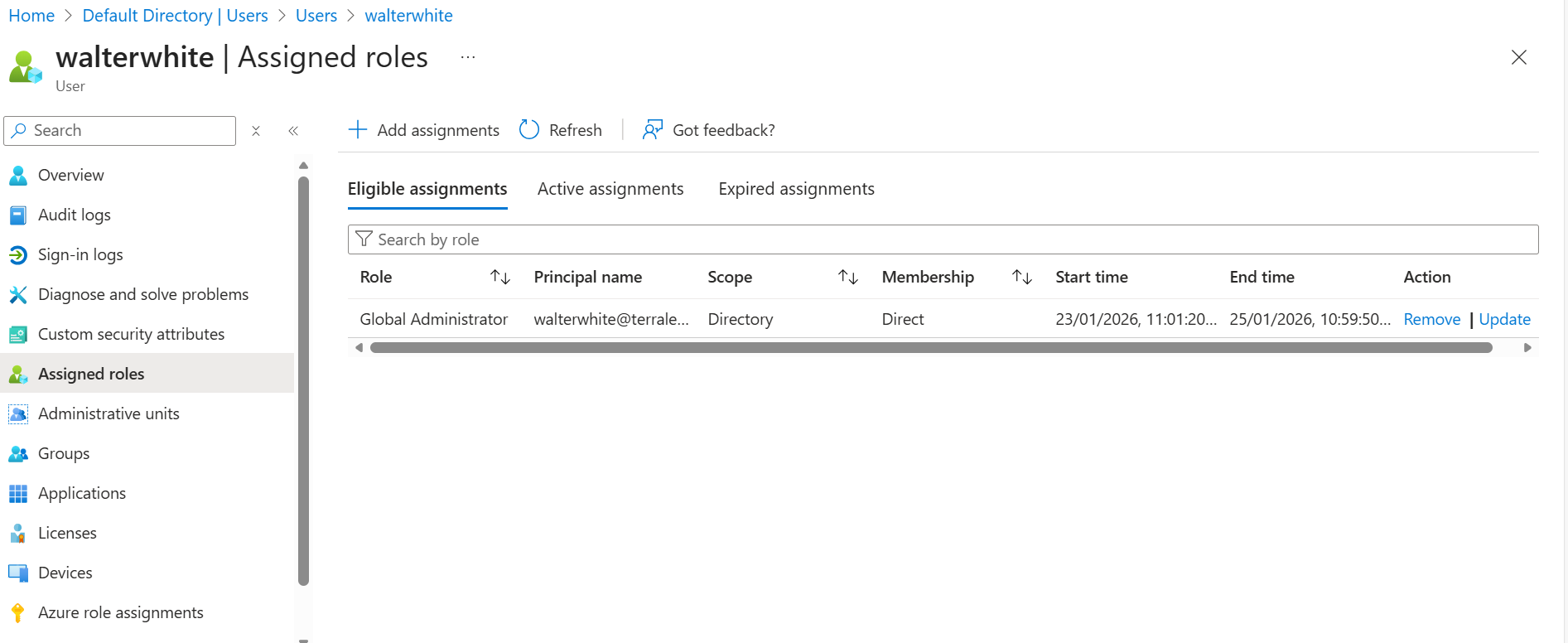
Now let's make him a Global Admin... but only for a day (that's PIM!):
Step 5: Activating the PIM Role
Walter goes to activate his eligible role:
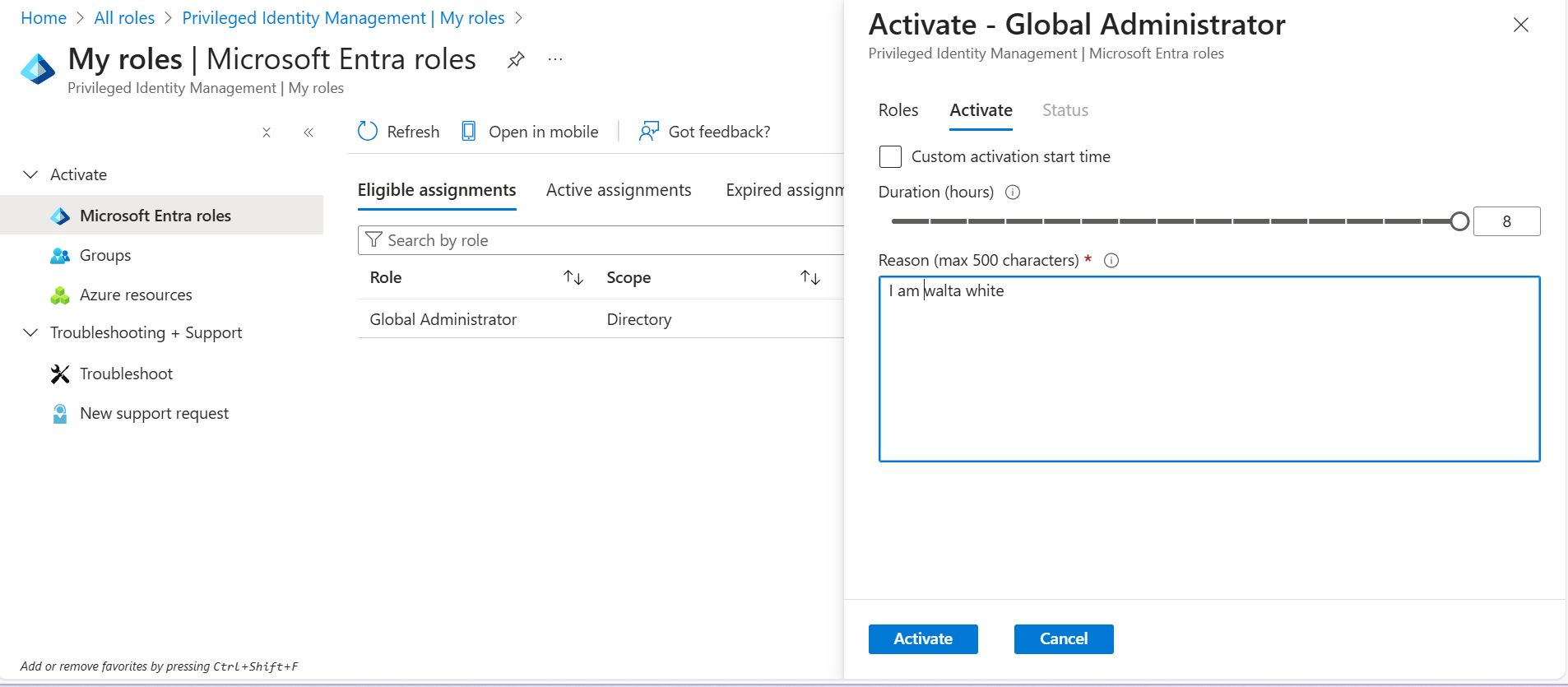
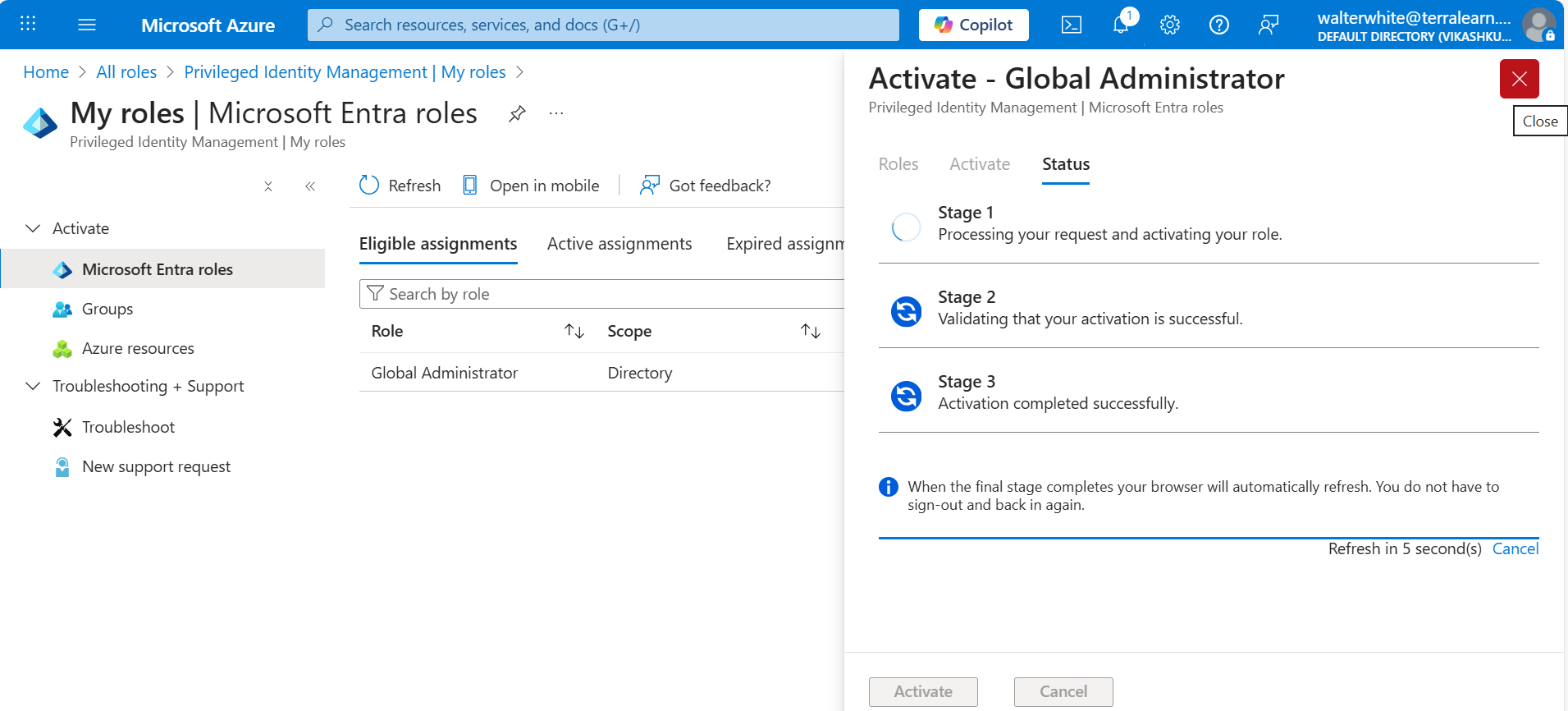
🎉 Walter White is now a Global Admin! (for exactly 24 hours)
2. Understanding Groups
When you have hundreds of users, managing them individually is a nightmare. Groups let you organize users and assign permissions in bulk.
Assigned vs. Dynamic Groups
| Feature | Assigned | Dynamic |
|---|---|---|
| How members are added | Manually by admin | Automatically by query |
| Use case | Project teams, ad-hoc groups | Departments, job titles |
| Maintenance | You manage it | Azure manages it |
| License required | Free | P1 or P2 |
Dynamic Group Magic
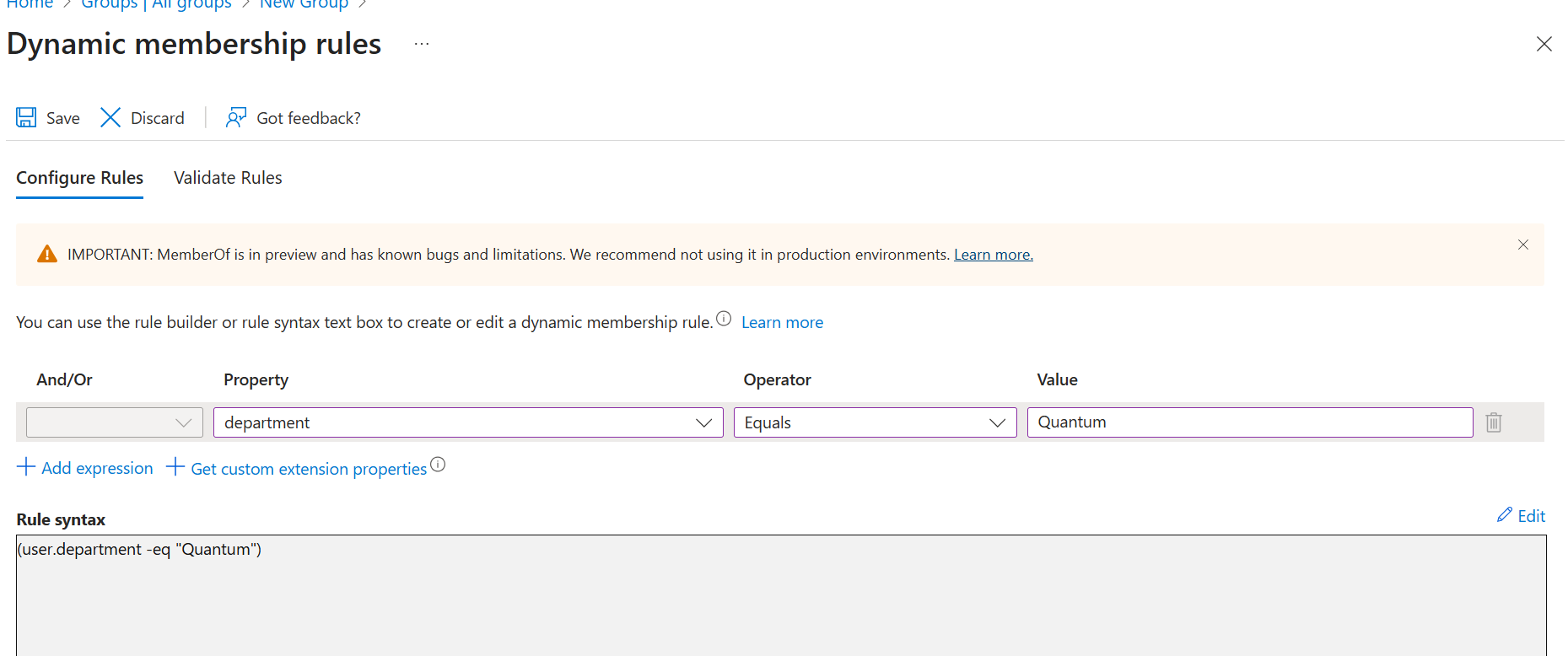
Dynamic groups use queries to automatically add/remove members based on user attributes.
Example Rule:
(user.department -eq "Quantum")This automatically adds anyone with Department = Quantum to the group!
🧪 Lab: Creating Dynamic Groups with Famous Scientists
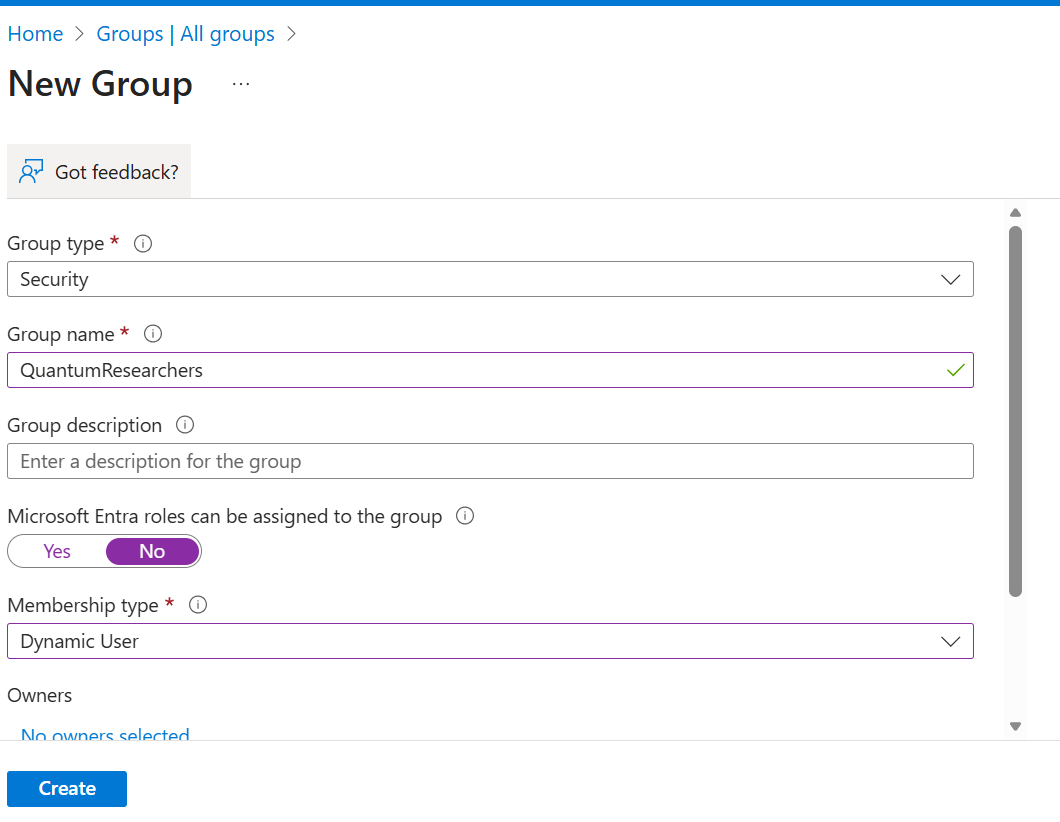
I created some users and a dynamic group for my Quantum Physics department:
Users Created
| User | Department | |
|---|---|---|
| Albert Einstein | albert.einstein@terralearn.online | Quantum |
| Marie Curie | marie.curie@terralearn.online | Quantum |
| Isaac Newton | isaac.newton@terralearn.online | Classical |
| Niels Bohr | niels.bohr@terralearn.online | Quantum |
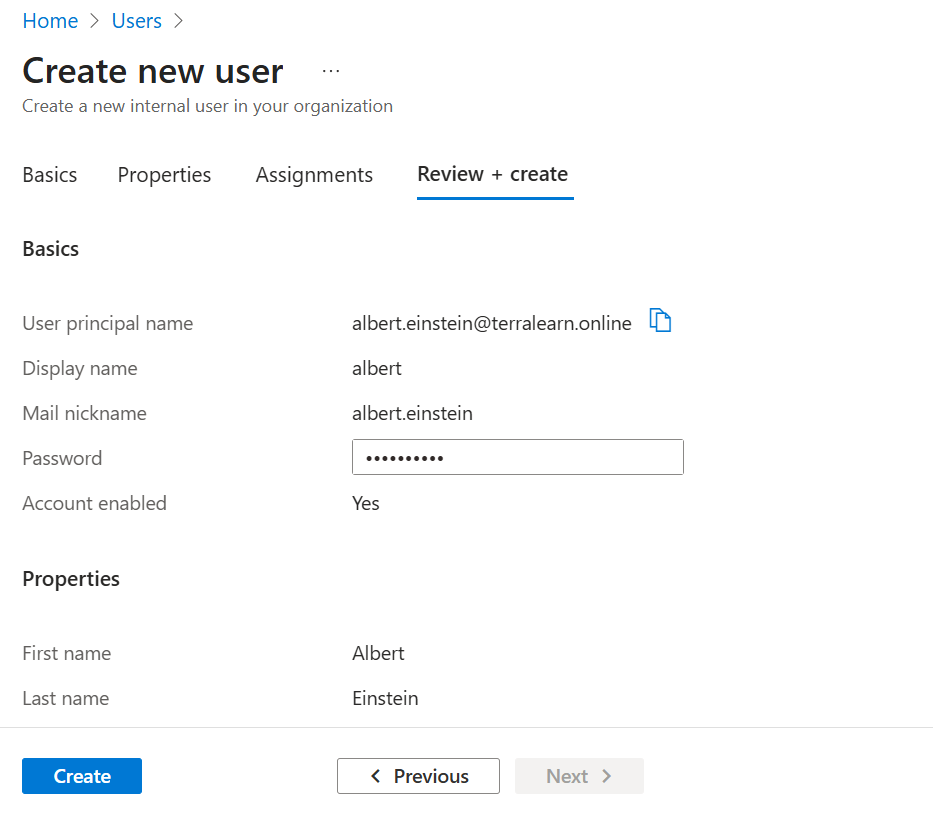
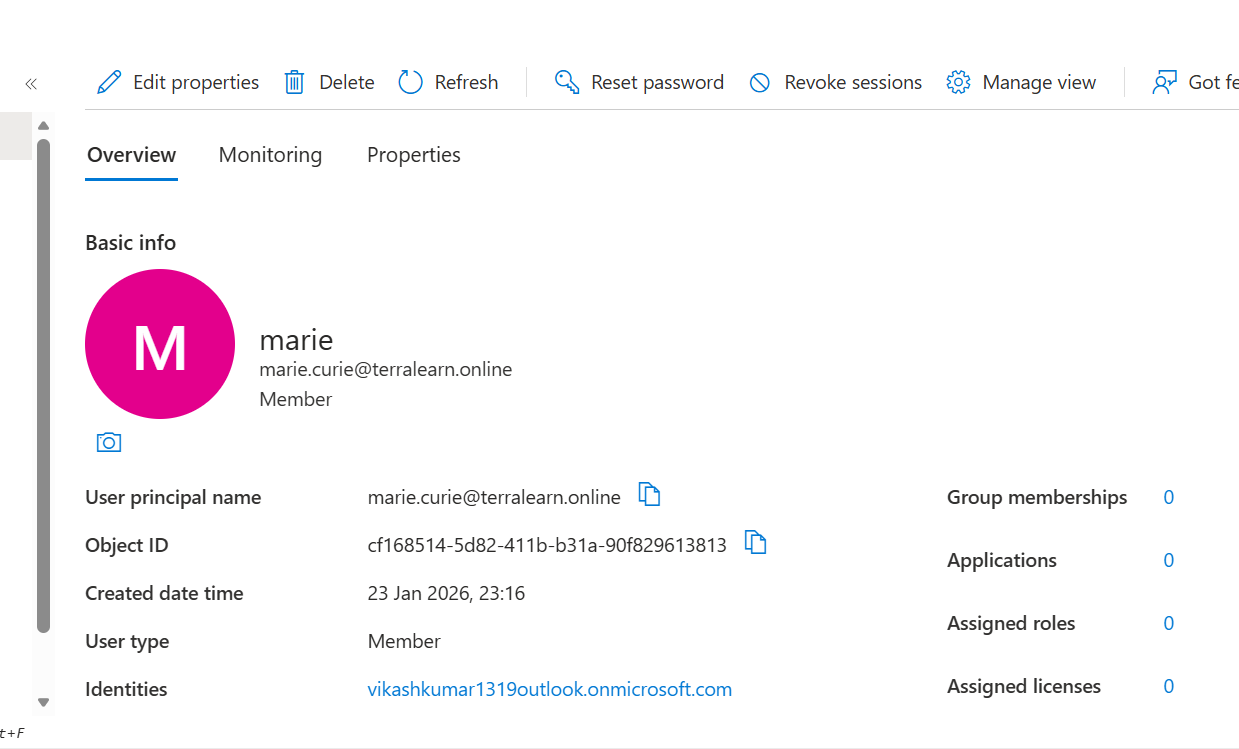
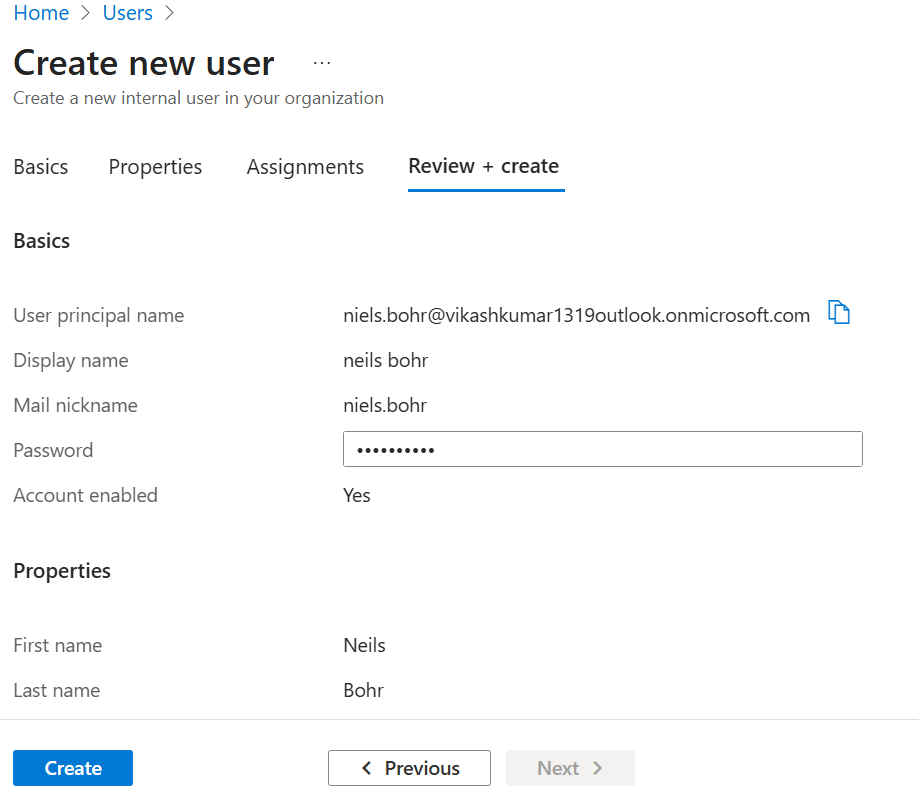
Creating the Dynamic Group
How Dynamic Groups Actually Work
I noticed some weird behavior at first:
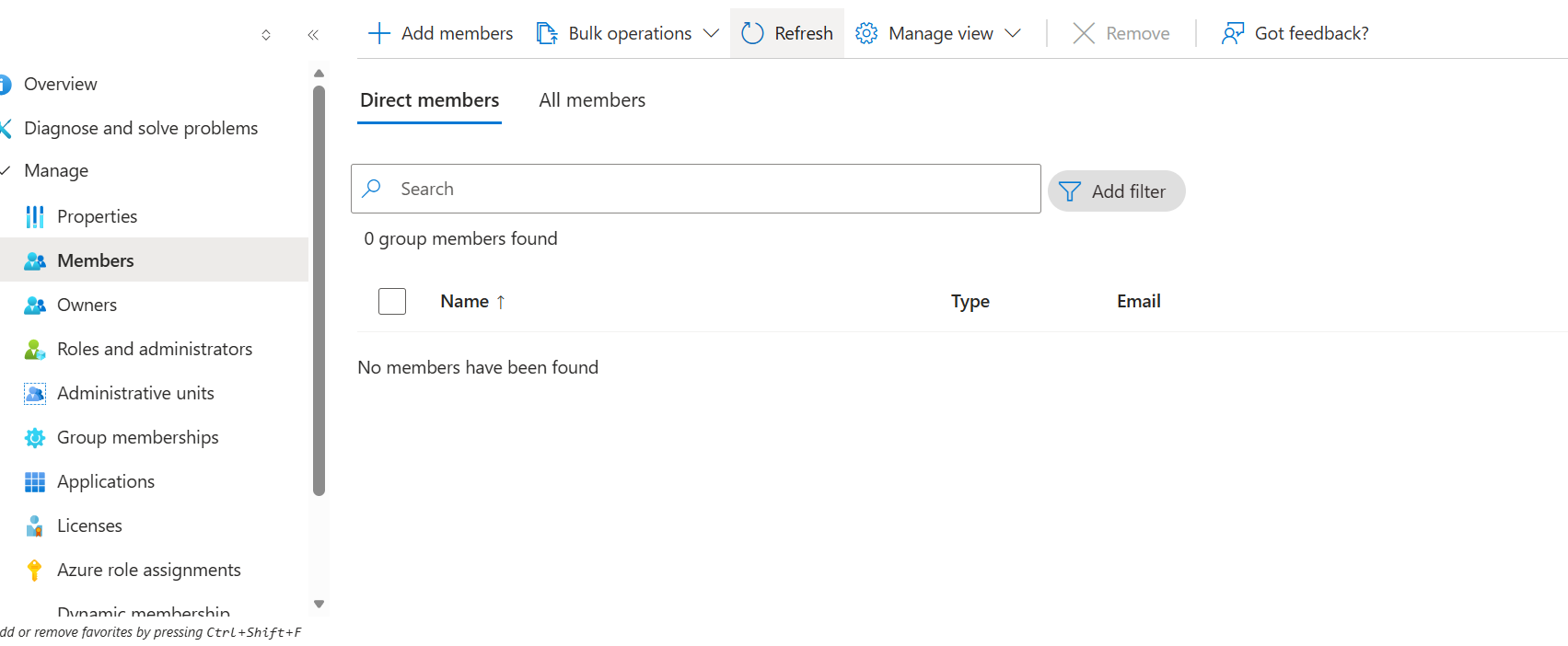
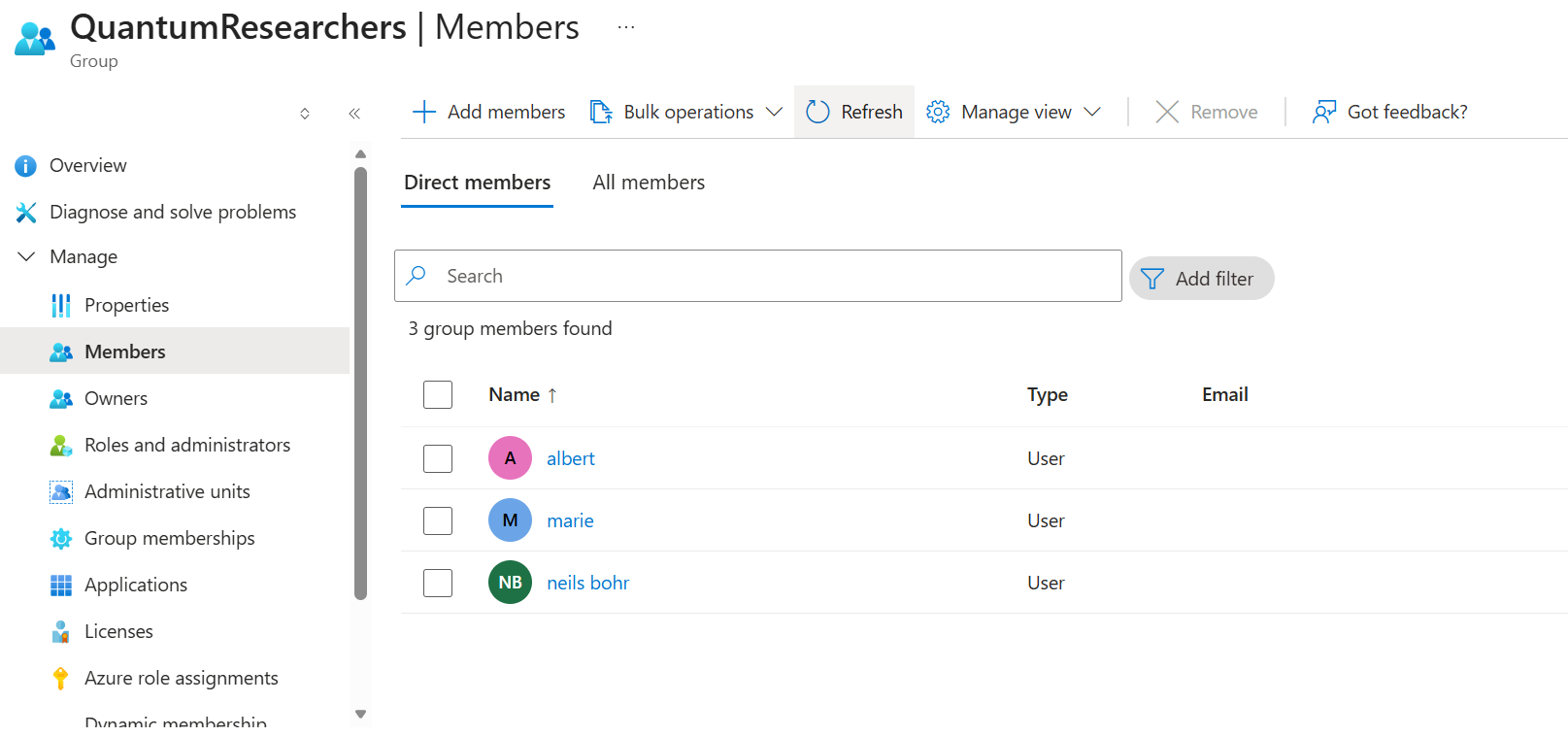
Key Learning: Dynamic groups are rule-based, not event-based:
- Membership is evaluated against current user attributes
- Doesn't matter if user existed before the group or vice versa
- If user matches the rule at evaluation time → they're in!
- Azure periodically re-evaluates (not instant)
After waiting for sync:
⚠️ Important: You CANNOT assign Entra ID roles to dynamic groups! Keep that in mind.
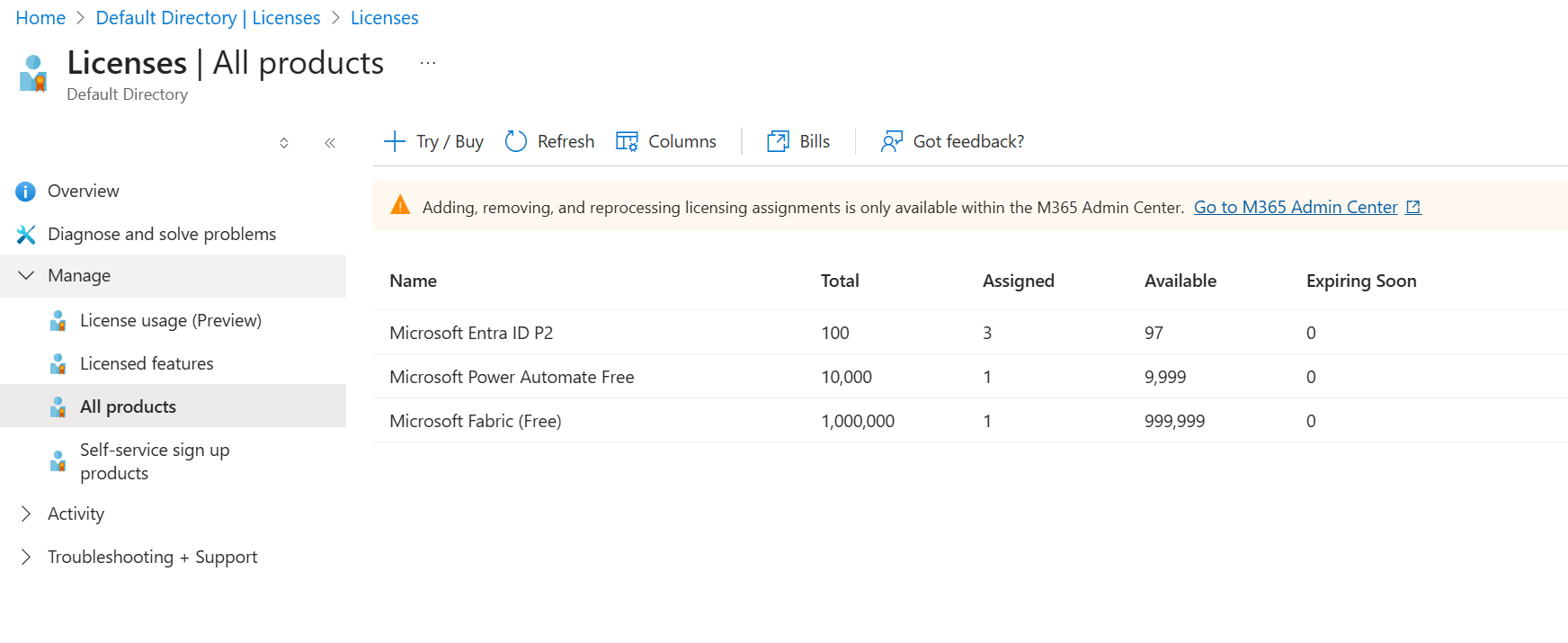
3. Managing Licenses
Licenses unlock premium features. Here's the deal:
- You buy licenses for your tenant
- You assign licenses to specific users
- Only licensed users can use premium features
The "Usage Location" Gotcha
When you try to assign a license, you might see:
❌ "License cannot be assigned to a user without usage location specified"
Why? Some Microsoft services have legal restrictions in certain countries. You MUST set a usage location before assigning licenses.
Fix: User → Edit Properties → Usage Location → Pick a country → Save
Cost-Saving Strategy
You don't need to license EVERY user! Common approach:
- P2 Licenses: Admins and security-sensitive users
- P1 Licenses: Power users who need Conditional Access
- Free: Regular users with basic needs
4. External (Guest) Users
Sometimes you need to collaborate with people outside your organization—contractors, partners, vendors. You don't want them in your AD, but you need to work with them.
Member vs. Guest
| Aspect | Member | Guest |
|---|---|---|
| Identity | Your domain | External email (Gmail, company email) |
| Created by | Admin creates | Admin invites |
| Onboarding | Immediate access | Must accept invitation |
| Default permissions | Full member | Limited (configurable) |
How to Invite a Guest
Path: Entra ID → Users → + New user → Invite external user
- Enter their email (any email works—Gmail, corporate, whatever)
- Add a personal message ("Hey! This is for the Q4 project...")
- Click Invite
- They receive an email and must accept to join
Guest Security
Guests follow the SAME security rules as members:
- ✅ Conditional Access applies
- ✅ MFA can be enforced
- ✅ Permissions must be explicitly granted
- ✅ Access reviews can include guests
5. Self-Service Password Reset (SSPR)
The most annoying IT ticket: "I forgot my password." SSPR lets users fix this themselves.
SSPR Settings
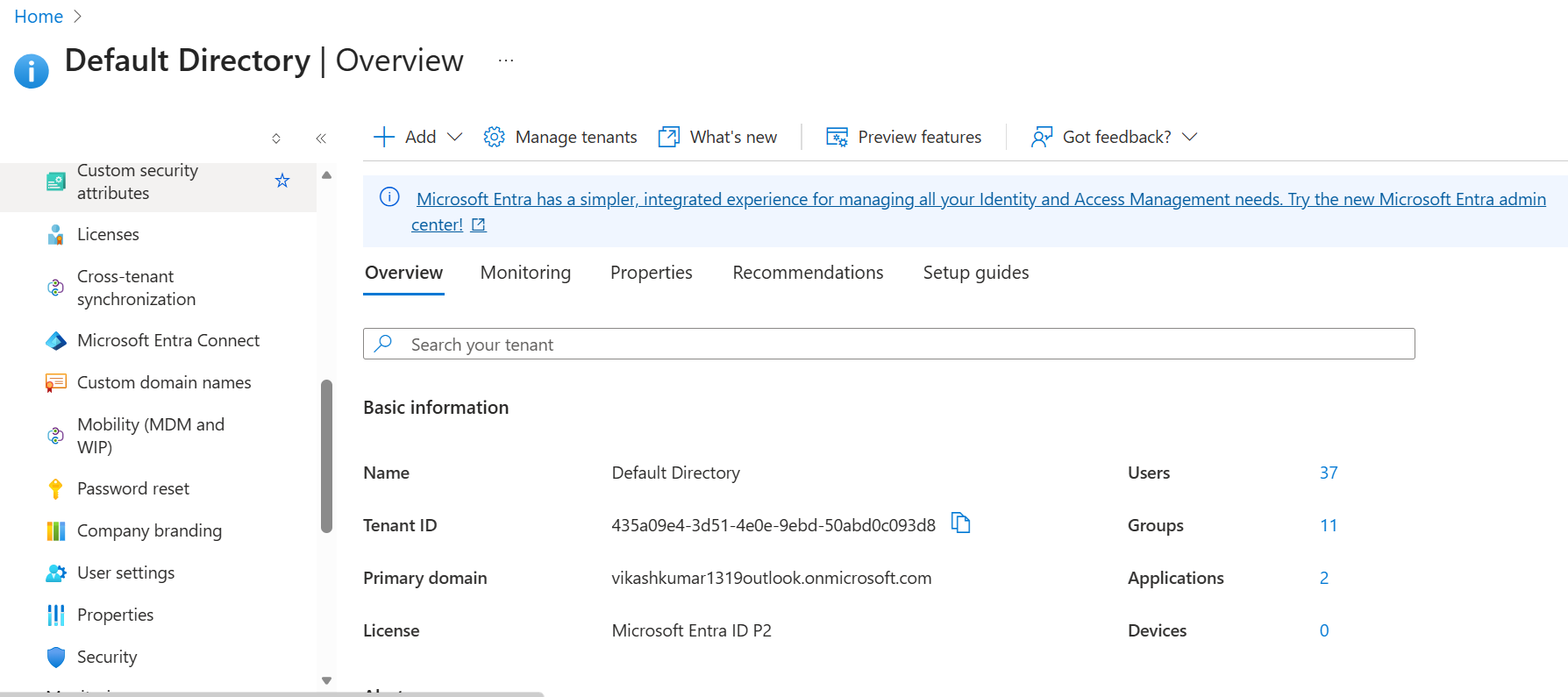
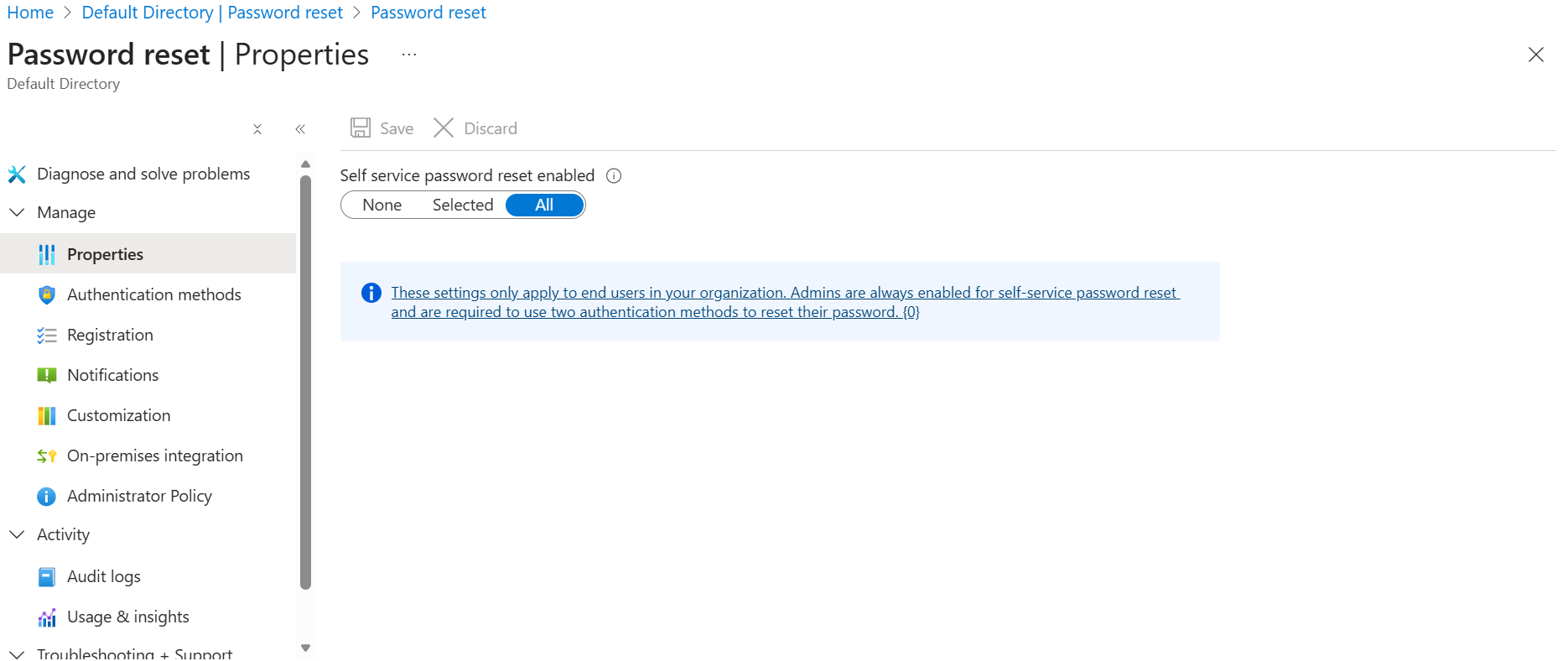
Path: Entra ID → Password reset
| Setting | Options |
|---|---|
| Enabled | None / Selected groups / All |
| Authentication methods | Email, Phone, Authenticator, Security Questions |
| Number of methods required | 1 or 2 |
| Registration | Require users to register on sign-in |
Important Notes
📌 Admins always have SSPR enabled and MUST use 2-factor to reset. This isn't configurable.
📌 SSPR requires a P1/P2 license for regular users (free for admins only)
🧪 Lab: SSPR Adventure with Einstein
I wanted to test SSPR with Albert Einstein's account. It was... an adventure.
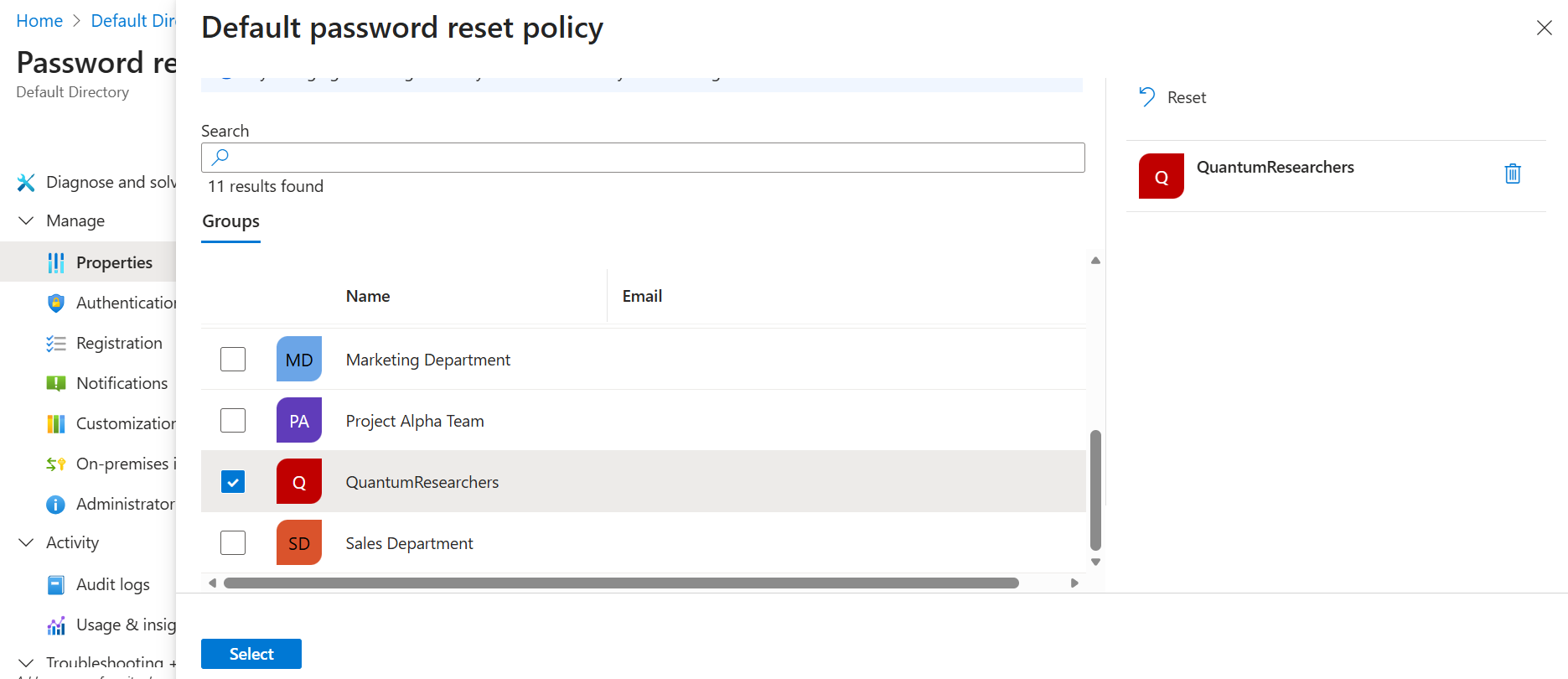
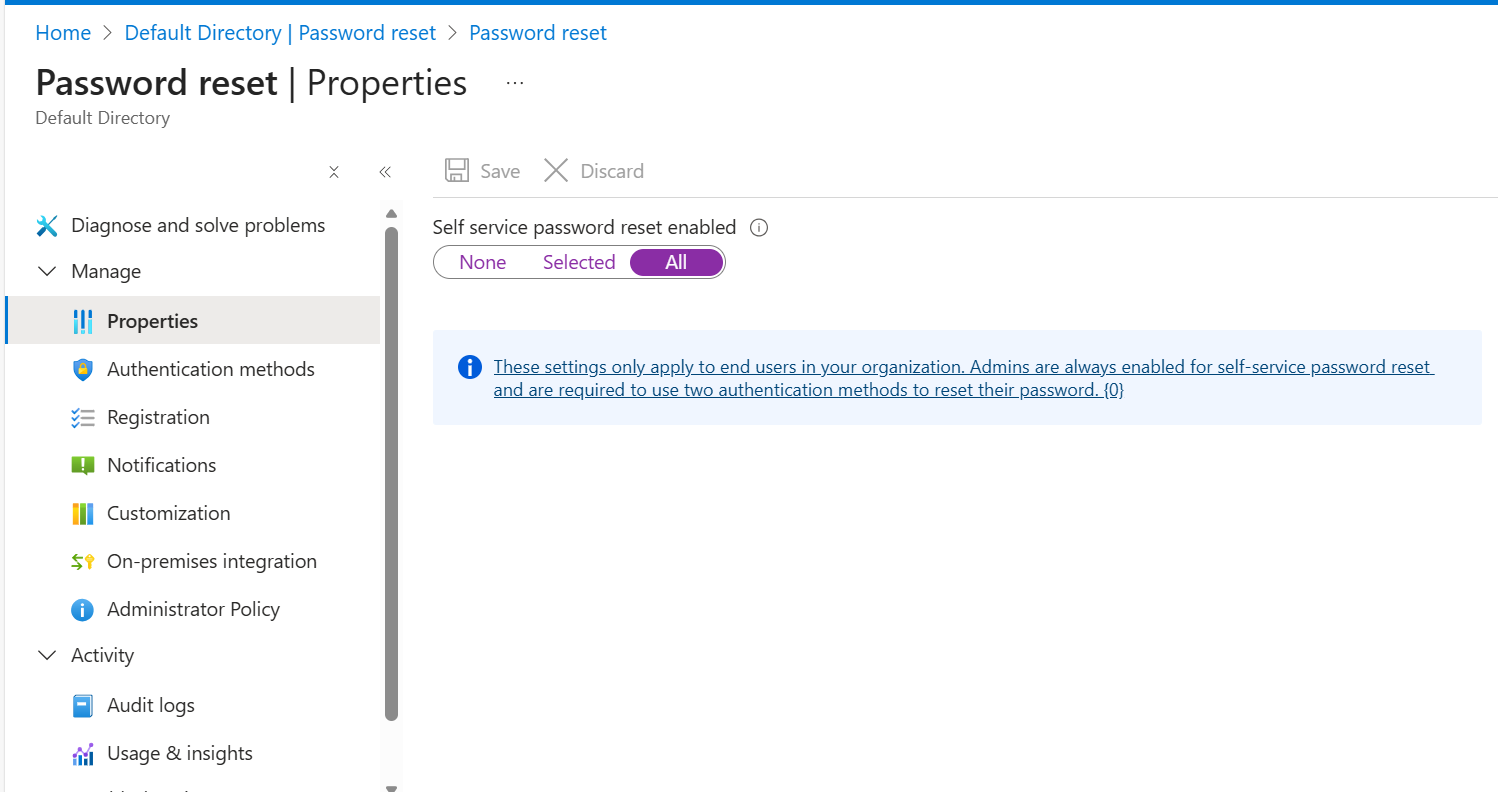
Enable SSPR for Everyone
The Problem
When Einstein tried to reset his password:
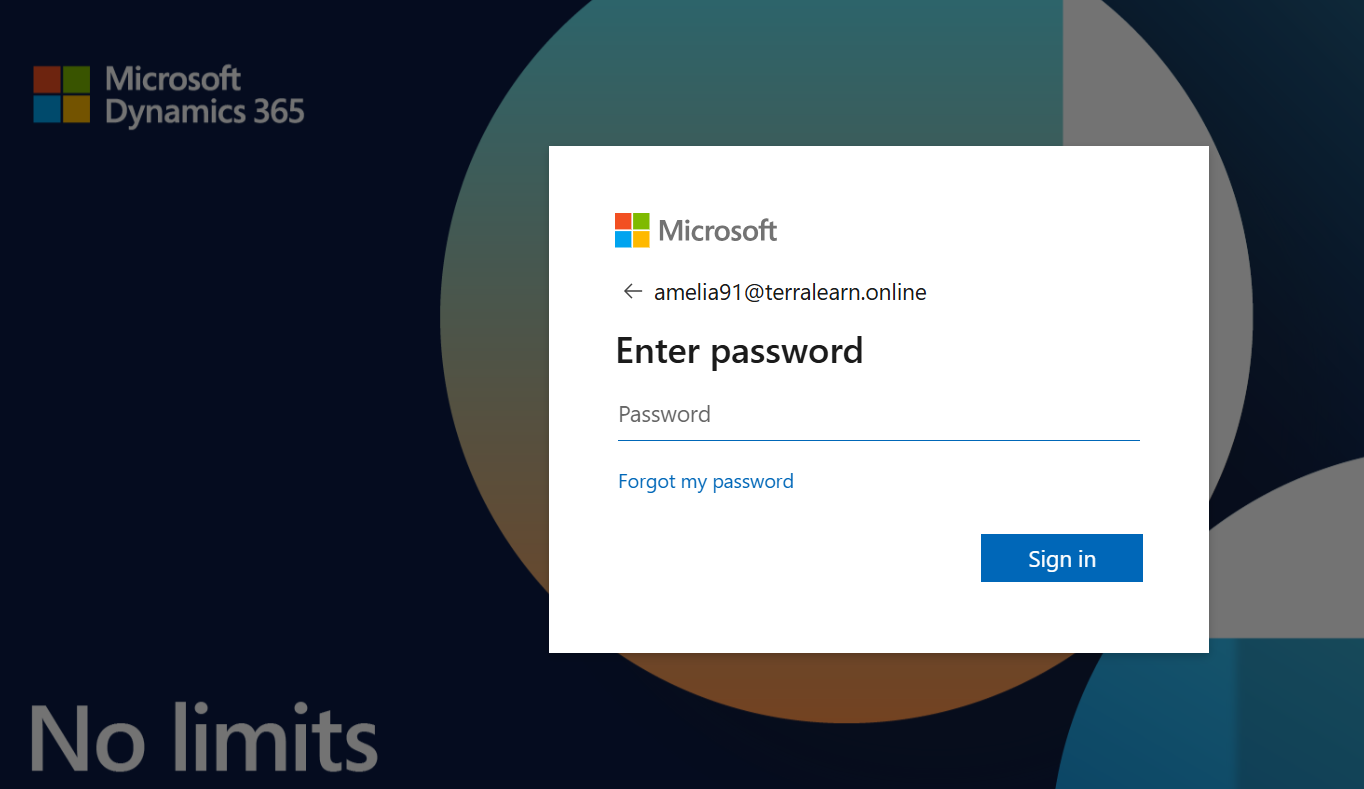
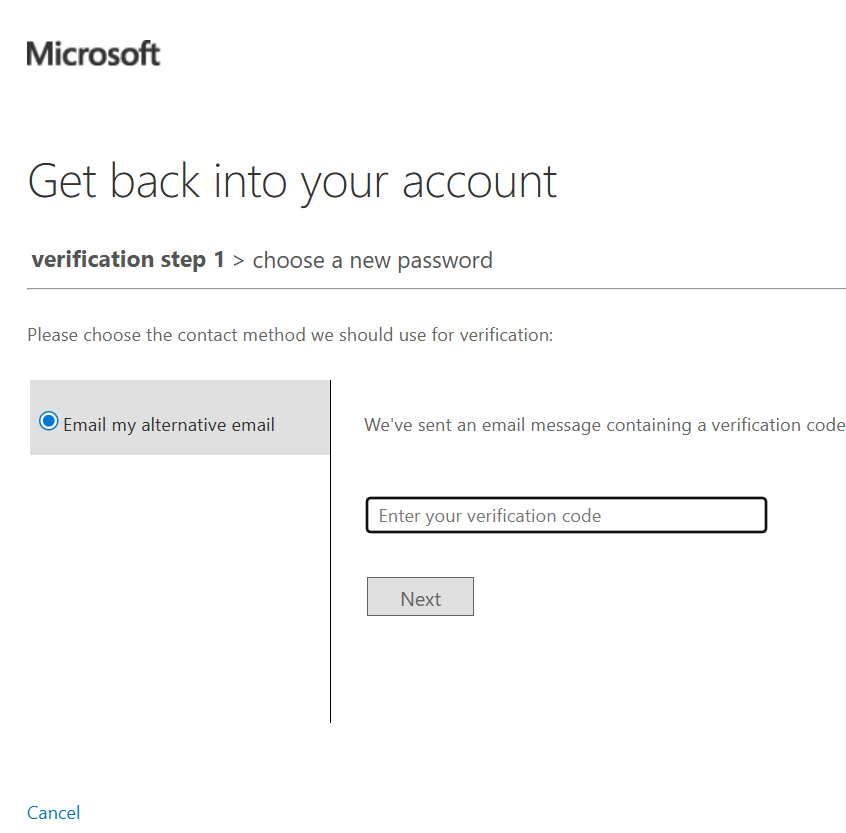
He was asked to verify via EMAIL:
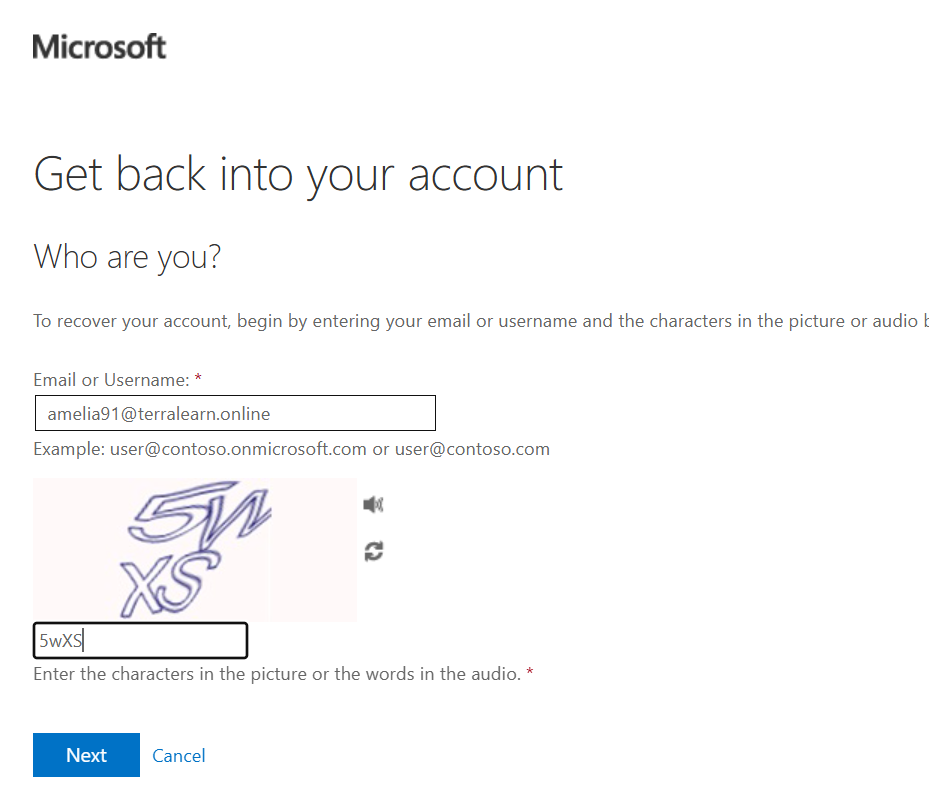
Wait... if he can access his email, why does he need to reset his Azure password? 🤔
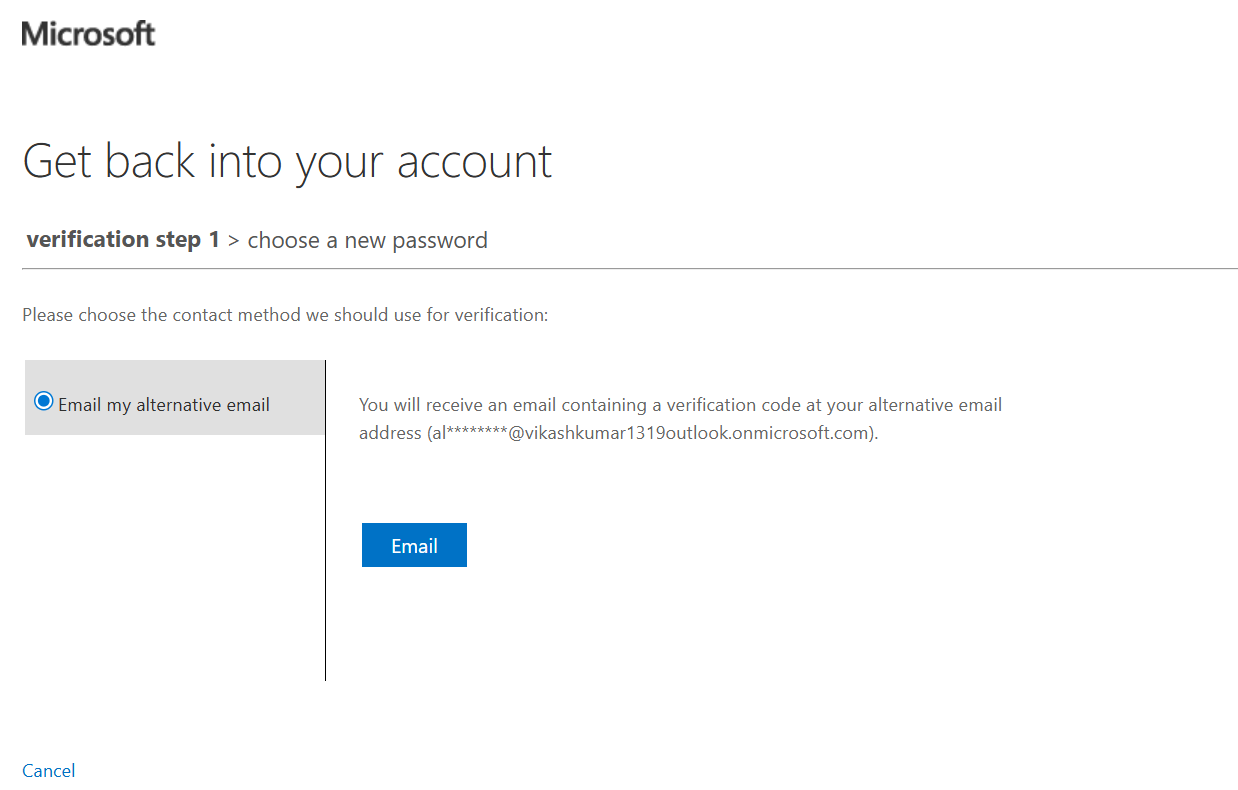
Other users faced the same issue:
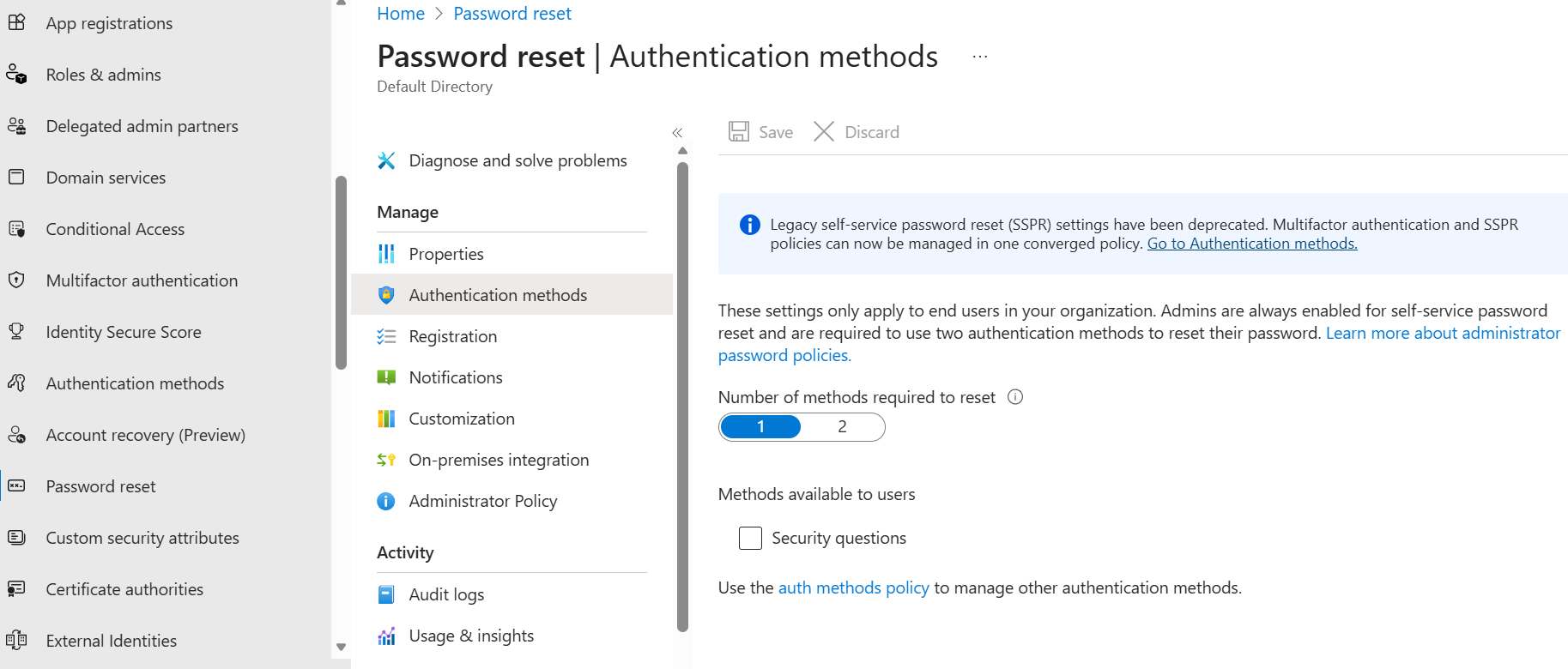
The Fix: Change Authentication Methods
I went into Authentication methods policy and made Authenticator app the primary method:
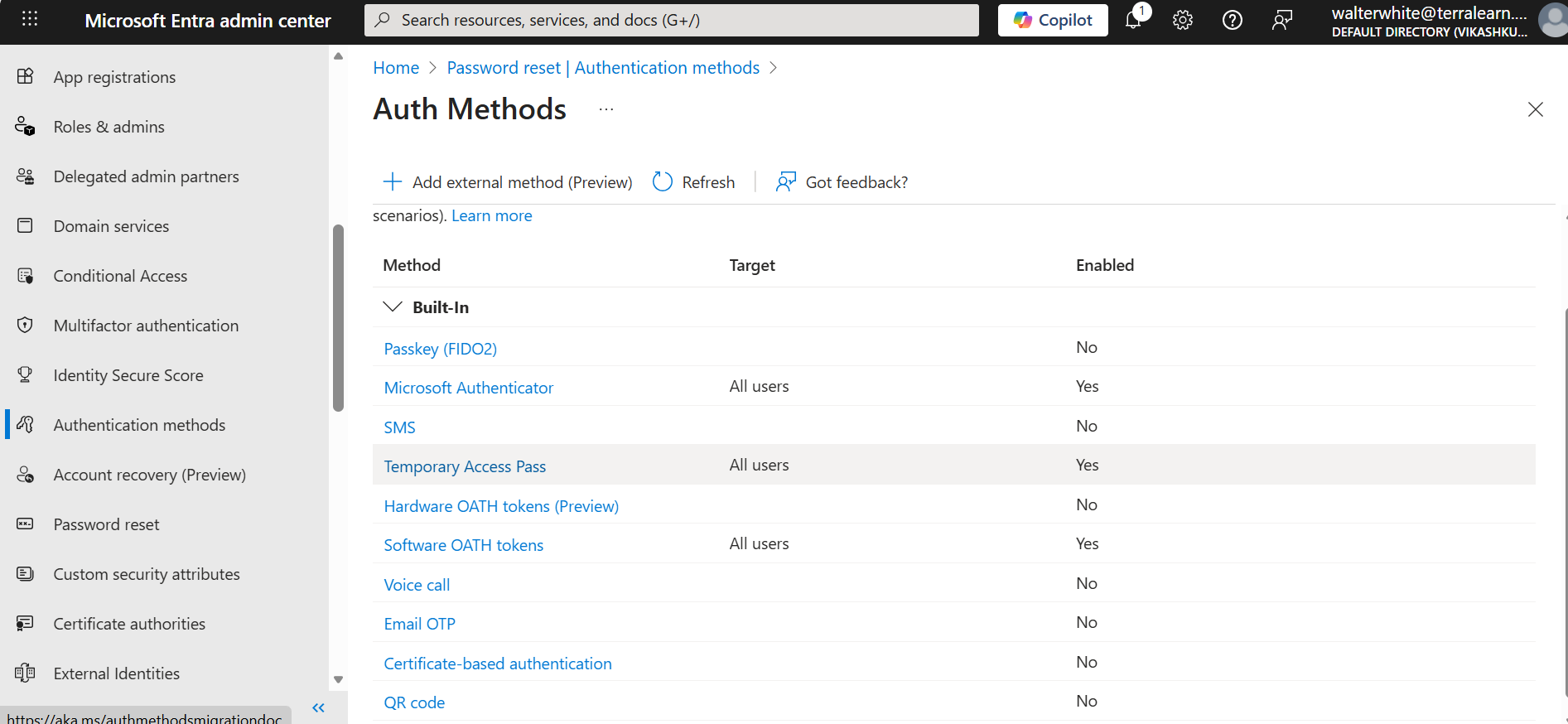
Now when Einstein resets his password, he uses the Authenticator app (which makes way more sense!):
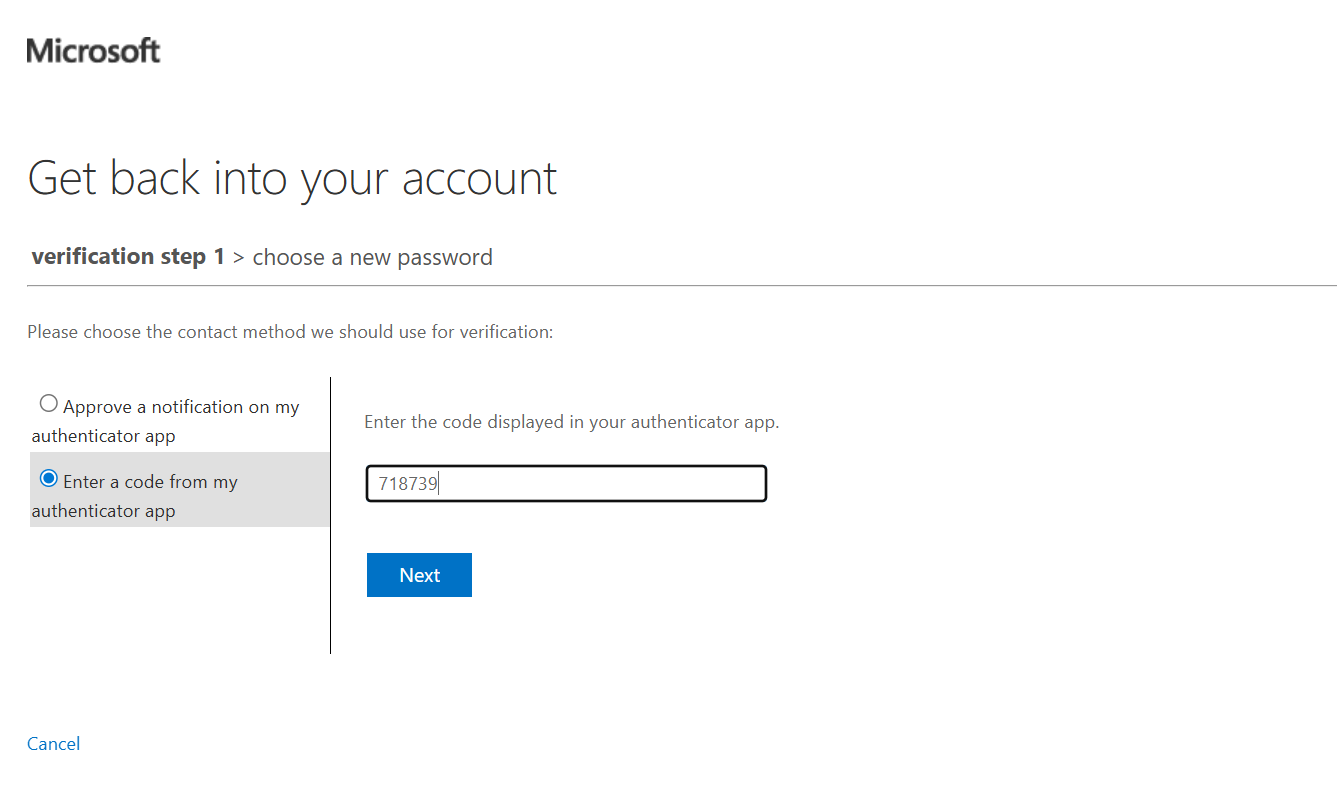
🎉 Success! Einstein's new password:
Reflex@893606
Key Learning
The default SSPR methods aren't always logical. Consider:
- Email verification: Useless if their email IS their Azure account
- Authenticator app: Best choice for most scenarios
- SMS: Good backup but less secure
Quick Reference
| Task | Path |
|---|---|
| Create user | Entra ID → Users → + New user → Create |
| Invite guest | Entra ID → Users → + New user → Invite external |
| Create group | Entra ID → Groups → + New group |
| Assign license | Users → [User] → Licenses → + Assignments |
| Enable SSPR | Entra ID → Password reset → Properties |
| Configure auth methods | Entra ID → Protection → Authentication methods |
What's Next?
With users and groups set up, you're ready to explore:
- Conditional Access (the security brain)
- Privileged Identity Management (just-in-time admin access)
- Role-Based Access Control (who can do what)
📚 Resources: