
Azure Storage Encryption
Lecture 7: EncryptionScott Duffy AZ-104Overview
All data in Azure Storage is encrypted at rest by default -- this has been the case since 2017. When creating a storage account, the encryption tab presents a critical decision: who manages the encryption keys? This choice is permanent and cannot be changed after the storage account is created.
Azure Storage encryption is applied transparently using 256-bit AES encryption, one of the strongest block ciphers available, and is FIPS 140-2 compliant.
Critical Limitation
The encryption key management choice (Microsoft-managed vs. customer-managed) is permanent. Once a storage account is created, this setting cannot be changed. You must decide at account creation time. Plan your encryption strategy before provisioning any storage accounts.
Encryption at Rest vs. In Transit
At rest: All data stored on disk is encrypted using AES-256. This is what the encryption tab configures.
In transit: Data moving between your client and Azure is protected by TLS 1.2 (enforced via the Require secure transfer setting on the Advanced tab). These are two separate layers of protection.
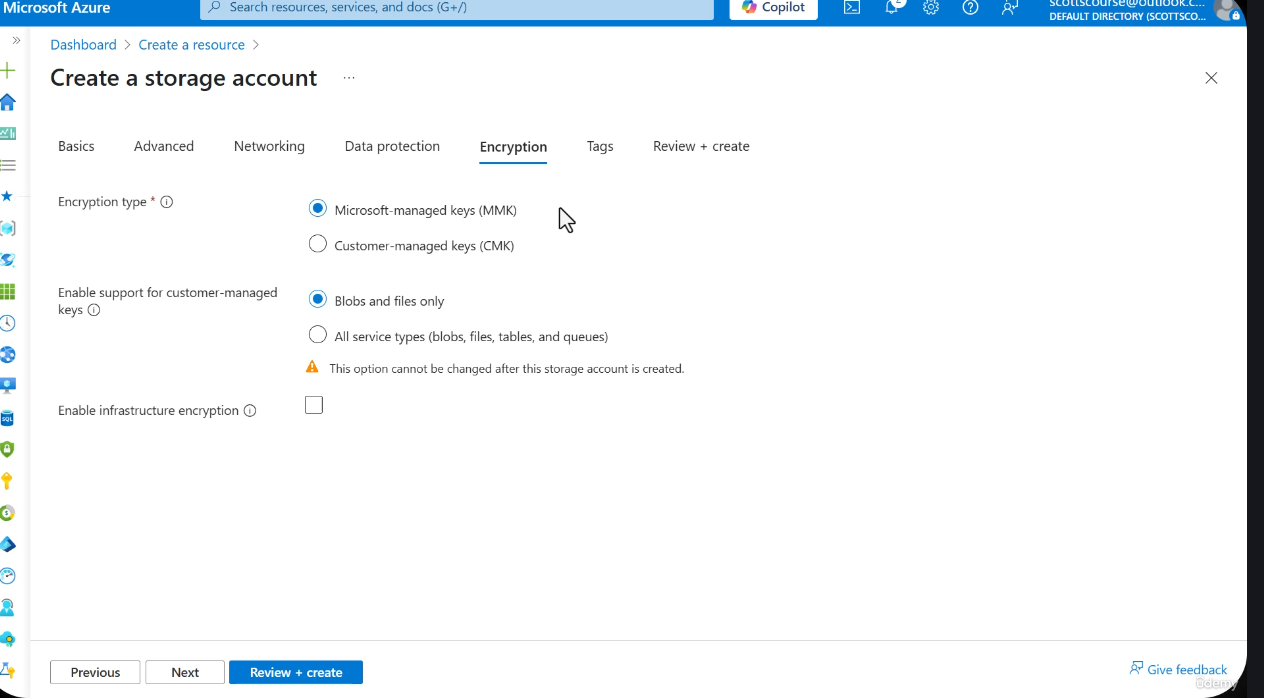
Encryption Key Management Options
There are three key management strategies, each adding a layer of control and complexity.
1. Microsoft-Managed Keys (MMK) -- Default
Microsoft-managed keys use Transparent Data Encryption (TDE). Microsoft handles the entire encryption lifecycle transparently -- you never interact with the keys directly.
| Aspect | Detail |
|---|---|
| Key ownership | Microsoft creates, stores, and rotates keys |
| User interaction | None -- completely transparent |
| Upload flow | Upload unencrypted data -> Microsoft encrypts on disk |
| Download flow | Microsoft decrypts on read -> You receive unencrypted data |
| Key management burden | Zero |
| Recommendation | Default choice unless a specific policy requires otherwise |
Best Practice
Unless your organization has a specific compliance requirement mandating key ownership or custom rotation schedules, Microsoft-managed keys are the recommended choice. They provide strong encryption with zero operational overhead.
2. Customer-Managed Keys (CMK)
Customer-managed keys give your organization direct control over encryption keys. Microsoft still performs the encryption and decryption transparently, but it uses your keys instead of its own.
| Aspect | Detail |
|---|---|
| Key ownership | You create and manage the keys |
| Key storage | Azure Key Vault (required) |
| Encryption behavior | Still transparent -- Microsoft uses your keys automatically |
| Complexity | Higher -- requires Key Vault setup, Entra ID integration, access policies |
| Service scope | Must specify: blobs/files only, OR all service types (tables/queues included) |
| Use cases | Company policies on key rotation, regulatory key management control |
Exam Tip
When configuring CMK, you must choose which services use customer-managed keys. The options are:
- Blobs and files only -- tables and queues fall back to Microsoft-managed keys
- All service types -- blobs, files, tables, and queues all use your CMK
This distinction is a common exam topic. The service scope choice is also made at creation time.
Key Vault Integration Steps for CMK
- Create an Azure Key Vault with purge protection enabled (required for CMK)
- Generate or import an RSA key (2048-bit or 3072-bit recommended)
- Register the storage account's identity with Entra ID (system-assigned managed identity)
- Grant the storage account Key Vault Crypto Service Encryption User role on the key
- Configure the storage account to reference the Key Vault and key name
- Enable automatic key rotation (optional but recommended) so the storage account picks up new key versions automatically
The storage account must have a managed identity in Entra ID to authenticate against the Key Vault. This is configured automatically when you select CMK in the portal.
3. Infrastructure Encryption (Double Encryption)
Infrastructure encryption adds a second layer of encryption on top of the service-level encryption (whether MMK or CMK). It is disabled by default and is optional.
| Aspect | Detail |
|---|---|
| Default state | Disabled |
| How it works | Data is encrypted once at the service level, then the result is encrypted again at the infrastructure level |
| Cost | No additional charge |
| Performance impact | Minimal additional latency during data ingestion |
| Use case | Extreme security requirements, defense-in-depth compliance mandates |
| Compatibility | Works with both Microsoft-managed and customer-managed keys |
How Double Encryption Works
With infrastructure encryption enabled, an adversary who somehow defeats one layer of encryption would still face a second, independent encryption layer before reaching your plaintext data. The two layers use different encryption algorithms and different keys, making a combined attack significantly harder.
Encryption Architecture Diagrams
Encryption Layers
Customer-Managed Keys Architecture
direction: right

title: CMK Architecture {
  style.font-size: 28
}

storage: Storage Account {
  style.fill: "#e8f4f8"
  blobs: Blob Service {style.fill: "#b8d4e8"}
  files: File Service {style.fill: "#b8d4e8"}
  tables: Table Service {style.fill: "#b8d4e8"}
  queues: Queue Service {style.fill: "#b8d4e8"}
}

keyvault: Azure Key Vault {
  style.fill: "#f4e8f4"
  key: RSA Encryption Key {style.fill: "#d4b8d4"}
  policy: Access Policies {style.fill: "#d4b8d4"}
}

entra: Microsoft Entra ID {
  style.fill: "#f4f4e8"
  identity: Managed Identity {style.fill: "#d4d4b8"}
  rbac: RBAC Assignments {style.fill: "#d4d4b8"}
}

storage -> keyvault: Requests encryption key {
  style.stroke: "#38a"
}
keyvault -> entra: Validates identity & permissions {
  style.stroke: "#a63"
}
entra -> storage: Grants managed identity {
  style.stroke: "#4a9"
}
Encryption Decision Tree
Encryption Scopes
John SavillEncryption scopes let you manage encryption at the container or blob level rather than the entire account. Each scope defines its own key source, giving you fine-grained control over how data is encrypted within a single storage account.
How Encryption Scopes Work
| Scope Level | How It Works |
|---|---|
| Per-container | Set a default encryption scope on the container -- all blobs inherit it |
| Per-blob | Override the container scope on individual blob uploads |
| Mixed keys | Different scopes can use different key sources (MMK + CMK in same account) |
Cross-Tenant Customer-Managed Keys
A common SaaS scenario involves storing data for multiple customers in a single storage account while giving each customer full control over their own encryption key:
- Your application stores data for multiple customers in one storage account
- Each customer keeps their encryption key in their own Key Vault (their own tenant)
- You create an encryption scope per customer referencing their Key Vault key
- The customer can revoke access at any time by removing your application's access to their key
- Your application immediately loses the ability to decrypt their data
Exam Tip
Cross-tenant CMK is a common exam scenario. The customer retains control of the key and can revoke access at any time.
Service Scope Limitations
DANGER
- Default CMK (account-level) applies to Blob and Files only
- Queue and Table CMK requires setting at account creation time (the "All service types" encryption option)
- This CANNOT be changed after account creation
Creating an Encryption Scope
Portal Walkthrough
- Navigate to storage account > Security + networking > Encryption
- Click the "Encryption scopes" tab
- Click "+ Add encryption scope"
- Name the scope (e.g.,
customer-a-scope) - Select key source: Microsoft-managed OR Customer-managed (specify Key Vault + key)
- Optionally enable infrastructure encryption for the scope
- Click Create
- When creating a container, select the scope as default
- When uploading a blob, optionally override with a different scope under Advanced settings
Multi-Tenant Encryption Scope Architecture
direction: right
sa: Storage Account {
  style.fill: "#e8f4f8"
  scope_a: Scope: customer-a {
    style.fill: "#16a34a"
    style.font-color: "#fff"
    label: "CMK from Customer A Key Vault"
  }
  scope_b: Scope: customer-b {
    style.fill: "#2563eb"
    style.font-color: "#fff"
    label: "CMK from Customer B Key Vault"
  }
  scope_default: Scope: default {
    style.fill: "#f59e0b"
    style.font-color: "#fff"
    label: "Microsoft-managed key"
  }
  container_a: Container A {
    label: "Default: customer-a scope"
  }
  container_b: Container B {
    label: "Default: customer-b scope"
  }
}
kv_a: Customer A Key Vault {
  style.fill: "#f0fdf4"
}
kv_b: Customer B Key Vault {
  style.fill: "#eff6ff"
}
sa.scope_a -> kv_a: References
sa.scope_b -> kv_b: References
sa.container_a -> sa.scope_a: Uses
sa.container_b -> sa.scope_b: Uses
Encryption Scope CLI Reference
# Create encryption scope with Microsoft-managed keys
az storage account encryption-scope create \
  --account-name myaccount \
  --resource-group myRG \
  --name "customer-a-scope" \
  --key-source Microsoft.Storage

# Create encryption scope with customer-managed key
az storage account encryption-scope create \
  --account-name myaccount \
  --resource-group myRG \
  --name "customer-b-scope" \
  --key-source Microsoft.KeyVault \
  --key-uri "https://kvb.vault.azure.net/keys/mykey"

# Create container with default encryption scope
az storage container create \
  --account-name myaccount \
  --name "customer-a-data" \
  --default-encryption-scope "customer-a-scope" \
  --prevent-encryption-scope-override true
Key Rotation
Automating Key Rotation with Key Vault
When using customer-managed keys, automatic key rotation ensures your encryption keys are updated without manual intervention:
- Enable auto-rotation on the key in Key Vault (set a rotation policy with a defined interval)
- Configure the storage account to use the key's latest version (omit the key version in the CMK configuration)
- Azure Storage will automatically detect and adopt new key versions within ~1 hour of rotation
- Old data is transparently re-encrypted with the new key version during background operations
Manual rotation is also supported -- generate a new key version in Key Vault and update the storage account reference.
All Data Encrypted at Rest Since 2017
Historical Context
Azure Storage has enforced encryption at rest for all new storage accounts since 2017. In 2020, Microsoft extended this to cover all existing storage accounts retroactively. There is no way to disable encryption at rest -- it is always on.
- 2017: All new storage accounts encrypted by default
- 2020: Retroactive encryption applied to all existing accounts
- Today: Encryption at rest is mandatory and cannot be disabled
CLI and PowerShell Reference
Create Storage Account with Infrastructure Encryption
# Create a storage account with infrastructure (double) encryption enabled
az storage account create \
  --name myaccount \
  --resource-group myRG \
  --location eastus \
  --sku Standard_LRS \
  --kind StorageV2 \
--require-infrastructure-encryption true# Create a storage account with infrastructure (double) encryption enabled
New-AzStorageAccount `
-ResourceGroupName "myRG" `
-Name "myaccount" `
-Location "eastus" `
-SkuName "Standard_LRS" `
-Kind "StorageV2" `
-RequireInfrastructureEncryptionCreate Key Vault for CMK
# Create a Key Vault with purge protection (required for CMK)
az keyvault create \
  --name myKeyVault \
  --resource-group myRG \
  --location eastus \
  --enable-purge-protection true

# Create an RSA encryption key
az keyvault key create \
  --vault-name myKeyVault \
  --name myStorageKey \
  --kty RSA \
--size 2048# Create a Key Vault with purge protection (required for CMK)
New-AzKeyVault `
-VaultName "myKeyVault" `
-ResourceGroupName "myRG" `
-Location "eastus" `
-EnablePurgeProtection
# Create an RSA encryption key
Add-AzKeyVaultKey `
-VaultName "myKeyVault" `
-Name "myStorageKey" `
-KeyType "RSA" `
-Size 2048Configure CMK on a Storage Account
# Assign a system-managed identity to the storage account
az storage account update \
  --name myaccount \
  --resource-group myRG \
  --assign-identity

# Get the principal ID for RBAC assignment
PRINCIPAL_ID=$(az storage account show \
  --name myaccount \
  --resource-group myRG \
  --query "identity.principalId" \
  --output tsv)

# Grant Key Vault Crypto Service Encryption User role
az role assignment create \
  --role "Key Vault Crypto Service Encryption User" \
  --assignee "$PRINCIPAL_ID" \
  --scope "/subscriptions/<sub-id>/resourceGroups/myRG/providers/Microsoft.KeyVault/vaults/myKeyVault"

# Configure CMK on the storage account
az storage account update \
  --name myaccount \
  --resource-group myRG \
  --encryption-key-source Microsoft.Keyvault \
  --encryption-key-vault https://myKeyVault.vault.azure.net \
--encryption-key-name myStorageKey# Assign a system-managed identity to the storage account
Set-AzStorageAccount `
-ResourceGroupName "myRG" `
-Name "myaccount" `
-AssignIdentity
# Get the principal ID
$account = Get-AzStorageAccount `
-ResourceGroupName "myRG" `
-Name "myaccount"
$principalId = $account.Identity.PrincipalId
# Grant Key Vault Crypto Service Encryption User role
New-AzRoleAssignment `
-ObjectId $principalId `
-RoleDefinitionName "Key Vault Crypto Service Encryption User" `
-Scope "/subscriptions/<sub-id>/resourceGroups/myRG/providers/Microsoft.KeyVault/vaults/myKeyVault"
# Configure CMK on the storage account
Set-AzStorageAccount `
-ResourceGroupName "myRG" `
-Name "myaccount" `
-KeyvaultEncryption `
-KeyVaultUri "https://myKeyVault.vault.azure.net" `
-KeyName "myStorageKey"Check Encryption Settings
# View encryption configuration for a storage account
az storage account show \
  --name myaccount \
  --resource-group myRG \
  --query "encryption" \
  --output json

# Check if infrastructure encryption is enabled
az storage account show \
  --name myaccount \
  --resource-group myRG \
  --query "encryption.requireInfrastructureEncryption" \
--output tsv# View encryption configuration for a storage account
$account = Get-AzStorageAccount `
-ResourceGroupName "myRG" `
-Name "myaccount"
$account.Encryption | ConvertTo-Json -Depth 5
# Check if infrastructure encryption is enabled
$account.Encryption.RequireInfrastructureEncryptionSummary Comparison
| Feature | Microsoft-Managed Keys (MMK) | Customer-Managed Keys (CMK) | Infrastructure Encryption |
|---|---|---|---|
| Default | Yes | No | No (disabled) |
| Key management | Microsoft handles everything | You create/manage in Key Vault | Adds second encryption layer |
| Complexity | None | High (Key Vault + Entra ID) | None (single toggle) |
| Cost | Included | Key Vault charges apply | No additional charge |
| Can change after creation | No | No | No |
| Use case | Most workloads | Regulatory/compliance requirements | Extreme security requirements |
| Works with | All services | Blobs/files or all services | Both MMK and CMK |
MS Learn References
- Azure Storage encryption for data at rest
- Customer-managed keys for Azure Storage encryption
- Enable infrastructure encryption for double encryption
- Configure customer-managed keys for encryption
- Encryption scopes for Blob storage
- Create and manage encryption scopes
Lab Exercises
Prerequisites
Ensure you have an active Azure subscription (a free trial works) and the Azure CLI installed locally or access to Azure Cloud Shell.
Lab 1: Observe Default Encryption (Microsoft-Managed Keys)
- Navigate to the Azure Portal
- Create a new storage account with all default settings (Standard LRS, StorageV2)
- After deployment, navigate to the storage account
- In the left menu, go to Security + networking > Encryption
- Observe that Microsoft-managed keys is selected
- Note the encryption type is AES-256 and covers all services (blobs, files, tables, queues)
- Verify that infrastructure encryption is not enabled
Lab 2: Create a Storage Account with Infrastructure Encryption
- Create a new storage account (infrastructure encryption cannot be added to existing accounts)
- On the Encryption tab during creation:
- Leave encryption type as Microsoft-managed keys
- Check the box for Enable infrastructure encryption
- Complete the creation and wait for deployment
- Navigate to Security + networking > Encryption
- Confirm that infrastructure encryption shows as Enabled
- Compare this with the account from Lab 1 -- note the difference in the encryption configuration
Lab 3: Create a Key Vault and Generate an Encryption Key
# Create a resource group for the lab
az group create --name lab-encryption-rg --location eastus

# Create a Key Vault with purge protection
az keyvault create \
  --name labkv$(date +%s | tail -c 8) \
  --resource-group lab-encryption-rg \
  --location eastus \
  --enable-purge-protection true

# Generate an RSA-2048 encryption key
az keyvault key create \
  --vault-name <your-keyvault-name> \
  --name lab-storage-key \
  --kty RSA \
  --size 2048

# List the key to verify creation
az keyvault key show \
  --vault-name <your-keyvault-name> \
  --name lab-storage-key \
  --query "{Name:key.kid, KeyType:key.kty, KeySize:key.n}" \
  --output table
Lab 4: Review CMK Configuration Options in the Portal
- Begin creating a new storage account (do not deploy)
- Navigate to the Encryption tab
- Select Customer-managed keys as the encryption type
- Observe the additional fields that appear:
- Key vault and key selection
- Encryption key (select from vault or enter URI)
- User-assigned identity or System-assigned identity
- Note the option to choose Blobs and files only vs. All service types
- Cancel the creation -- this is a conceptual review only
Lab 5: Compare Encryption Settings Between Accounts
- Navigate to the storage account from Lab 1 (default encryption)
- Go to Security + networking > Encryption and screenshot the settings
- Navigate to the storage account from Lab 2 (infrastructure encryption)
- Go to Security + networking > Encryption and screenshot the settings
- Compare the two accounts side by side:
- Both use Microsoft-managed keys
- Lab 2 account has the additional infrastructure encryption layer
- Note that neither setting can be changed post-creation
Lab 6: Encryption Scopes
- Navigate to storage account > Encryption > Encryption scopes
- Create an encryption scope with Microsoft-managed keys
- Create a container with that scope as default
- Upload a blob -- verify it uses the default scope
- Upload another blob specifying a different scope under Advanced settings
Clean Up
After completing the labs, delete the resource group to avoid ongoing charges:
az group delete --name lab-encryption-rg --yes --no-wait