
AzCopy and Storage Tools
Scott Duffy Lectures 15-16 AZ-104Overview
Azure provides several tools for transferring and managing files in storage accounts beyond the portal's built-in upload button. The portal UI works for one-off uploads, but it is not the most efficient approach for bulk operations, cross-account transfers, or automation. This page covers AzCopy (the primary CLI transfer tool), Storage Browser (web-based file manager), and Azure Storage Explorer (desktop application), along with native SMB mounting for file shares.
Key Takeaway
AzCopy is the go-to tool for efficient, scriptable, bulk file transfers to and from Azure Storage. Storage Browser and Storage Explorer provide GUI-based file management for ad-hoc operations. Choose the right tool based on whether you need automation, GUI convenience, or native OS integration.
AzCopy
What Is AzCopy?
AzCopy is a standalone command-line utility for copying data to and from Azure Blob Storage, Azure Files, and Azure Table Storage. It is a separate download -- not bundled with the Azure CLI or PowerShell modules.
- Latest version: AzCopy V10 (stable for many years, still current)
- Platforms: Windows, Linux, macOS
- Standalone binary: No runtime dependencies, single executable
- Use cases: Upload files to storage, download from storage, copy between storage accounts, synchronize directories, list and remove blobs
Installation
# Download and install AzCopy
wget https://aka.ms/downloadazcopy-v10-linux \
  && tar -xvf downloadazcopy-v10-linux \
  && sudo cp ./azcopy_linux_amd64_*/azcopy /usr/bin/

# Verify installation
azcopy --version# Install via Homebrew
brew install azcopy
# Verify installation
azcopy --version# Install via winget
winget install Microsoft.AzCopy
# Verify installation
azcopy --versionAuthentication Methods
AzCopy supports two primary authentication methods:
| Method | How It Works | Best For |
|---|---|---|
| Entra ID (RBAC) | Run azcopy login, authenticate via browser, permissions come from role assignments (e.g., Storage Blob Data Contributor) | Interactive use, long-running sessions, role-based access |
| SAS Token | Generate a SAS token with appropriate permissions and expiry, append it to the storage URL | Scripted/automated transfers, time-limited access, cross-account copies |
Entra ID vs SAS
With Entra ID, you log in once and AzCopy caches credentials for the session. With SAS tokens, you embed the token directly in the destination URL -- no login step required, but the token has a fixed expiry window.
SAS Token Workflow for AzCopy
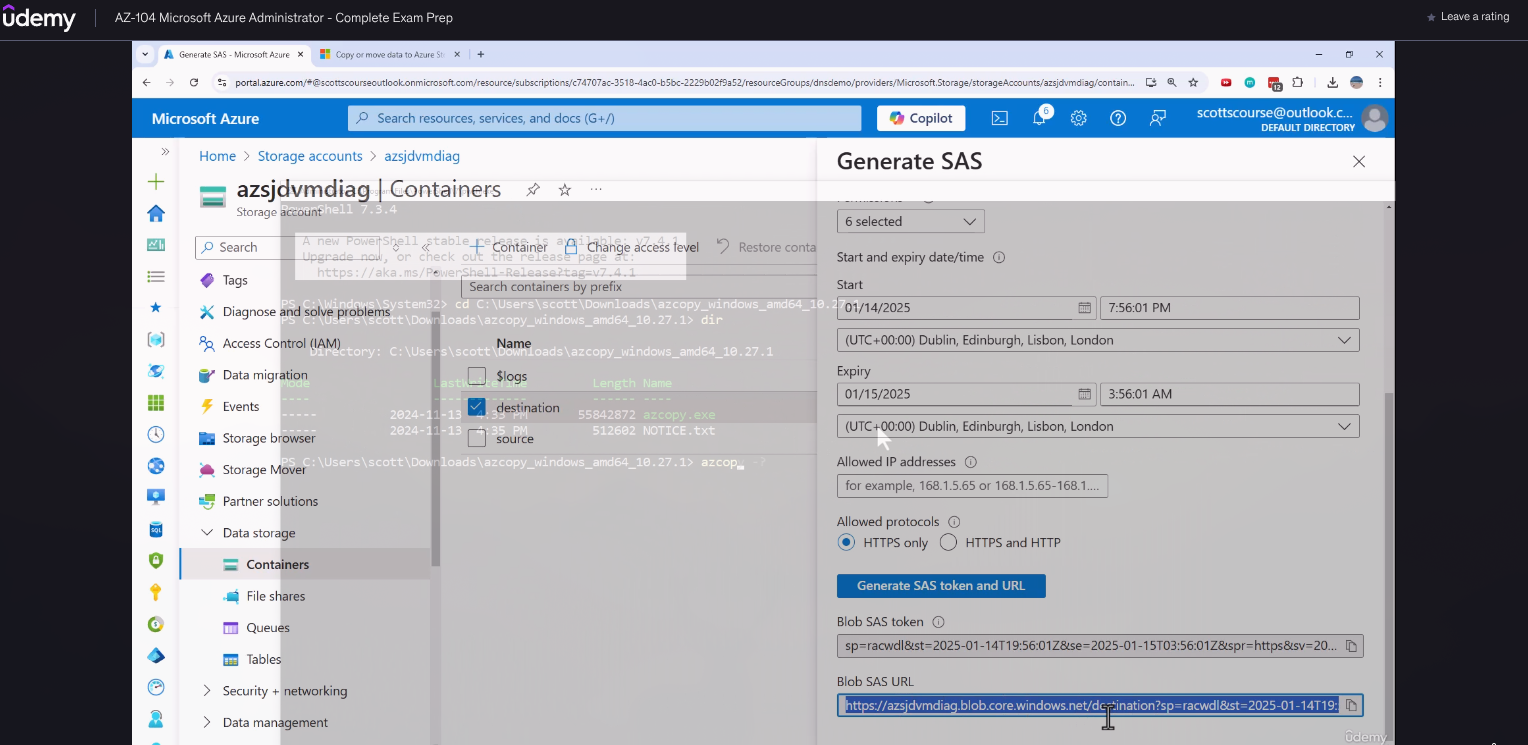
When using SAS tokens with AzCopy, the workflow involves generating a token in the portal and embedding it in the command:
- Navigate to the destination container in the Azure Portal
- Generate a SAS token with full permissions (read, write, delete, list), a reasonable expiry (e.g., 6 hours), and HTTPS only
- Copy the full URL including the storage account name, container path, and the SAS query string
- Use the URL as the destination in the
azcopy copycommand
Command Syntax
The core AzCopy command structure is:
azcopy copy <source> <destination>The source and destination can be local paths or Azure Storage URLs (with SAS tokens or after Entra ID login).
Example from the lecture -- uploading a local MP4 file to a blob container using a SAS token:
azcopy copy "C:\Users\User\Videos\sample.mp4" \
  "https://account.blob.core.windows.net/destination?sv=...&sig=..."
AzCopy displays transfer progress during execution, including bytes transferred and completion status. The file appears in the destination container immediately upon completion.
AzCopy Transfer Patterns
direction: right

local: Local Machine {
  shape: rectangle
  style.fill: "#2563eb"
  style.font-color: "#fff"
}

blob1: Azure Blob Storage\n(Account A) {
  shape: rectangle
  style.fill: "#16a34a"
  style.font-color: "#fff"
}

blob2: Azure Blob Storage\n(Account B) {
  shape: rectangle
  style.fill: "#16a34a"
  style.font-color: "#fff"
}

s3: AWS S3 Bucket {
  shape: rectangle
  style.fill: "#f59e0b"
  style.font-color: "#fff"
}

local -> blob1: Upload files
blob1 -> local: Download files
blob1 -> blob2: Cross-account copy
s3 -> blob1: Migrate from S3
Common AzCopy Commands
# Login with Entra ID
azcopy login

# Copy a single file to blob storage
azcopy copy "/path/to/file.txt" \
  "https://account.blob.core.windows.net/container/file.txt?SAS"

# Recursive directory upload
azcopy copy "/path/to/dir" \
  "https://account.blob.core.windows.net/container?SAS" \
  --recursive

# Sync local directory with container (only copy changed files)
azcopy sync "/path/to/dir" \
  "https://account.blob.core.windows.net/container?SAS"

# Copy between storage accounts (server-side)
azcopy copy \
  "https://source.blob.core.windows.net/container?SAS" \
  "https://dest.blob.core.windows.net/container?SAS" \
  --recursive

# List blobs in a container
azcopy list "https://account.blob.core.windows.net/container?SAS"

# Remove a blob
azcopy remove "https://account.blob.core.windows.net/container/blob?SAS"

# Benchmark transfer performance
azcopy benchmark "https://account.blob.core.windows.net/container?SAS"# Login with Entra ID
azcopy login
# Copy a single file to blob storage
azcopy copy "C:\Data\file.txt" `
"https://account.blob.core.windows.net/container/file.txt?SAS"
# Recursive directory upload
azcopy copy "C:\Data\mydir" `
"https://account.blob.core.windows.net/container?SAS" `
--recursive
# Sync local directory with container
azcopy sync "C:\Data\mydir" `
"https://account.blob.core.windows.net/container?SAS"
# Copy between storage accounts
azcopy copy `
"https://source.blob.core.windows.net/container?SAS" `
"https://dest.blob.core.windows.net/container?SAS" `
--recursive
# List blobs in a container
azcopy list "https://account.blob.core.windows.net/container?SAS"
# Remove a blob
azcopy remove "https://account.blob.core.windows.net/container/blob?SAS"
# Benchmark transfer performance
azcopy benchmark "https://account.blob.core.windows.net/container?SAS"AzCopy Operations Summary
| Operation | Command | Description |
|---|---|---|
| Upload | azcopy copy <local> <remote> | Copy files from local machine to blob storage |
| Download | azcopy copy <remote> <local> | Copy files from blob storage to local machine |
| Server-side copy | azcopy copy <remote1> <remote2> | Copy between storage accounts without downloading locally |
| Sync | azcopy sync <source> <dest> | Only transfer changed/new files (like rsync) |
| List | azcopy list <remote> | List blobs in a container |
| Remove | azcopy remove <remote> | Delete blobs from storage |
| Benchmark | azcopy benchmark <remote> | Test upload performance to a container |
Performance Tuning
AzCopy performance can be tuned with environment variables:
| Environment Variable | Description | Default |
|---|---|---|
AZCOPY_CONCURRENCY_VALUE | Number of concurrent transfers | Auto-detected based on CPU cores |
AZCOPY_BUFFER_GB | Buffer size for download/upload operations | Auto-detected based on available memory |
# Example: increase concurrency for high-bandwidth connections
export AZCOPY_CONCURRENCY_VALUE=32
export AZCOPY_BUFFER_GB=4

azcopy copy "/path/to/largedir" \
  "https://account.blob.core.windows.net/container?SAS" \
  --recursive
Advantages Over the Portal UI
- Batch operations -- upload or download entire directories recursively
- Scriptable -- integrate into shell scripts, CI/CD pipelines, scheduled tasks
- Faster for large files -- direct transfer without browser overhead
- Automation-friendly -- combine with cron jobs or Windows Task Scheduler
- Cross-account copies -- server-side copy between accounts without downloading locally
- Sync capability -- only transfer changed files, reducing bandwidth and time
Storage Browser (Azure Portal)
What Is Storage Browser?
Storage Browser is a web-based file manager built into the Azure Portal. It is located on the left sidebar of each storage account and provides a unified view of all storage services.
Functionality
- Blob containers -- browse, upload, download, and manage blobs
- File shares -- browse directories and files within Azure Files
- Queues -- view and manage queue messages
- Tables -- browse table entities
- Copy and paste -- copy a file from one container and paste it into another container
- Clone -- duplicate a file within the same or different container (available from the three-dots menu)
- Cross-container operations -- select a file, copy, navigate to a different container, paste
SAS Token Generation
Storage Browser can generate SAS tokens for specific files directly from the three-dots context menu:
- Select a file, click the three-dots menu, choose Generate SAS
- Configure permissions and expiry, then generate the token
Key Requirement
SAS generation from Storage Browser requires storage account key access to be enabled. If key access has been disabled (Entra-only accounts), the SAS generation option will not work. You will see an error indicating that the key is not available.
Azure Storage Explorer (Desktop App)
What Is Storage Explorer?
Azure Storage Explorer is a free, standalone desktop application that provides a graphical interface for managing Azure Storage resources. It offers similar functionality to Storage Browser but runs as a native application on your machine.
- Platforms: Windows, macOS, Linux
- Cost: Free
- Download: Azure Storage Explorer
Connection Methods
Storage Explorer supports multiple authentication and connection methods:
| Method | Description |
|---|---|
| Entra ID | Sign in with your Azure account, access governed by RBAC |
| Account key | Connect using the storage account access key |
| SAS URI | Paste a SAS URL to connect to a specific container or blob |
| Connection string | Use the full connection string from the storage account |
Advantages and Disadvantages
| Aspect | Detail |
|---|---|
| Advantages | Desktop app, potentially faster UI, persistent connection, supports all storage services |
| Disadvantages | Separate installation required, must be kept updated |
Screenshot
Storage Account Navigation Menu
File Share Access Alternatives
Azure file shares can be accessed through multiple methods beyond the portal:
- Native SMB mount -- mount the file share as a drive letter (Windows) or mount point (Linux) using standard OS tools
- Storage Browser -- web-based management through the Azure Portal
- Storage Explorer -- desktop application for graphical file management
- AzCopy -- command-line transfers for bulk operations
Tool Comparison
| Feature | Storage Browser | Storage Explorer | Native SMB | AzCopy |
|---|---|---|---|---|
| Access | Web portal | Desktop app | Native OS | CLI |
| Copy/paste | Yes | Yes | Native tools | Yes |
| SAS generation | Yes (if keys enabled) | Yes | No | N/A (consumer) |
| Installation | None | Required | Via OS | Required |
| Bulk operations | Limited | Good | Good | Best |
| Automation | No | Limited | Scriptable | Best |
| Platform | All (web browser) | Win/Mac/Linux | Win/Linux | Win/Mac/Linux |
Choosing the Right Tool
Decision Guide
- One-off file browsing or copy/paste -- use Storage Browser in the portal (zero install)
- Regular file management with a GUI -- install Azure Storage Explorer
- Bulk uploads, migrations, or scheduled transfers -- use AzCopy
- Application-level file access -- mount the file share via SMB
- CI/CD pipeline integration -- AzCopy with SAS tokens or managed identity
Lab: AzCopy and Storage Tools
Step 1 -- Install AzCopy on your machine
# Linux
wget https://aka.ms/downloadazcopy-v10-linux \
  && tar -xvf downloadazcopy-v10-linux \
  && sudo cp ./azcopy_linux_amd64_*/azcopy /usr/bin/

# macOS
brew install azcopy

# Windows (PowerShell)
winget install Microsoft.AzCopy

# Verify installation on any platform
azcopy --version
Step 2 -- Authenticate with Entra ID or generate a SAS token
# Option A: Login with Entra ID (interactive browser login)
azcopy login

# Option B: Generate a SAS token from the portal
# 1. Navigate to your storage account > Containers > your-container
# 2. Click "Shared access tokens"
# 3. Set permissions: Read, Write, Delete, List
# 4. Set expiry: 6 hours from now
# 5. Set protocol: HTTPS only
# 6. Click "Generate SAS token and URL"
# 7. Copy the "Blob SAS URL"

# Store the SAS URL in a variable for convenience
SAS_URL="https://<account>.blob.core.windows.net/<container>?sv=...&sig=..."
Step 3 -- Upload a single file to blob storage
# Create a test file
echo "AzCopy lab test file - $(date)" > /tmp/azcopy-test.txt

# Upload using SAS token
azcopy copy "/tmp/azcopy-test.txt" "${SAS_URL}"

# Or with Entra ID (no SAS needed)
azcopy copy "/tmp/azcopy-test.txt" \
  "https://<account>.blob.core.windows.net/<container>/azcopy-test.txt"

# Verify the upload
azcopy list "${SAS_URL}"
Observe the transfer progress output: bytes transferred, elapsed time, and completion status.
Step 4 -- Upload a directory recursively
# Create a test directory with multiple files
mkdir -p /tmp/azcopy-lab/{subdir1,subdir2}
echo "File A" > /tmp/azcopy-lab/file-a.txt
echo "File B" > /tmp/azcopy-lab/subdir1/file-b.txt
echo "File C" > /tmp/azcopy-lab/subdir2/file-c.txt

# Upload the entire directory recursively
azcopy copy "/tmp/azcopy-lab" "${SAS_URL}" --recursive

# List to verify all files are uploaded
azcopy list "${SAS_URL}"
Step 5 -- Sync a local directory with a container
# Add a new file to the local directory
echo "File D - added after initial upload" > /tmp/azcopy-lab/file-d.txt

# Sync only uploads new or changed files
azcopy sync "/tmp/azcopy-lab" "${SAS_URL}"

# Verify the new file was uploaded without re-uploading existing files
azcopy list "${SAS_URL}"
Note how sync only transfers file-d.txt -- existing unchanged files are skipped.
Step 6 -- Use Storage Browser to copy a file between containers
- Navigate to your storage account in the Azure Portal
- Click Storage Browser in the left sidebar
- Expand Blob containers and open the source container
- Select a file, click the three-dots menu, choose Copy
- Navigate to a different container (create one if needed)
- Click Paste in the toolbar
- Verify the file appears in the destination container
This demonstrates the cross-container copy/paste functionality that is unique to Storage Browser compared to the standard container view.
Step 7 -- (Optional) Install Azure Storage Explorer and connect
- Download Azure Storage Explorer from https://azure.microsoft.com/products/storage/storage-explorer/
- Install and launch the application
- Click Add an account and choose your preferred connection method:
- Entra ID -- sign in with your Azure credentials
- SAS URI -- paste a SAS URL
- Connection string -- paste from the portal
- Browse your storage account, containers, file shares, queues, and tables
- Try copying a file between containers using the desktop interface