Scott: Now, we already know that if you want
to upload a file into a storage account,
you can use the portal through the browser.
You could upload a file into the storage account manually
at this user interface,
but this is definitely not the most efficient way
to do this.
Now, what if you have two storage accounts,
and you wanna move a file or copy a file
from one storage account to the other?
It doesn't seem very efficient as well
to then download the file to your local machine,
go over to this other storage account,
and upload the file there.
We need some kind of tool that allows us to copy files
into and out of a storage account
or between storage accounts
in the most efficient manner possible.
That tool is called AzCopy,
so you can go into your favorite search engine
and search for AzCopy.
Now, this tool hasn't changed in many years.
AzCopy V10 is still the latest version.
If you want to download it,
it comes across many different operating system.
so we got Windows and Linux and Mac.
It also has RPM and other types of Linux installers
that it supports, APT.
So I'm gonna start PowerShell here,
and we're going to CD into the directory.
I downloaded Windows 64-bit version
and extracted the zip file,
and I have AzCopy running here as a standalone program.
Now, there's a couple of ways that we can use it.
We can obviously log into Entra using AzCopy
and have permissions that are granted by RBAC,
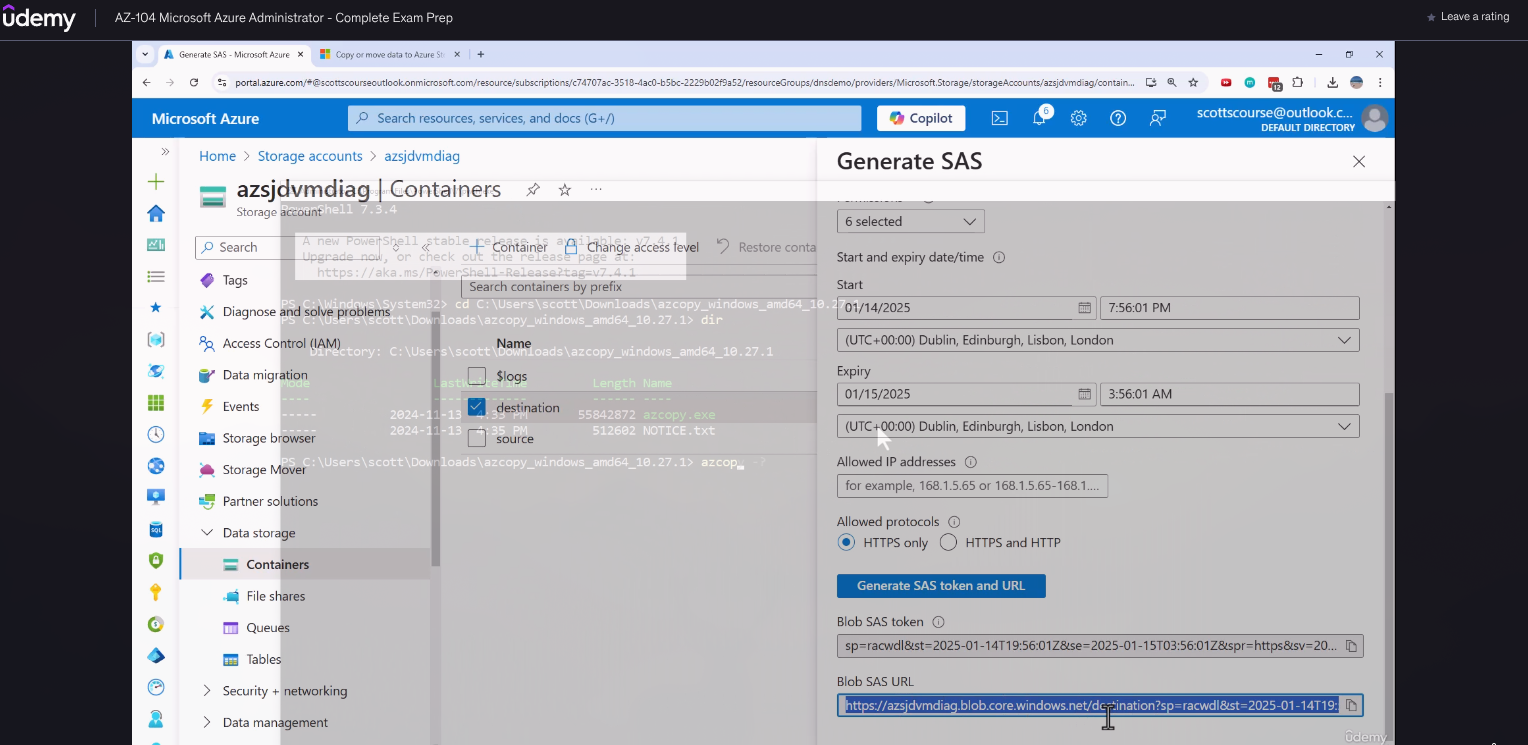
or one way that I like to use it is through an SAS token.
So let's say I want to go back to my containers,
I want to go to this destination folder,
but I want to generate the SAS for this destination folder.
I'm gonna use the storage account key.
I want to be able to write files using this,
let's give it full permissions.
For a limited time, it looks like it's about six hours,
and HTTPS, and I wanna say generate SAS token,
and I'm gonna copy the whole URL,
including the storage account and the folder name.
So I can say AzCopy, the command is copy.
I have to choose the source file for this,
and then the destination,
which I just created the SAS token.
All right, so I picked a random MP4 file off of my computer,
and I'm gonna be uploading it into the destination container
of this storage account.
Again, we're using the SAS token that I generated
so I would have permissions to write.
Now it is running, and I can see transfers completed,
the number of bytes transferred, et cetera.
If I go back into the destination,
I can see the file I just uploaded is there already.
So AzCopy allows us to manipulate files, again,
between storage accounts
or from your local to storage account, copy blobs,
synchronize blobs, et cetera, using a command line,
which is a lot more efficient
than doing everything through the browser.